


The all-in-one automation suite for brand identity designers





Works with Adobe Illustrator 2021 - 2026
Deliver flawless
Everything you need, in one poweful suite


Try Akrivi Studio, includes automated templates that generates layouts for you

How to Create Brand Guidelines for a Wordmark Using Guideit


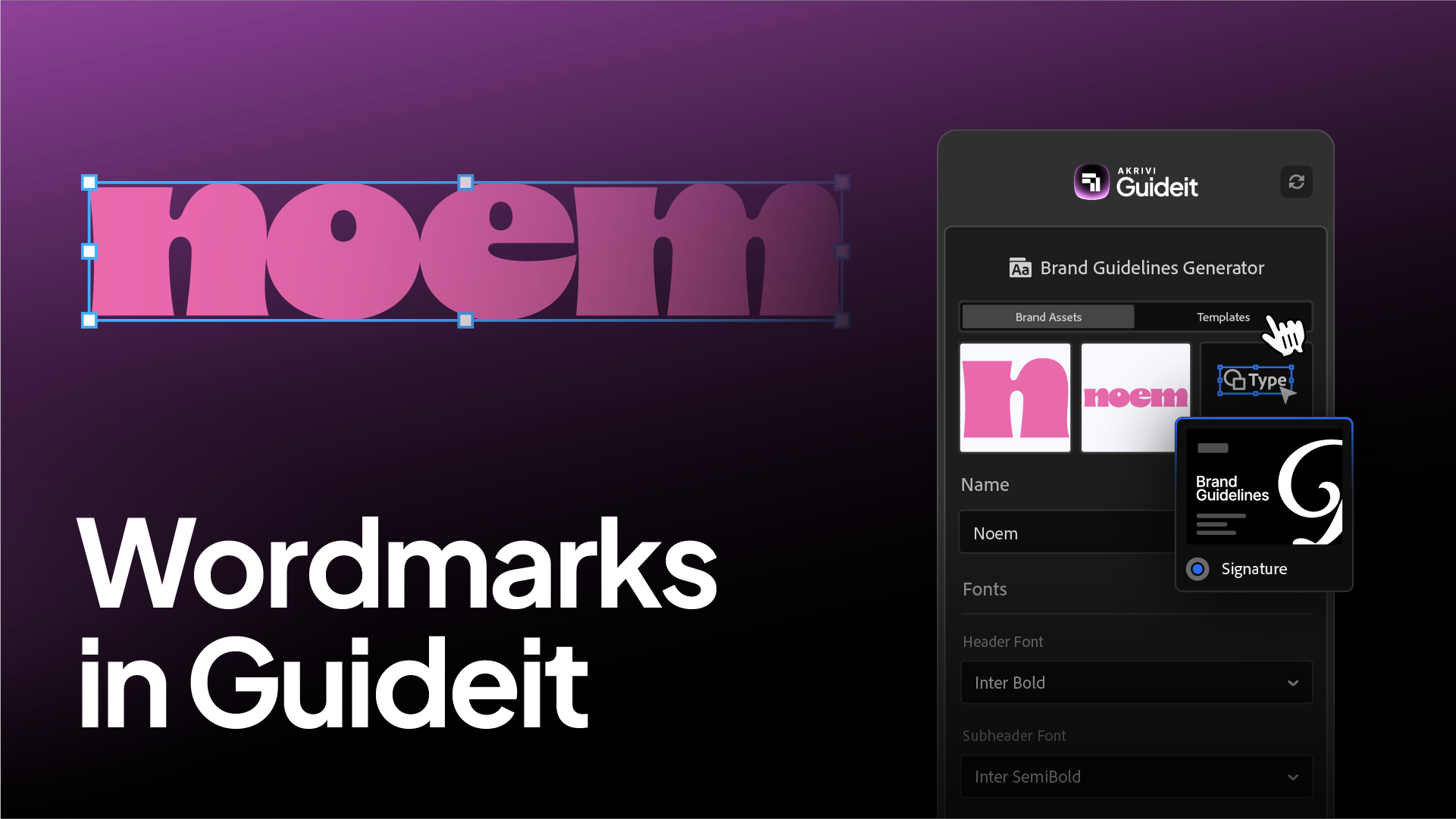
Learn which Guideit template works best for wordmark brand guidelines.
If you are working with a wordmark, a logo that is just text, like Fedex or Google, you cannot use just any template in Guideit.
Most of our templates, like Corporate or Tech, are designed for brands that have three distinct assets, a Logomark (icon), a Logotype (name), and a Full Logo (the lockup of both).
A wordmark doesn't fit this structure because it doesn't have a separate Full Logo lockup. If you try to use a standard template, you will end up with redundant pages or empty layouts where the system expects a lockup that doesn't exist.
The Signature template is different. It is designed specifically for this use case by removing the Full Logo page entirely. It focuses strictly on two elements, the Wordmark and the Icon.
Here is how to set it up correctly.
How to Set Up Your Assets
To use the Signature template, you need to input your assets in a specific way. If you try to fill every slot, the system will actually give you an error because the template isn't built to handle a Full Logo.
Here is the correct setup in the Brand Assets tab:
1. Upload the Initial as the Logomark
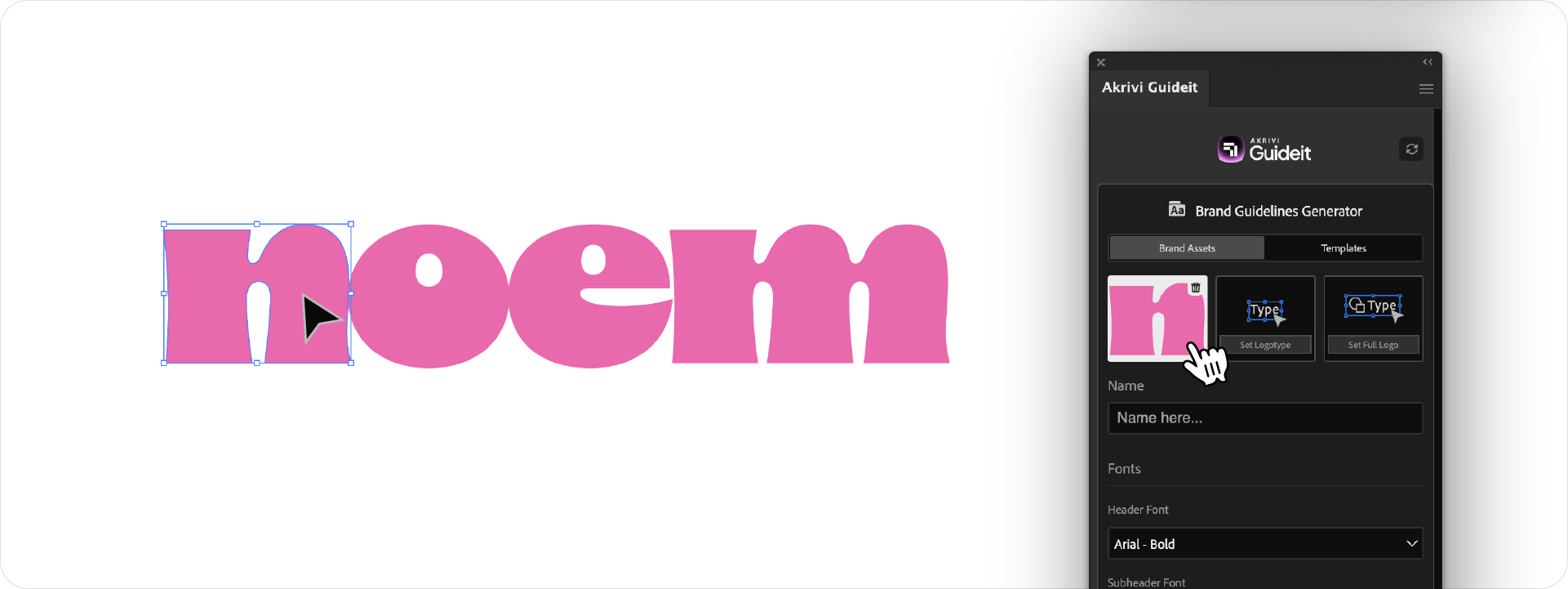
Every brand needs a responsive icon for social media avatars or favicons. For some wordmarks, this is usually just the initial letter, like the n for noem.
- Action: Upload your responsive icon or initial in the Logomark slot.
- Result: This generates specific "Icon" pages (like Page 2.1 in the example).
2. Upload the Wordmark as the Logotype
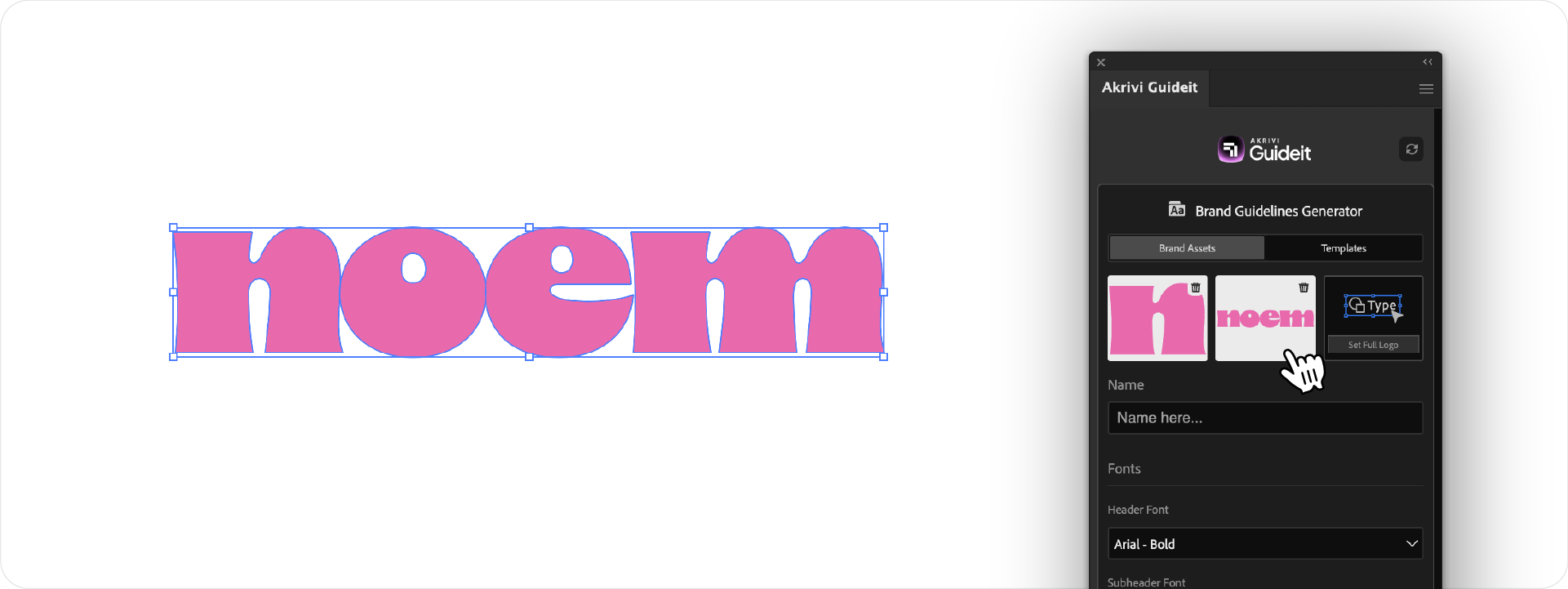
This is your main logo.
- Action: Upload your full text logo in the Logotype slot.
- Result: This generates the primary Wordmark pages (like Page 2.2).
3. Leave the Full Logo Slot Empty

This is the most important step. Since the Signature template doesn't have a Full Logo page, you must leave this slot blank.
- Action: Do not upload anything here.
- Result: If you try to upload a file here, Guideit will ask you to remove it before generating.
The Result
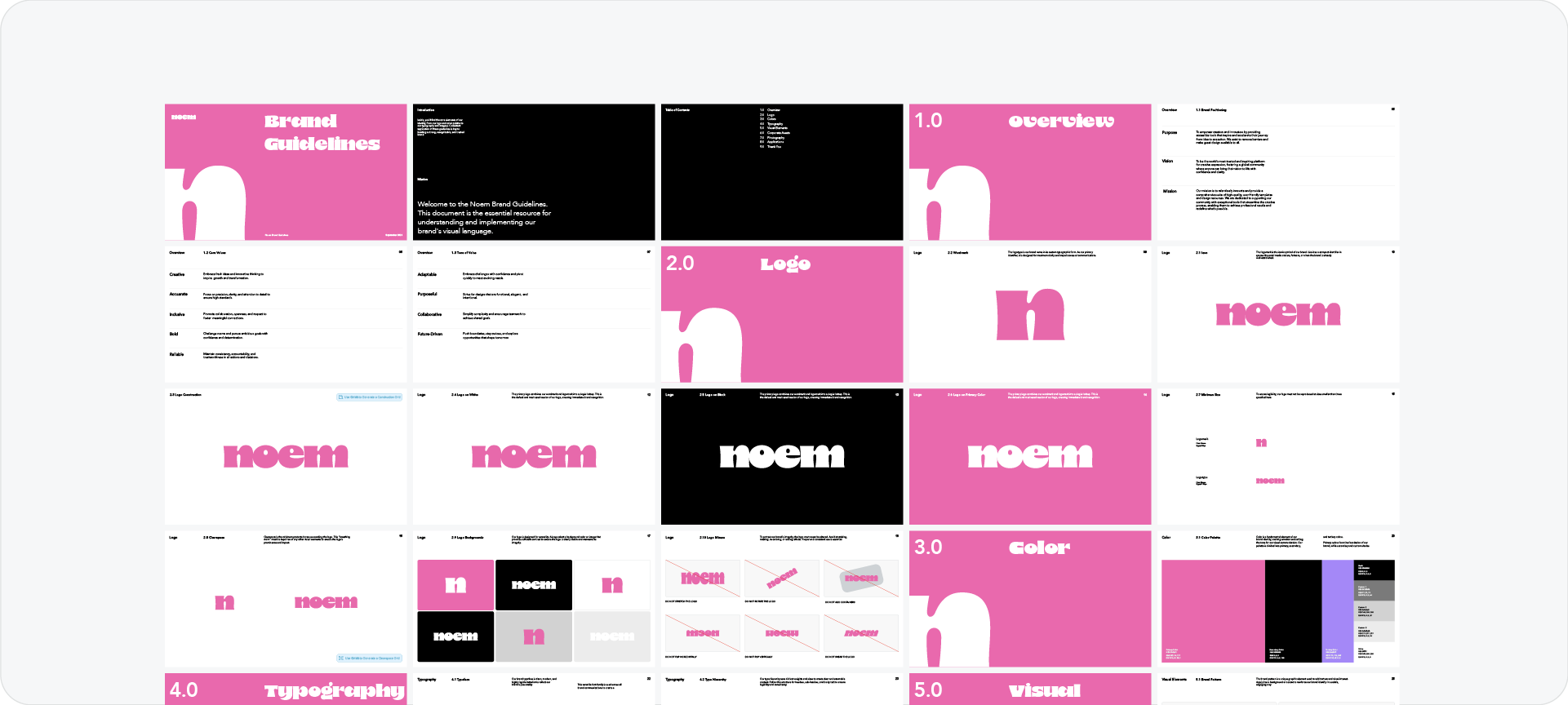
Once you hit Generate, the plugin builds a document that is structurally correct for a wordmark brand.
Instead of trying to force a three-part system, you get a clean document that highlights your typography and your responsive icon, with no missing pages or awkward gaps.
Generate for Free with Akrivi Studio.

Conclusion
Wordmarks require a different structure than standard logos. By using the Signature template and leaving the Full Logo slot empty, you ensure your brand guidelines are accurate, professional, and free of redundancy.



