

Generate professional brand guidelines in seconds, not hours
Use a brand guidelines generator in Adobe Illustrator to create consistent, client-ready brand systems with automated templates.




3 Day Free Trial - Cancel anytime
Brand guidelines
made faster and easier

Automated Templates
Create consistent brand guidelines using automated templates for real client projects.

Save Time & Money
Automate repetitive layout work and reduce hours spent editing brand guidelines templates manually.

Focus on Brand Design
Let automation handle structure and updates so you can focus on the creative brand system.
Automate your brand guidelines
in 5 simple steps
Upload brand assets
Start with the brand’s essentials — logo, colors, and typography.

Choose a template
No need to buy expensive, static brand guidelines templates that cost up to $400.
Click to generate
Instantly turn your brand assets into clear, brand guidelines — with automated layouts and rules.
Share with clients
Export your brand guidelines directly to Google Drive and share them with clients in one click.
Update instantly
Need to change a logo, color, image, or copy? Use Apply Changes to update every page automatically.
Brand guidelines your clients
trust and understand
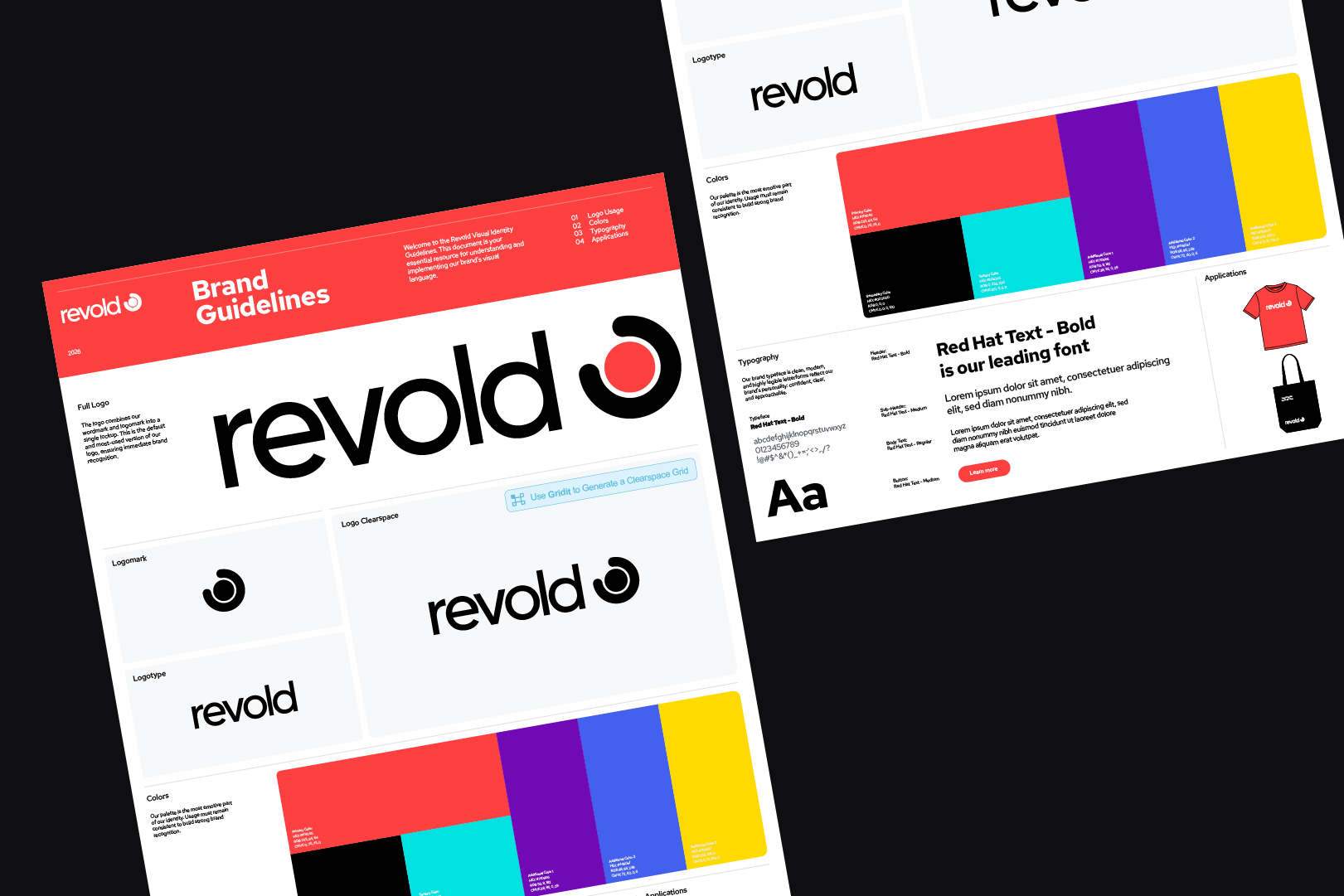
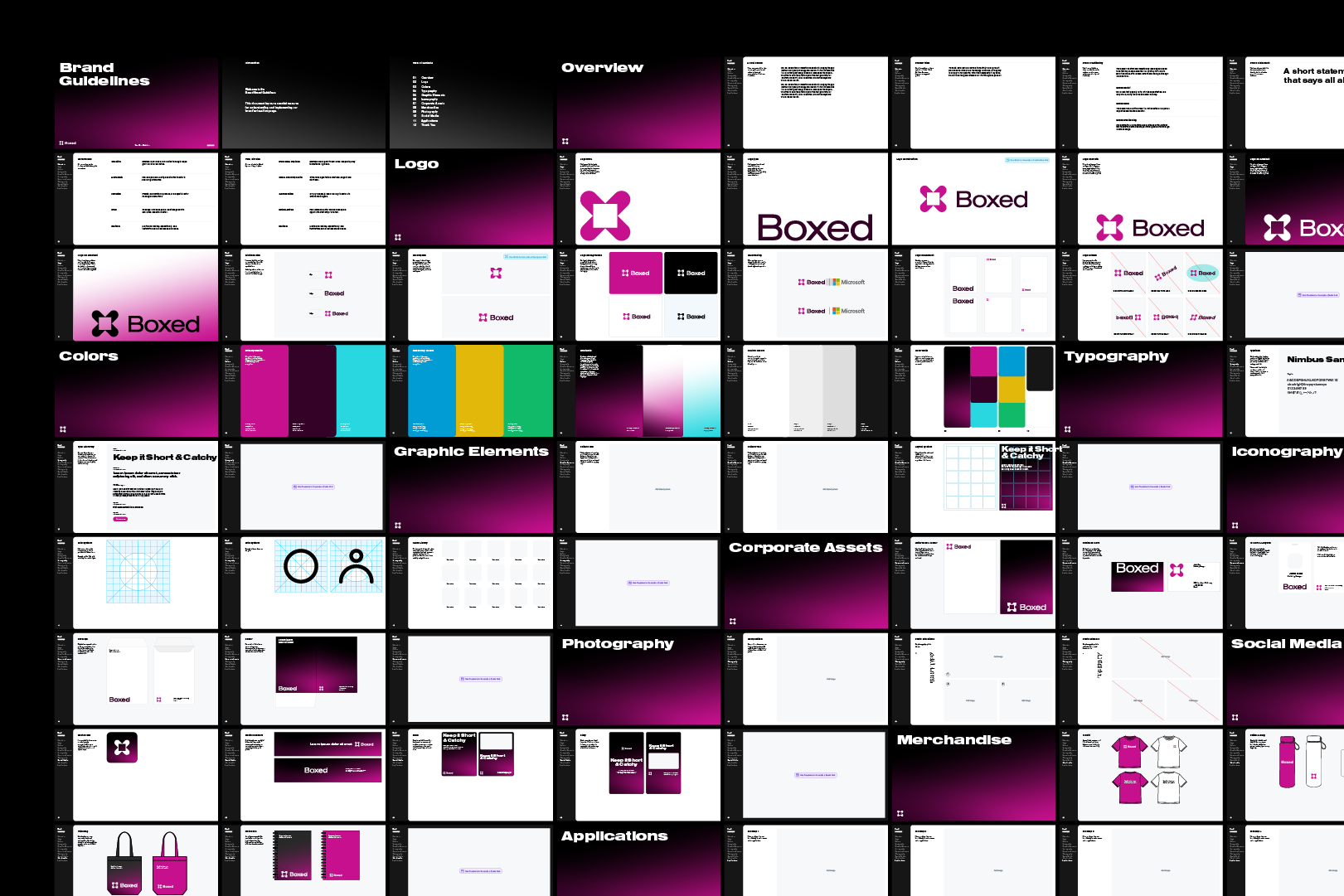
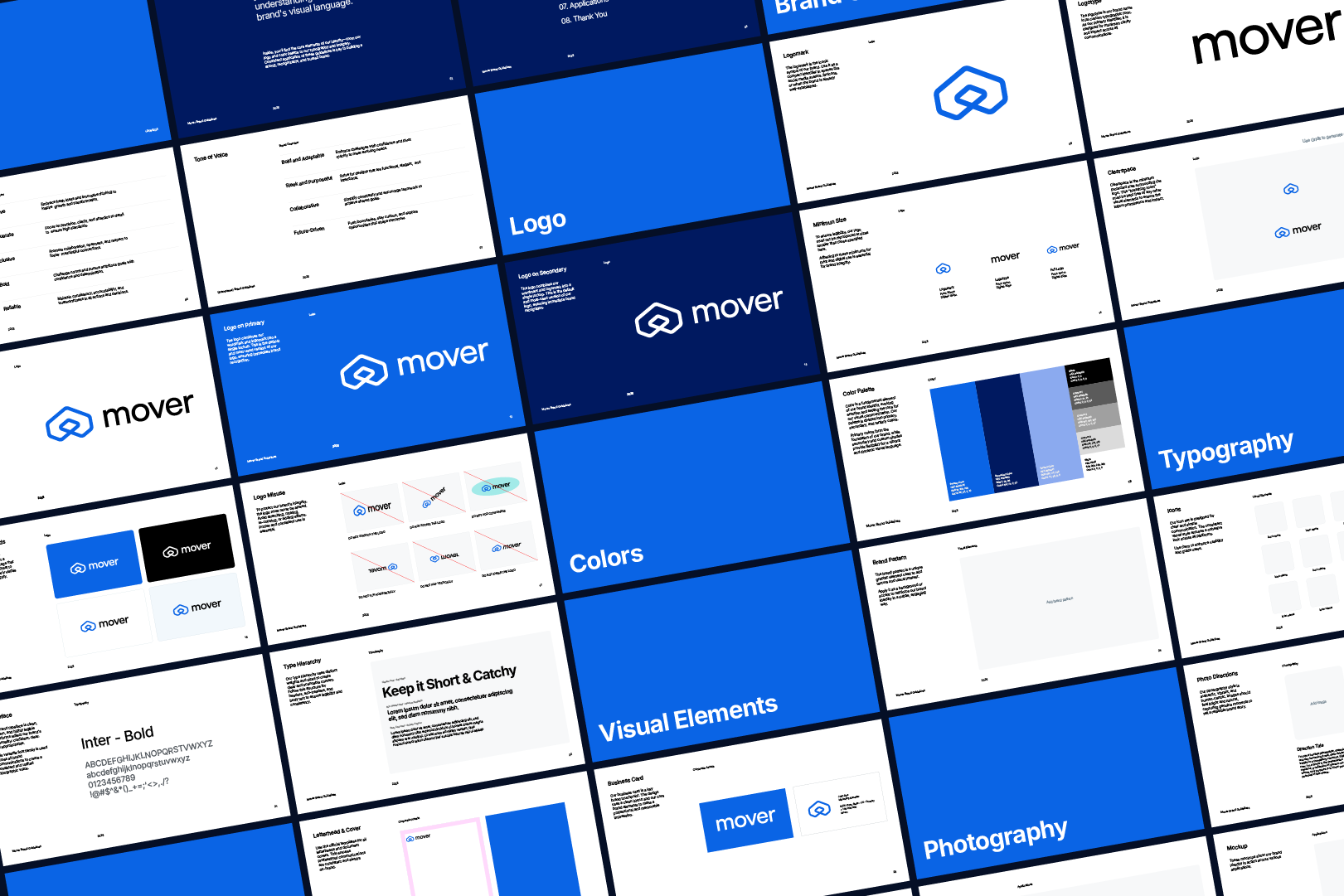
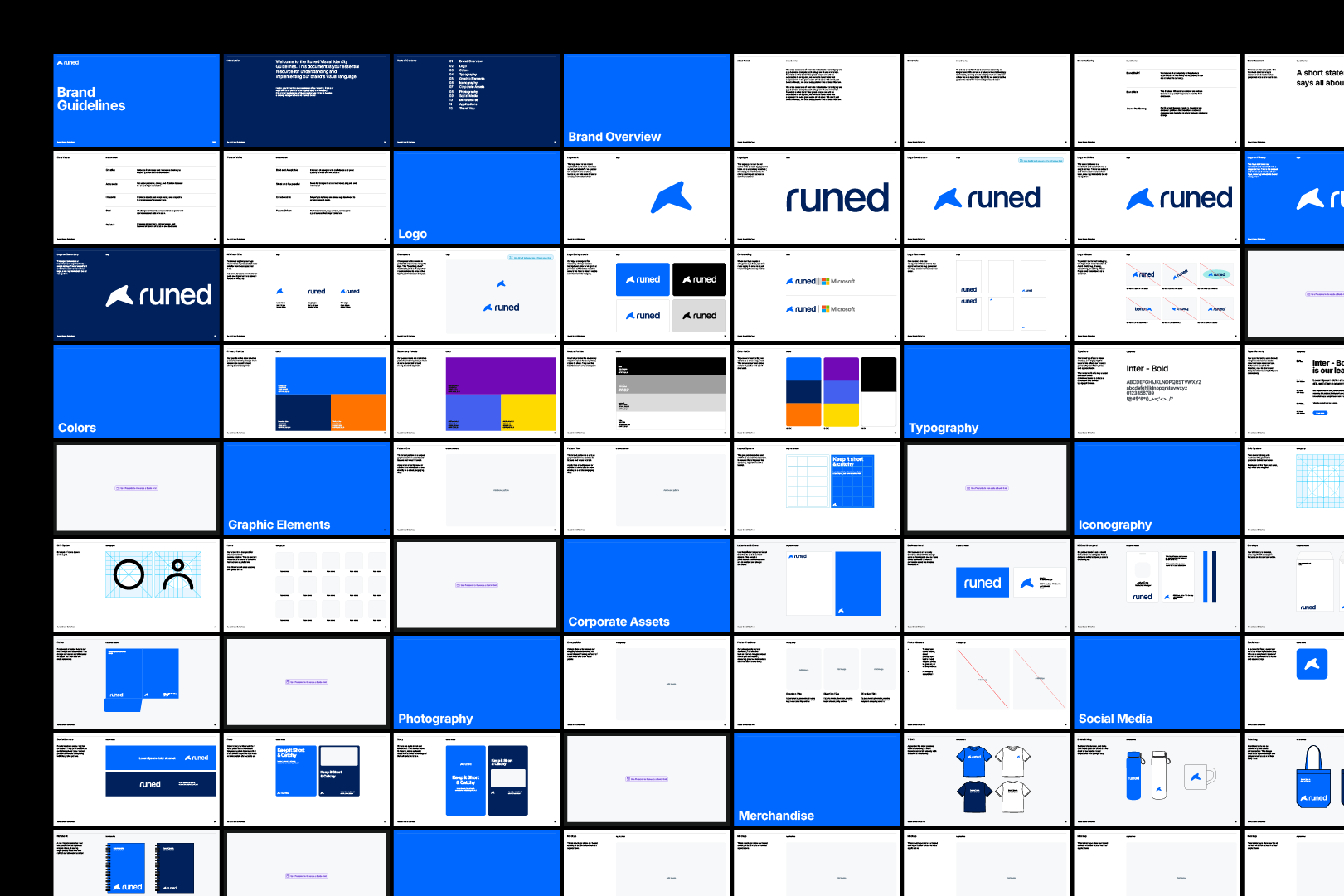
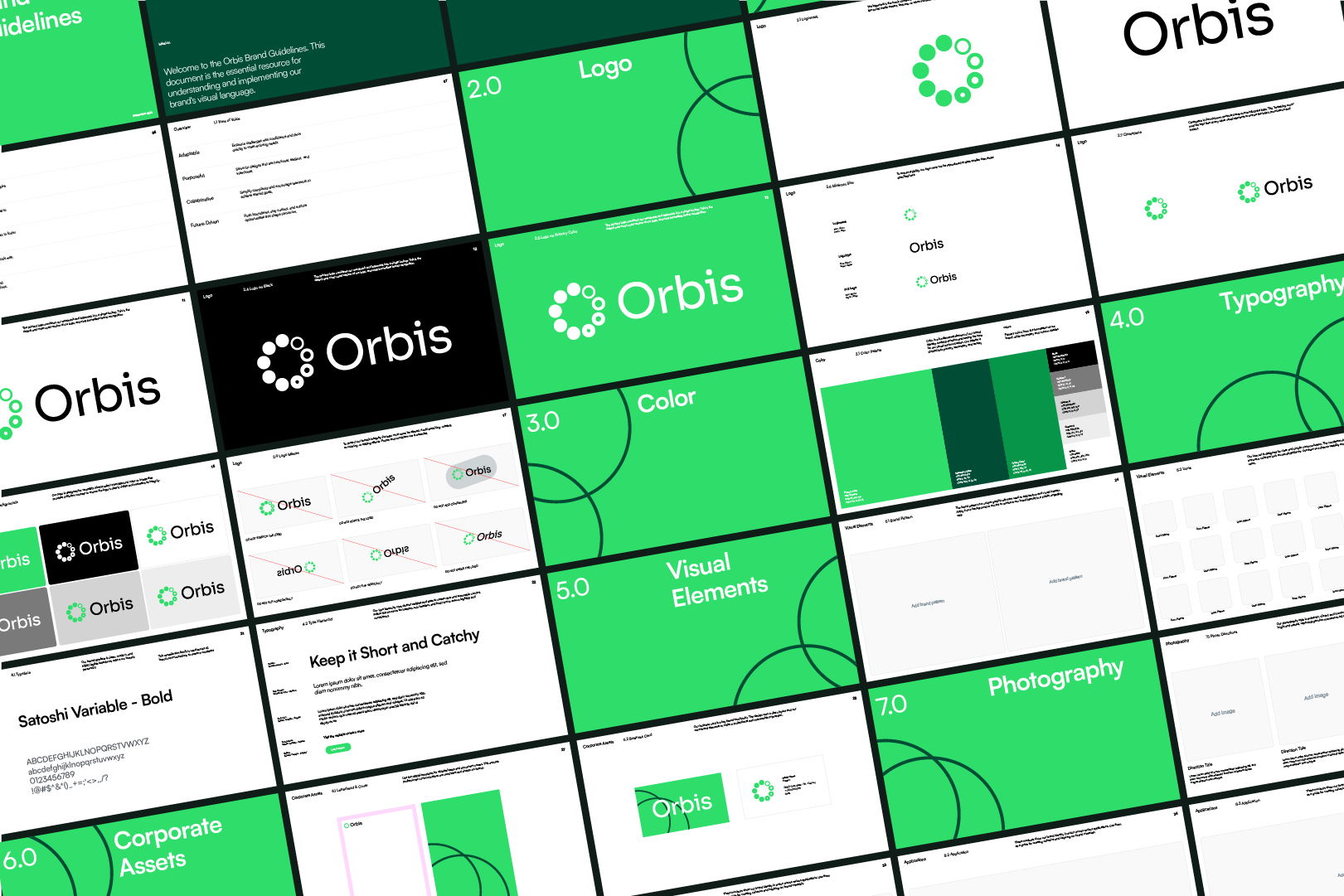
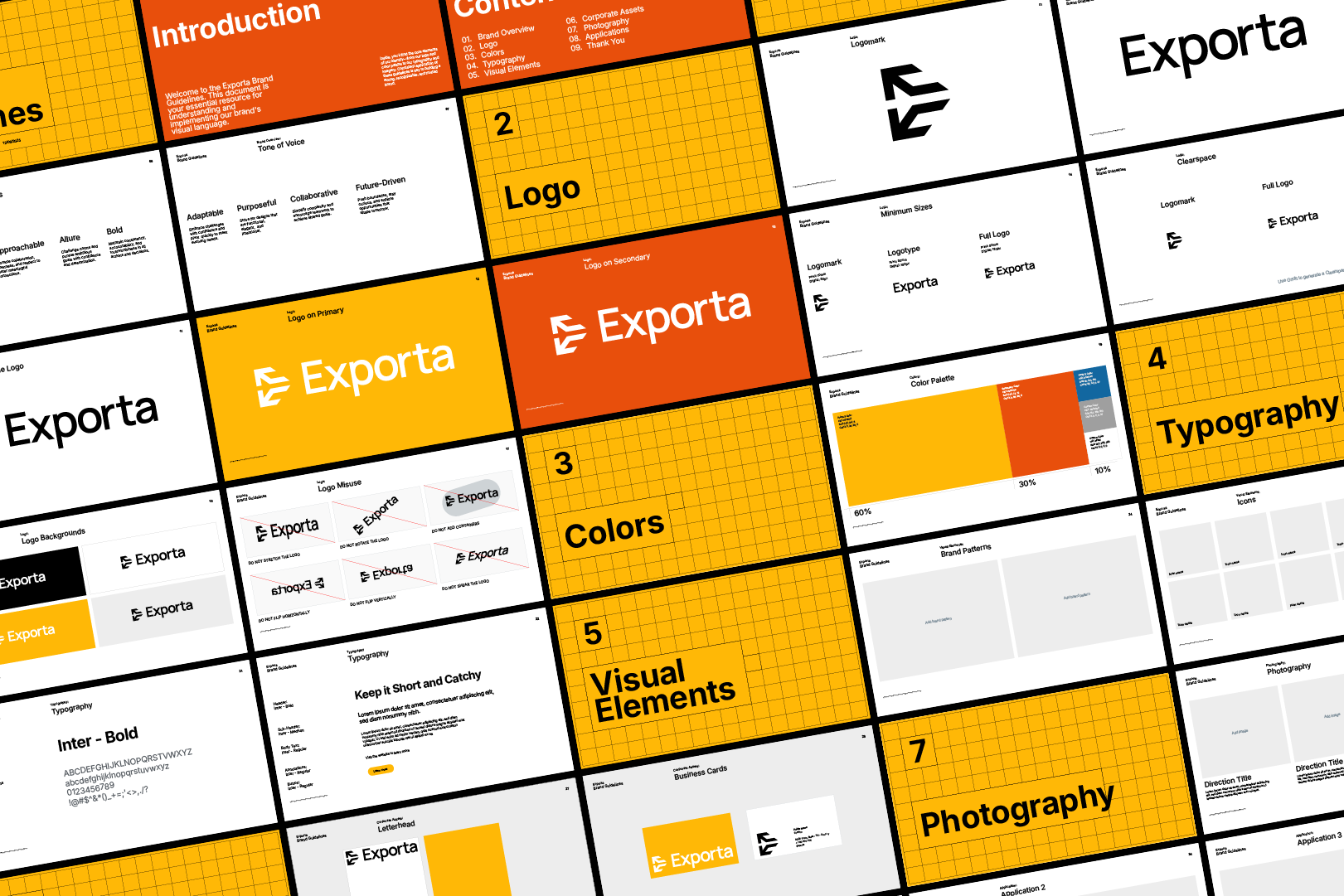
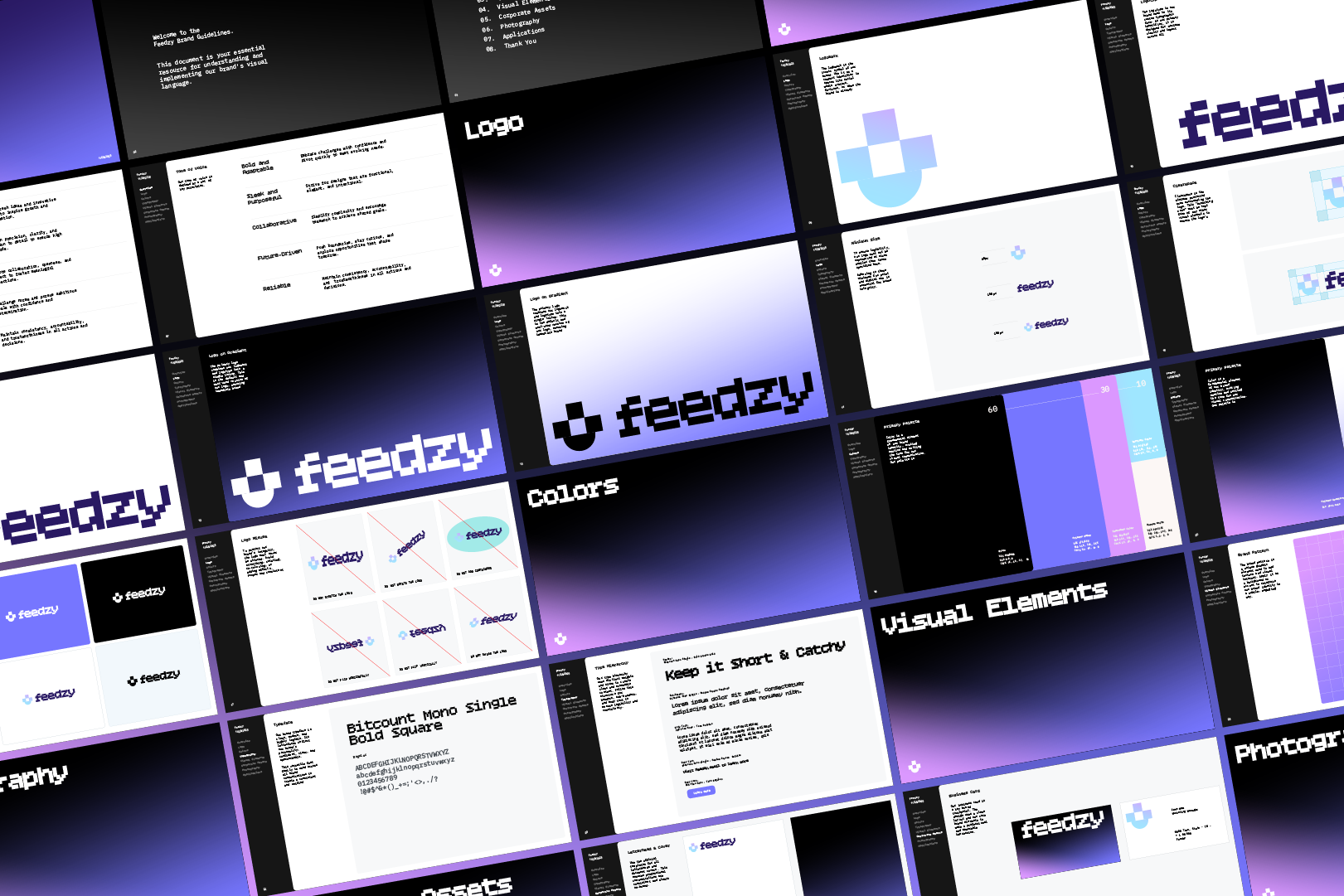
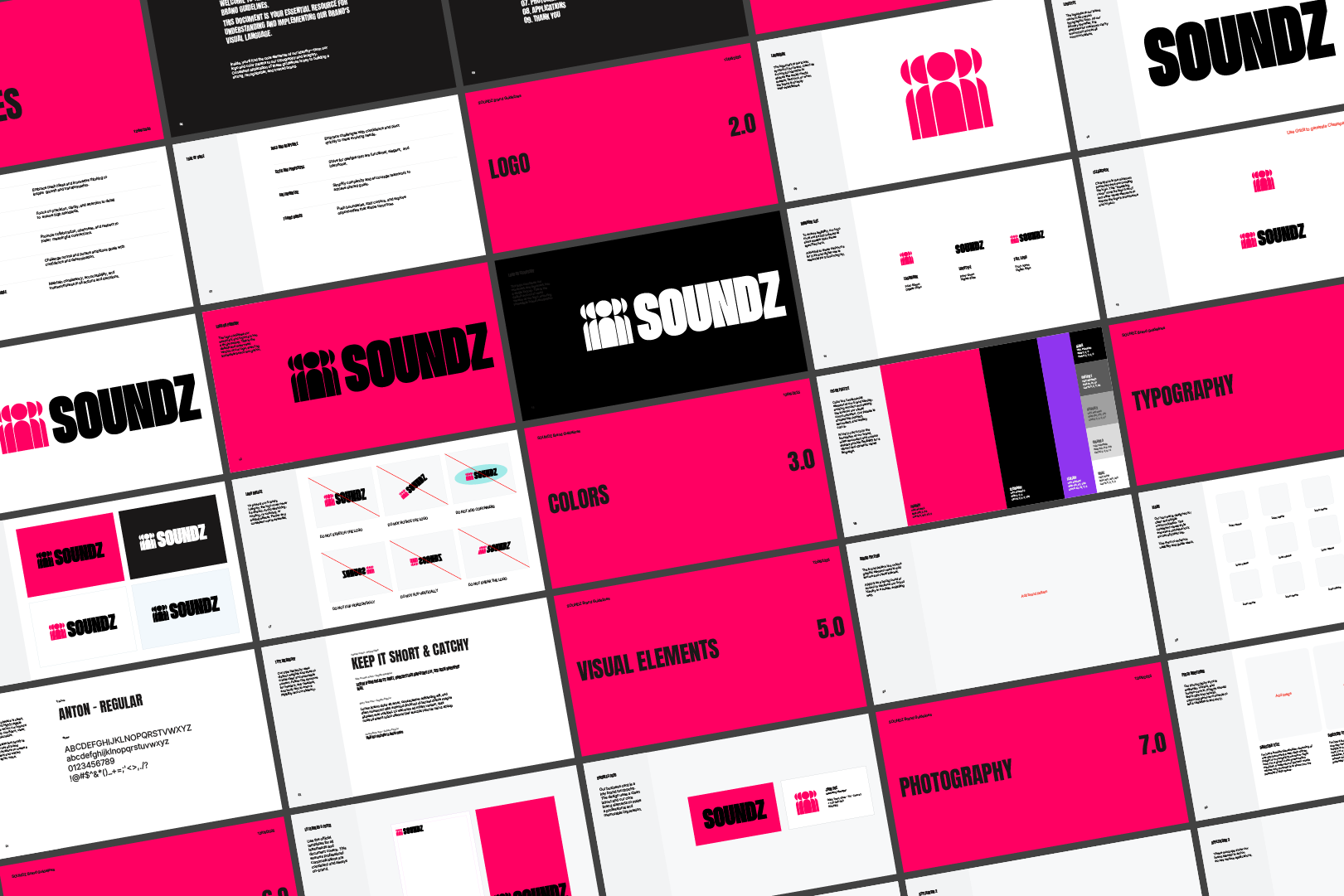
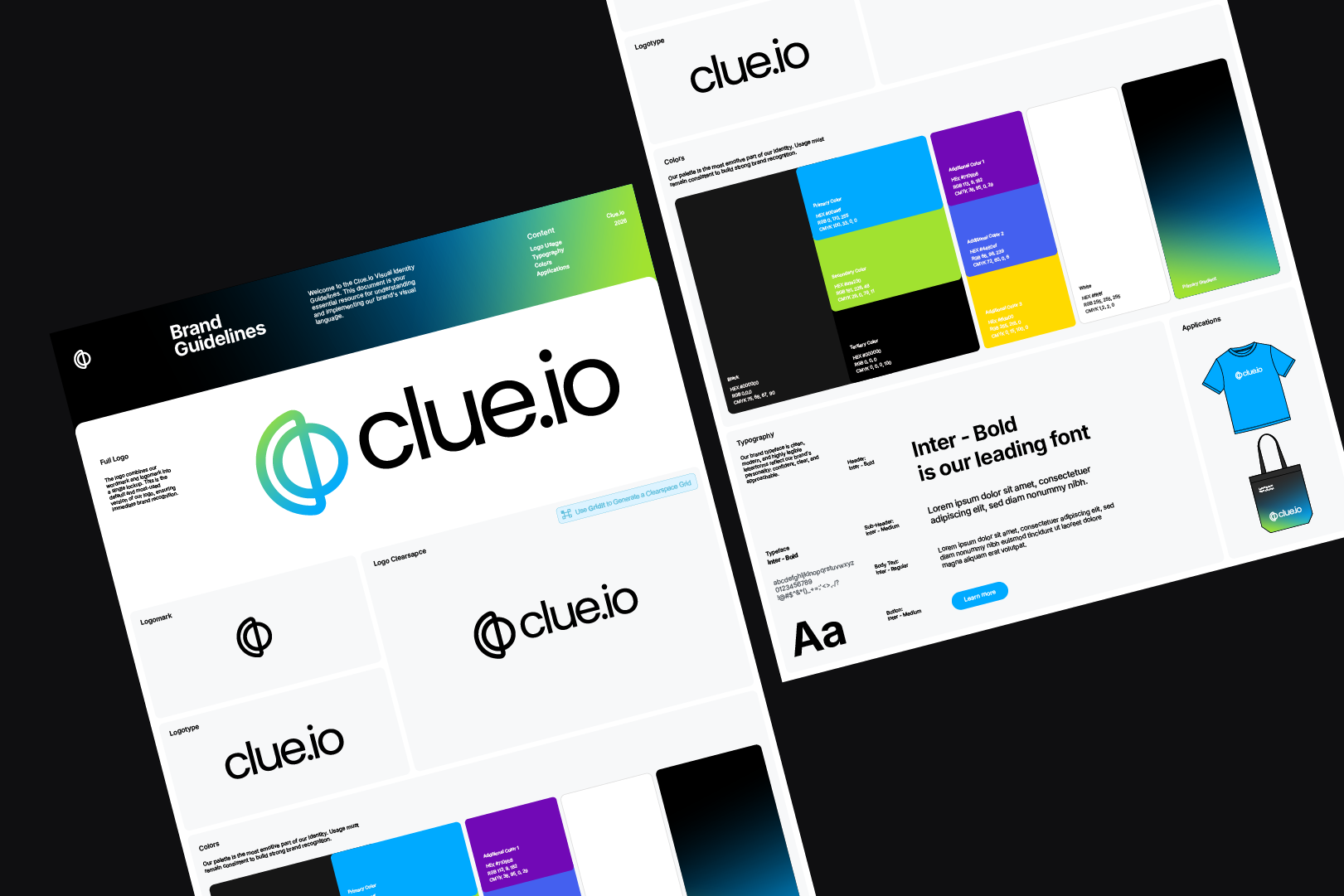
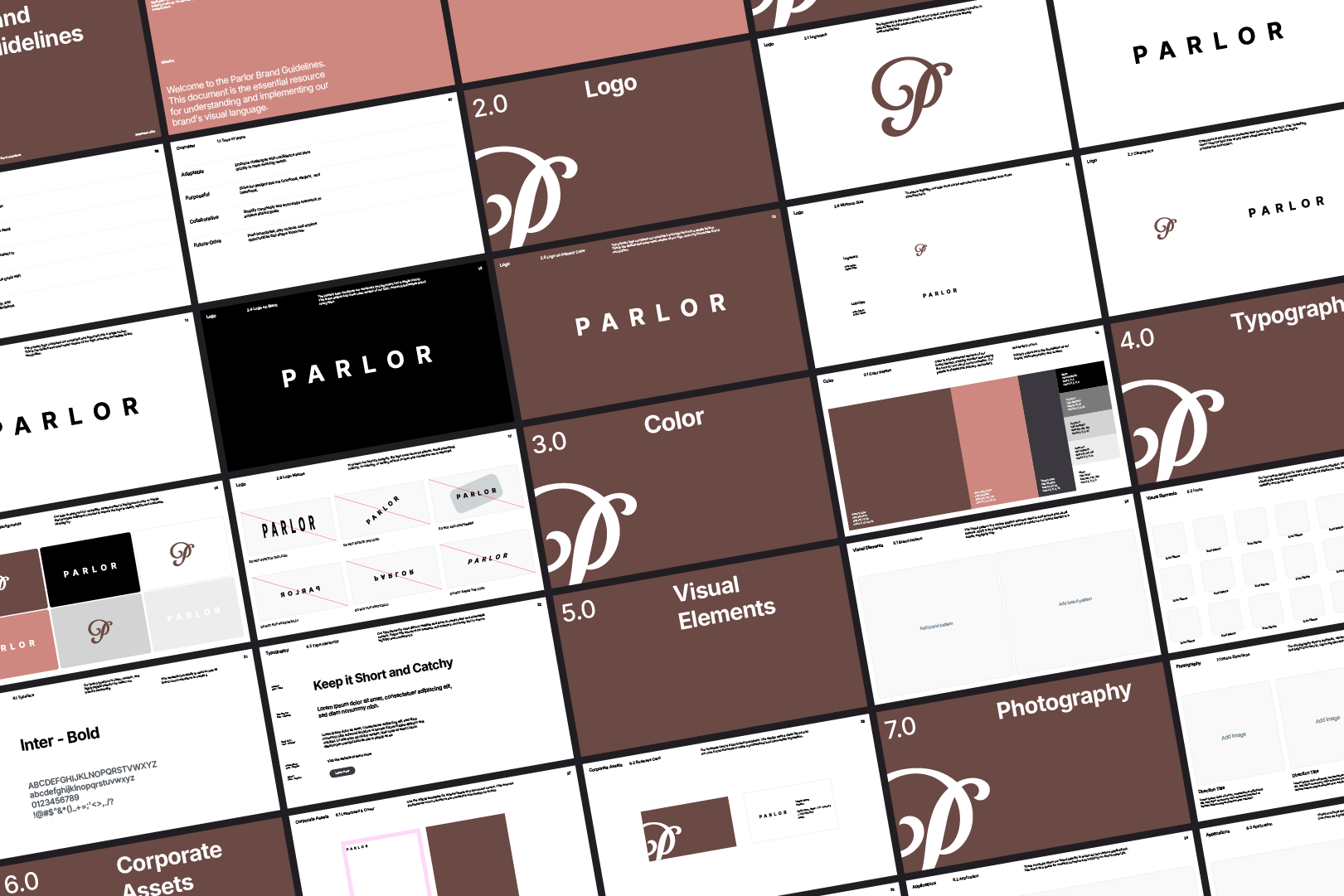
Guideit pays for itself instantly,
by saving you time and money.
1 click = $400+ saved
3 Day Free Trial - Cancel anytime
Create brand guidelines 10x faster, instead of spending
8–40 hours, and $40–$400 on static templates.
Your entire workflow,
automated.
All Akrivi tools for your complete brand identity design process
Akrivi Studio
3 Day Free Trial

Cancel anytime during 3-day trial





FAQs
How does the Akrivi free trial work?

Your trial starts immediately after checkout and lasts 3 days. You’ll be charged only if you don’t cancel before it ends. Learn more about the trial here.
Do I get updates?

Absolutely. Your subscription includes all new features, improvements, and tool releases.
Can I cancel anytime?
Yes. You can cancel your subscription at any time, and your access will continue until the end of your billing period.
Can I get a refund?
Refunds are not offered.
All subscriptions include a free trial to test the tools before payment. Because Akrivi provides instant value, you must cancel before the trial ends if you don’t wish to continue.
A refund is only considered for verified technical issues reported within the 3 day trial period.
How many machines can I use it on?
You can install Akrivi on two devices as long as they belong to you.
Does Akrivi work on both Mac and Windows?
Yes. Akrivi Studio supports Adobe Illustrator on both macOS and Windows. Although, the tools do perform better on macOS.
What versions of Illustrator are supported?
Akrivi supports Adobe Illustrator 2021 to 2026.
Is this a one-time purchase or a subscription?
Akrivi Studio is a subscription that gives you continuous updates, new tools, and ongoing support.
Do you offer student discounts?
We currently don't offer student discount, however new designers can start with the free trial.
Is this available for Affinity Designer or Figma?
Akrivi currently doesn't offer any tools for Affinity Designer or Figma. It may come in the future.
Design and deliver 10X faster
Start now and generate logo grids, bento layouts, and brand guidelines instantly — all inside Illustrator with Akrivi Studio.
3 Day Free Trial - Cancel anytime


