The all-in-one automation suite for brand identity designers




Deliver flawless
Everything you need, in one poweful suite




How to Create a Brand Book in Illustrator

Learn the fastest way to create brand books in Adobe Illustrator
Brand books and brand guidelines are essentially the same thing. But they both share one common problem: they take a very long time to create.
Usually, you have to manually drag in logos, type out hex codes, and format dozens of pages one by one. It kills your creative momentum.
But there is a faster way.
In this guide, I will show you how to generate a professional brand book inside Adobe Illustrator 10x faster using the Guideit plugin.
If you are unsure about what this document is, read my article on what is a brand book.
In the video below, I show you exactly how to do this in just 2 minutes.
Here is the step-by-step breakdown of the process.
Step 1: Input Your Brand Assets
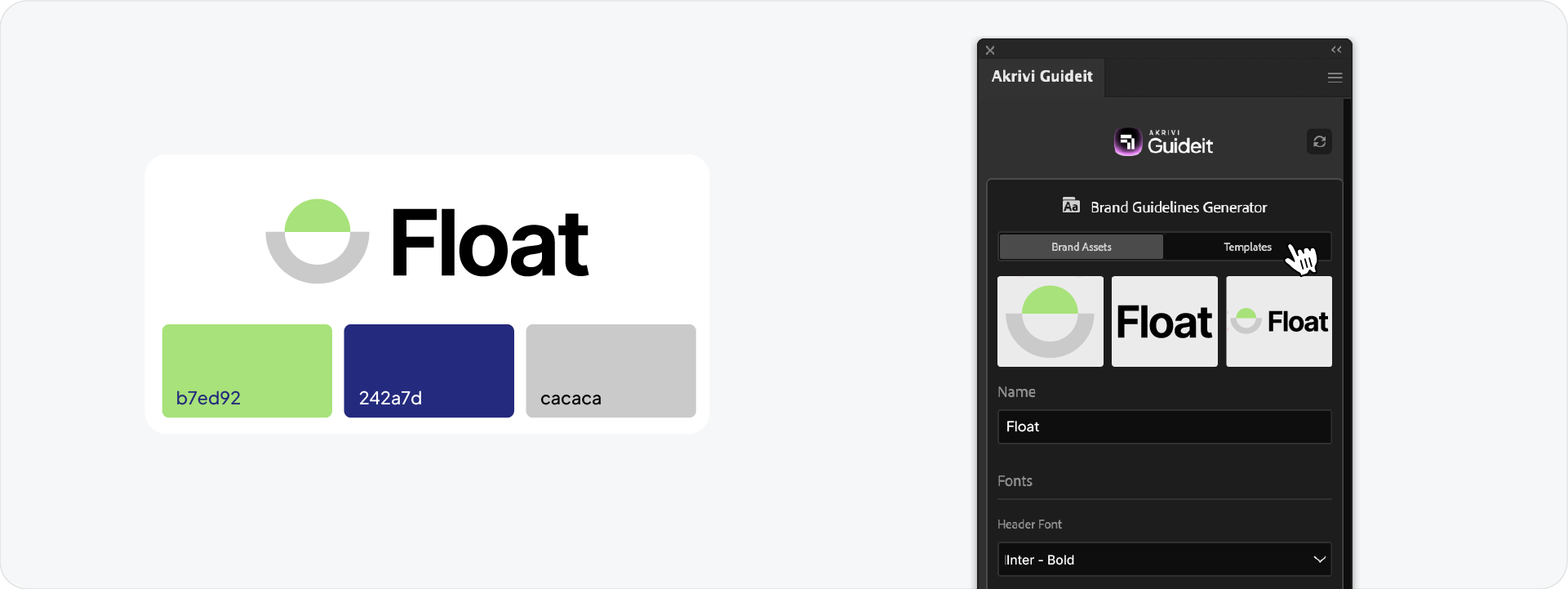
Instead of designing pages from scratch, you start by feeding the plugin the raw ingredients of your brand.
Open the Guideit panel and input the following:
- Logos: Upload your Logomark (icon), Logotype (text), and Full Logo.
- Fonts: Select your primary and secondary typefaces from the dropdown.
- Colors: Define your Primary, Secondary, and Tertiary palettes.
Once you do this, the system remembers your brand DNA. You don't have to copy-paste it ever again.
Step 2: Choose the Right Template
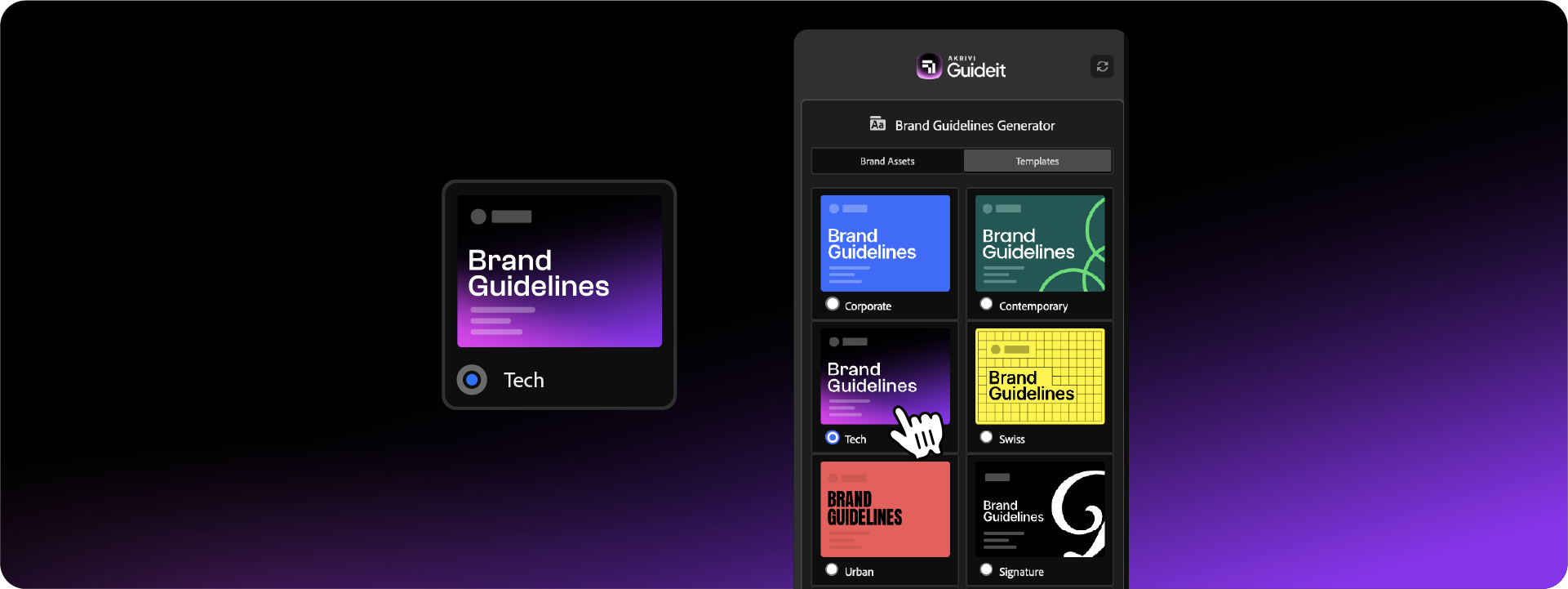
A brand book needs to match the vibe of the company.
In the video, I am working on a Fintech brand called "Float." I initially tried the Corporate template, but I realized it didn't quite fit. I also checked the Contemporary style, but it wasn't right either.
I settled on the Tech template. It had the clean, modern aesthetic that matched the brand perfectly.
Because Guideit generates instantly, you can test different styles in seconds without committing to hours of work.
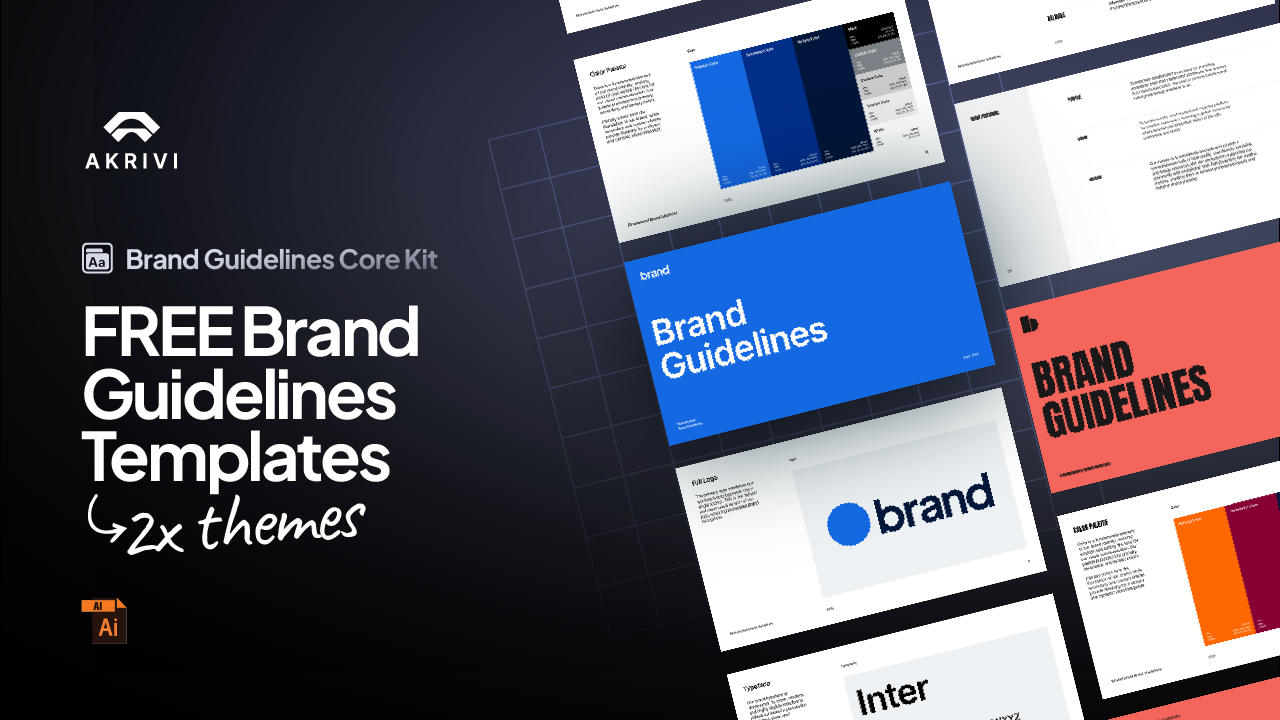
You can also download our free brand guidelines templates to follow along if you prefer a manual approach.
Step 3: Generate Instantly
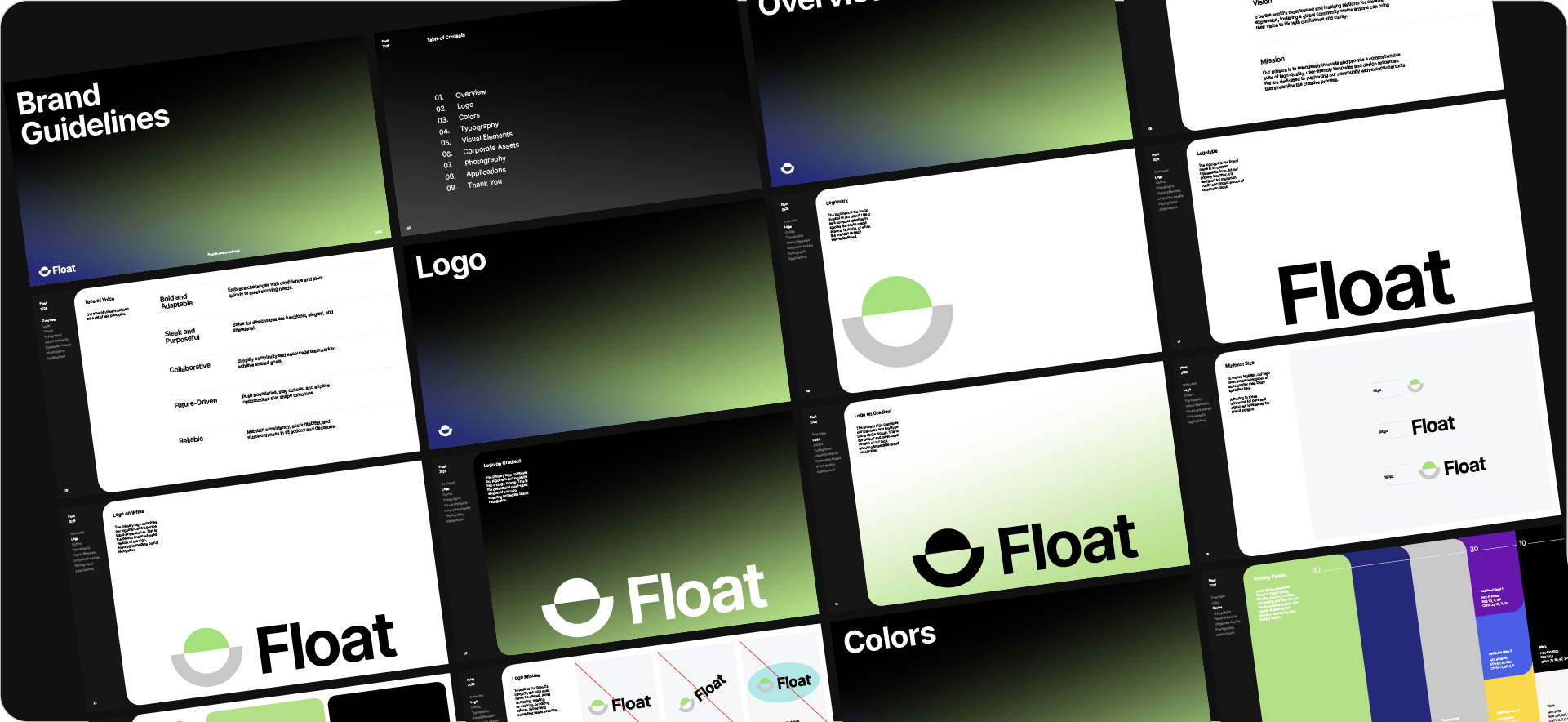
This is the best part. Once your assets are in and your template is selected, you just click the blue Generate button.
In a few seconds, the plugin builds the entire document.
- It places the logos on the correct pages.
- It creates the color palette page with the exact hex codes you entered.
- It sets up the typography hierarchy using your chosen fonts.
You go from a blank screen to a full brand book before you can even take a sip of coffee.
Step 4: Review and Refine
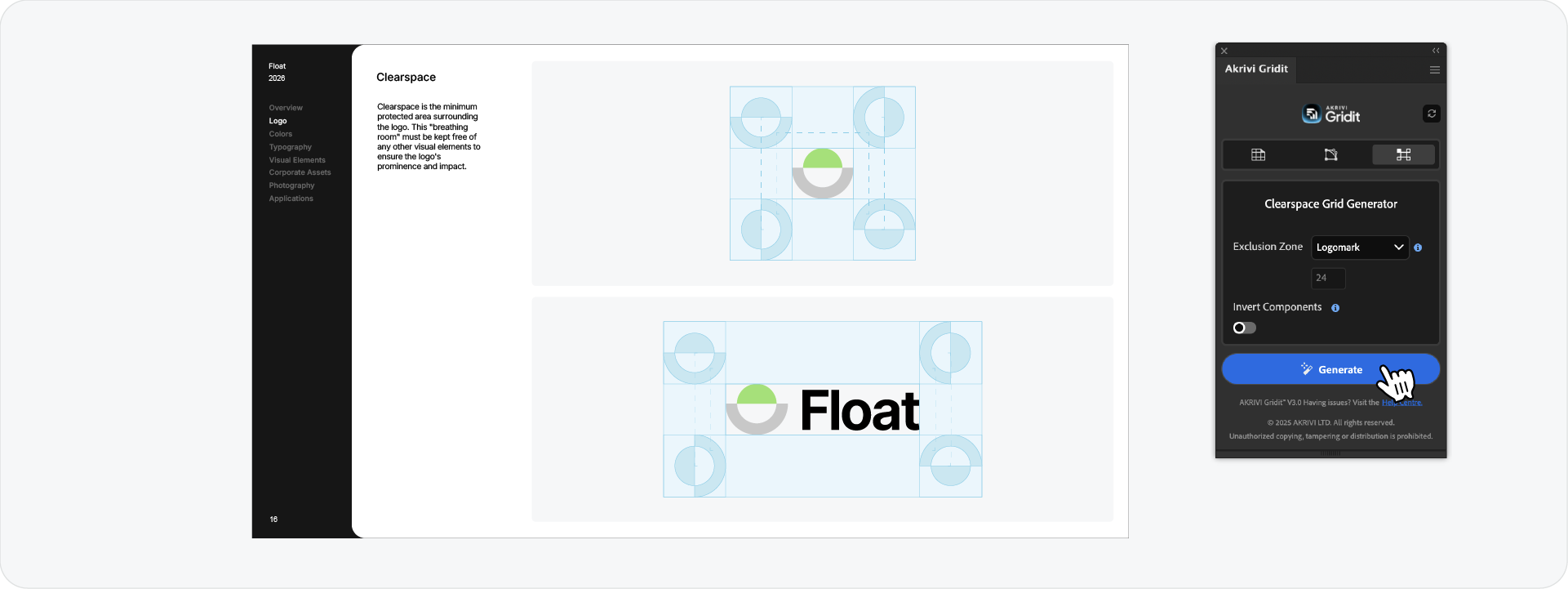
Since this works inside Adobe Illustrator, the result isn't a static PDF. It is a fully editable vector file.
You should always scroll through the generated artboards to make final tweaks. Maybe you want to adjust the scale of a logo on the cover, tweak a description text, or even use Gridit to generate Logo Construction and Clearspace grid. Because it is all native Illustrator layers, you have complete freedom to refine the details.
Check out these brand guidelines examples to see what a finished document should look like.
Ready to Create Your Brand Book?
You don't need to spend days on documentation. By using automation, you can deliver a high-value brand book to your client in a fraction of the time.
Generate for Free with Akrivi Studio.

Conclusion
Efficiency isn't about being lazy. It is about being smart. By automating the layout process with Guideit, you can create a consistent, professional brand book in minutes, leaving you more time to focus on the actual design work.