The all-in-one automation suite for brand identity designers




Deliver flawless
Everything you need, in one poweful suite





How to Create a Clearspace Grid for a Wordmark Using Gridit Clearspace Generator

Learn how to define accurate clearspace rules for wordmarks to ensure consistent and professional logo usage.
Most professional brand identities, like Microsoft or Slack, have a distinct icon that acts as a perfect "ruler" for defining clearspace. You simply take the height of the symbol (or a specific part of it), call it 'x,' and use that to create a safe zone.
But what if your logo is just text?
Wordmarks (like Google or FedEx) present a unique challenge because there is no separate symbol to measure against. Yet, they still need protection from clutter.
In this guide, I’ll show you three professional ways to generate precise clearspace for a wordmark using Gridit, ranging from simple fixed metrics to advanced relative spacing.
Method 1: The Fixed Measurement Approach
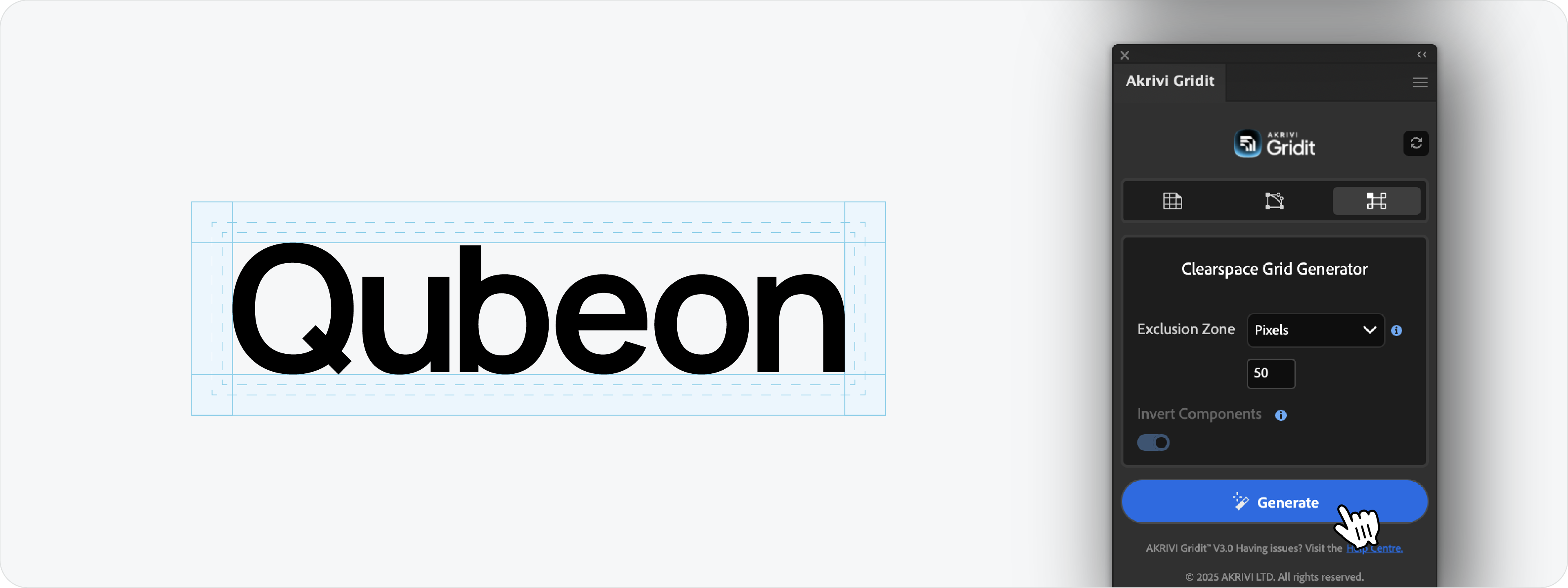
Sometimes, you don't need the clearspace to be relative to a letter. You just need a hard, fast rule.
There is no "usual" standard measurement for this. A digital app icon might need 20px of padding, while a printed letterhead might require 10mm. It completely depends on where the logo is living.
How to do it:
- Select your wordmark in Illustrator.
- Open the Clearspace Grid Generator tab in Gridit.
- Change the measuring mode from Object to Dimensions (px, cm, mm).
- Enter your desired value (e.g., 50px) and click Generate.
Alternative: The Mathematical Shortcut
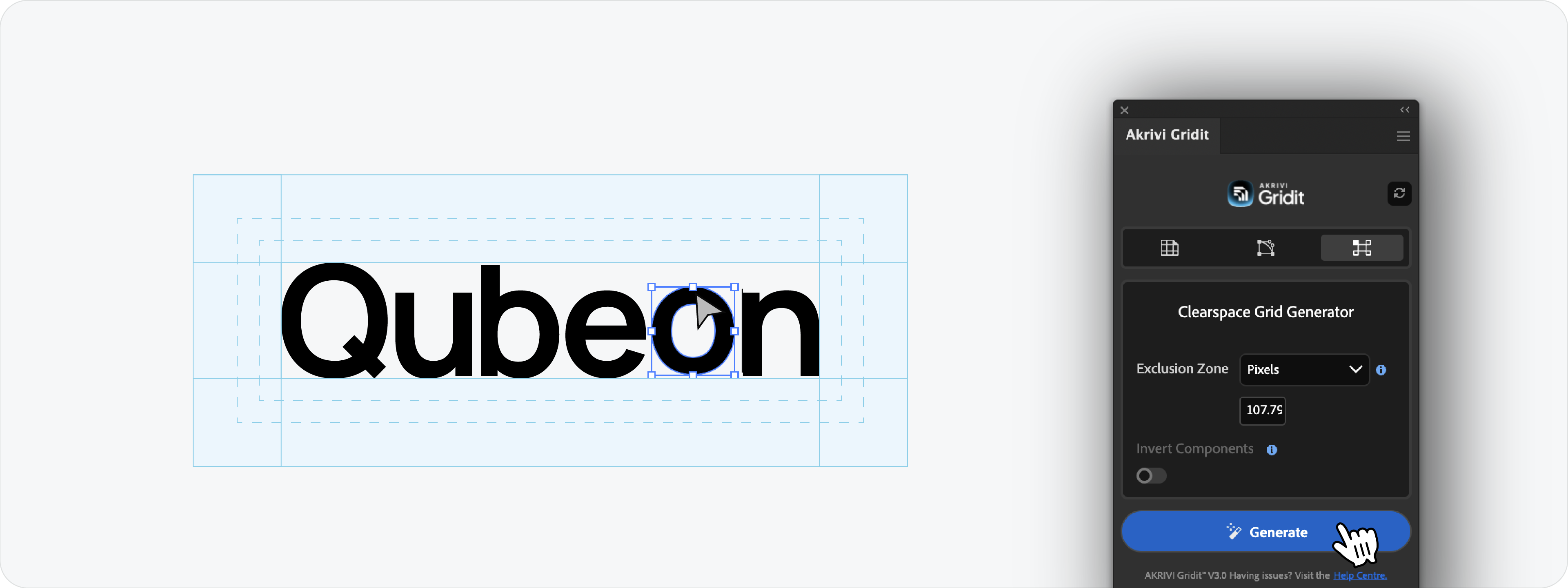
If you want the precision of using a letter height (like the 'O') but want to keep it simple, you can use this shortcut.
- Copy the Height: Select the reference letter. Go to your Transform panel and copy the H (Height) value (e.g., 113.003 px).
- Paste & Generate: Select the full wordmark, paste that value into the Dimensions field in Gridit, and hit Generate.
This gives you perfectly relative spacing without needing to duplicate objects. Note that the grid corners will be standard lines, not the shape of the letter.
Method 2: The Reletive Element Approach
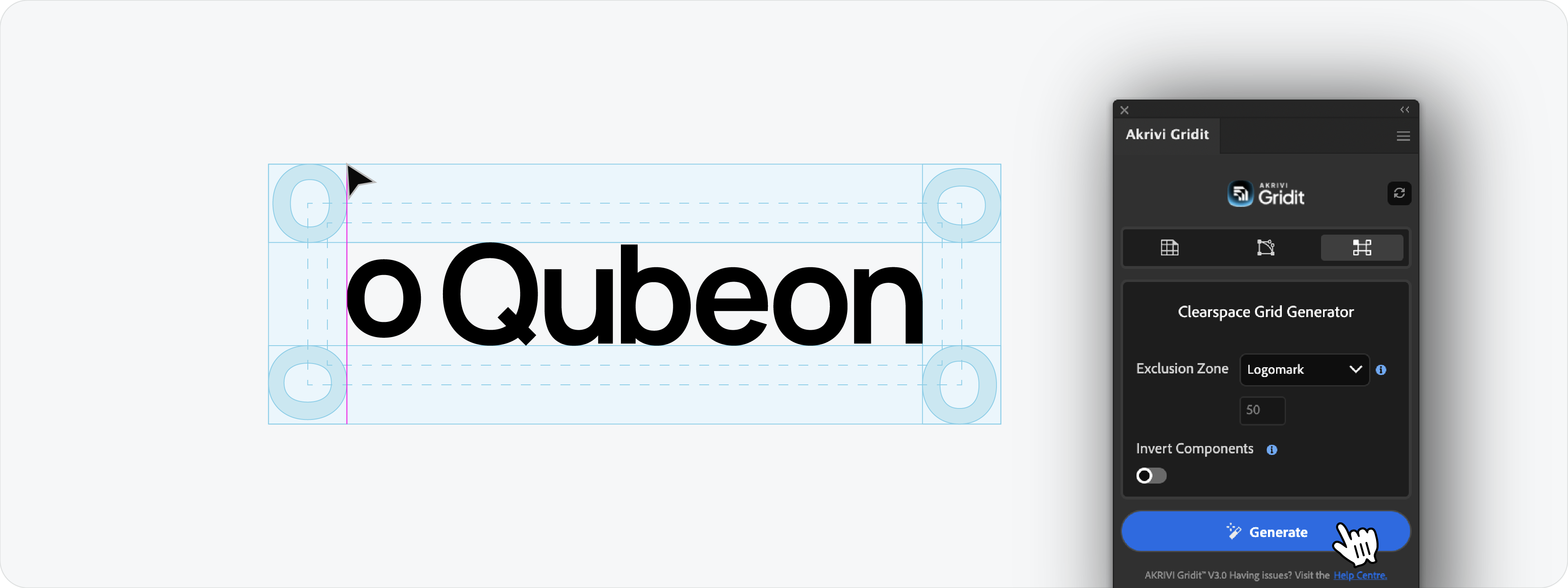
This is the professional standard. Instead of guessing a number, you use a specific part of the logo, like the height of the letter 'o' as your exact clearspace unit.
How to do it:
- Duplicate the Letter: Use the Direct Selection Tool to copy the letter 'o' and paste it to the side of your logo.
- Group It: This is crucial. Select your duplicated 'o' and press Cmd + G (Mac) or Ctrl + G (Windows). Gridit needs this element to be its own group to recognize it as a separate measuring unit.
- Select Both: Select your full wordmark AND the duplicated, grouped 'o'.
- Generate: Set the mode to Object (or Logomark) and click Generate.
The Cleanup:

Because Gridit draws the grid around both items, you simply need to delete the extra 'o' and use the Direct Selection Tool to drag the grid lines in until they align perfectly with your wordmark.
Ready to Protect Your Wordmarks?
Whether you use fixed pixels for speed or a relative letterform for scalability, protecting your wordmark is non-negotiable. These methods ensure your typography always has room to breathe.
Generate for Free with Akrivi Studio

Conclusion
Clearspace isn't just about drawing a box; it's about preserving the integrity of your design. By using the right method for your specific logo type, you ensure that your wordmark looks professional and legible in every application.