


The all-in-one automation suite for brand identity designers




Works with Adobe Illustrator 2021 - 2026
Deliver flawless
Everything you need, in one poweful suite


Try Akrivi Studio, includes automated templates that generates layouts for you

Ultimate Guide to Logo File Formats 2026


Everything you need to know about logo file formats and when to use each one
Every logo project ends with the same task: packaging and sending files to the client. Get the formats right and the logo works everywhere it needs to. Get them wrong and the client ends up with a pixelated PNG on a billboard or a blurry JPG on their website.
This is the complete reference guide to every logo file format covering what each one is, what it is for, and exactly when to use it.
Quick comparison: vector vs raster
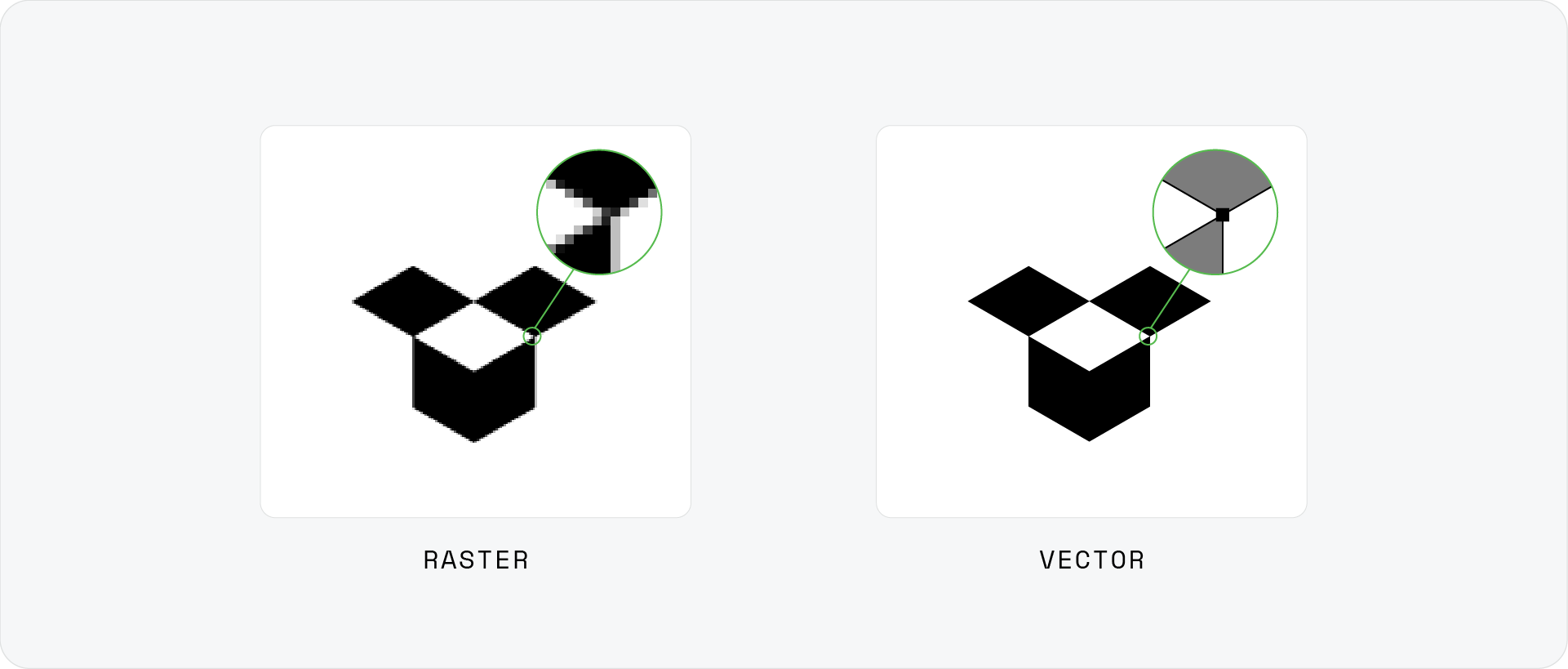
Before getting into individual formats, it helps to understand the two categories every logo file falls into.
Related Reading: For a deeper breakdown of how the two file types behave, read Vector vs Raster Logos: What Designers Need to Know.
Vector vs raster: the full breakdown
Vector files
Vector files are built from mathematical paths, curves, and points rather than pixels. This means they can be scaled to any size from a favicon to a 10-metre billboard, without any loss of quality. The shapes remain sharp, the edges stay clean, and the file size stays small.
For logos, vectors are the master format. Every other file in the package is exported from the vector source.
Why vector is the right choice for logos:
- Scales infinitely without quality loss
- Works across every print format and resolution
- Fully editable in design software
- Supports CMYK and Pantone colour modes for professional print
- Small file sizes for simple shapes
Raster files
Raster files are made up of a fixed grid of pixels. Each pixel holds a specific colour value, and the quality of the image is determined by the total number of pixels, which is the resolution. Zoom in far enough and you will see the individual squares.
For logos, rasters are secondary formats used for digital placements where a vector is not supported or necessary. They are never the master file.
Key traits of raster files:
- Resolution-dependent: quality is fixed at the time of export
- Cannot be scaled up without losing quality
- Larger file sizes than vector equivalents
- Supports transparency (PNG) or compressed output (JPG)
- Required for web, email, and social media contexts
Standard logo file formats in 2026
AI
The original source file. Every other format in the logo package is exported from this. AI is a proprietary Adobe format that is fully editable, with all paths, layers, and colour data preserved exactly as built.
Include the AI file in every client delivery so a future designer can pick up the project without starting from scratch.
Best for: Source file storage and future edits Not for: Sending as the only file: most clients cannot open it without Illustrator
The most practical vector format for professional handoff. A correctly exported PDF preserves all vector paths, embeds fonts as outlines, and can be opened on any device without design software. It is universally supported by print suppliers, marketing agencies, and web developers.
For most print jobs, PDF is the first file a supplier will ask for. Export as PDF/X-1a or PDF/X-4 for press-ready production files.
Best for: Print production, digital sharing, universal handoff Not for: Password-protected delivery or flattened exports
SVG
The standard vector format for web and digital platforms. SVG files are written in XML code that browsers can read and render natively at any size. They are lightweight, resolution-independent, and stay sharp on every screen density including retina displays.
SVG is the format web developers ask for. Include it in the web folder of every logo package.
Best for: Website logos, apps, digital platforms Not for: Print production or email: most email clients do not render SVG correctly
EPS
An older vector format that has been largely replaced by PDF for most workflows. Still requested by some print suppliers, embroidery machines, sign makers, and vendors running legacy software. Worth including in the print folder as a fallback even if PDF is the primary format.
Export at Illustrator 8 compatibility with all fonts converted to outlines for maximum supplier compatibility.
Best for: Legacy print suppliers, embroidery, signage Not for: Web or digital use
PNG
The primary raster format for digital use. PNG supports transparent backgrounds, which makes it the correct format for any digital placement where the logo needs to sit on a colour, photograph, or non-white background. PNG uses lossless compression, so quality is preserved at the exported size.
Export PNG files at multiple sizes to cover every digital context. The four standard export sizes are 16px (favicon), 512px (social media), 1024px (general digital), and 2048px (high-res and retina).
Best for: Websites, presentations, social media, digital marketing Not for: Print production or upscaling
JPG
A compressed raster format without transparency support. JPG produces a smaller file size than PNG using lossy compression, which means some image data is discarded on export. Useful for email signatures, social media previews, and any digital context where transparency is not needed and file size matters.
Export at 100% quality to minimise compression artefacts. Use the same sizes as PNG.
Best for: Email signatures, compressed digital use, solid-background placements Not for: Transparent backgrounds, print, or repeated resaves
File formats by use case
Print format guide
For print, always use a vector file in the correct colour mode. Raster files should never be the primary format for print production.
Related Reading: For a full breakdown of print-specific formats and colour modes, read the logo file formats for print guide.
Digital format guide
Digital platforms require specific file types for clarity, performance, and compatibility.
Website usage
SVG is the preferred format for website logos. It renders at any size the CSS defines and loads fast. For platforms that do not support SVG, use a 2048px PNG as the fallback.
Social media
Related Reading: For a full platform size reference guide, read the logo sizes guide.
Full format selection chart
Colour modes for logo files
Colour mode is as important as file format. The wrong colour mode produces the same result as the wrong format: a logo that looks wrong in production.
RGB
The colour mode for screens. All digital files (SVG, PNG, JPG) should be exported in RGB. Sending an RGB file to a print supplier will result in colour shifts on press.
CMYK
The colour mode for professional print. All print files (AI, PDF, EPS) should be in CMYK. Convert the document colour mode in Illustrator via File > Document Color Mode > CMYK before exporting any print files.
Pantone
A standardised spot colour system used when exact colour accuracy is required: packaging, merchandise, signage, and offset print. Pantone colours are matched precisely regardless of the press or supplier. Include Pantone versions when the brand has defined Pantone colours.
File organisation and naming
A complete logo package is only as useful as its structure. Files with inconsistent naming or unclear folder organisation create confusion for clients and slow down any future designer working on the brand.
Naming convention
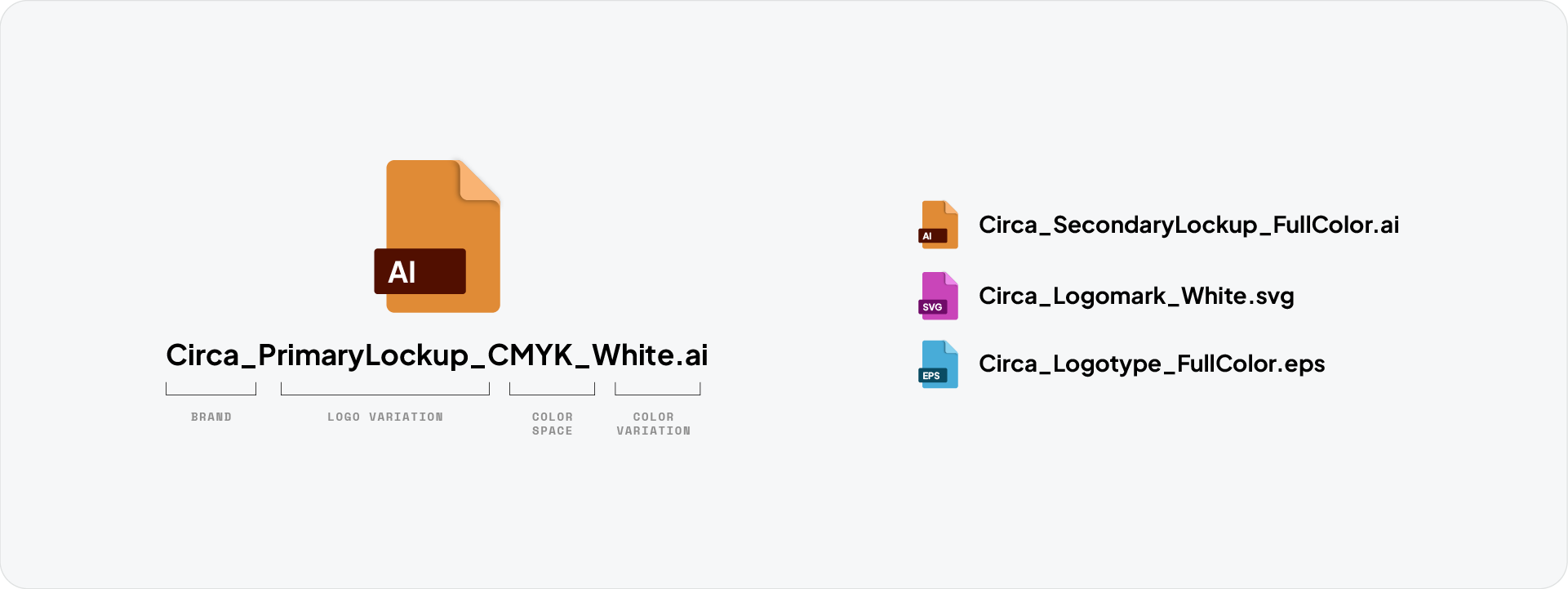
Use a consistent naming system across every file: BrandName_Variation_ColourVariant_ColourSpace.format
BrandName_Variation_ColourVariant_ColourSpace.format
Examples:
- Circa_PrimaryLockup_FullColour_RGB.svg
- CIrca_Logomark_Black_CMYK.pdf
- Circa_Logotype_White_RGB.png
Folder structure
Organise by variation first, then colour space, then colour variant, then file format:
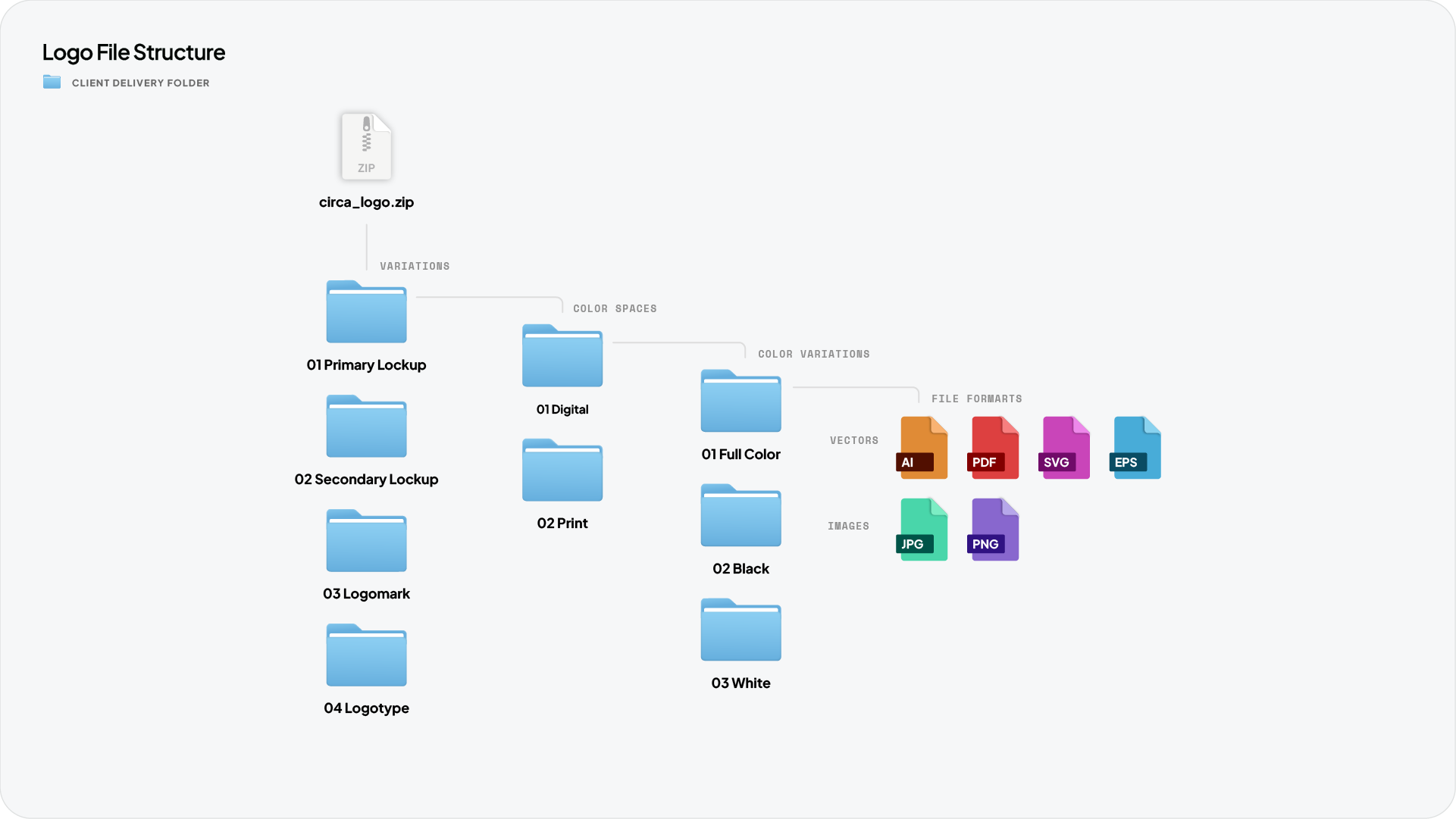
Download the Logo File Structure for Client Delivery, a free pre-built folder system with naming conventions ready to use on your next project.
File backup and storage
Once a logo package is delivered, keep a backup of the master AI file and a copy of the full export. Store them in a named client folder in Google Drive or Dropbox so they are accessible if the client ever needs additional files or a future designer takes over the project.
A simple backup structure:
- Master AI file with all artboards and layers preserved
- Full exported package as a zip
- PDF brand guidelines document alongside
Generate your complete logo package with Exportit
Exportit is Akrivi's Logo File Generator built inside Adobe Illustrator. Select your logo lockups, choose colour variants, check Print and Web, enter the client name, and Exportit generates the complete package, covering all formats, all colour modes, and all sizes in the correct folder structure, in one run.
No manual exports. No colour mode switching. No naming files one by one.

Conclusion
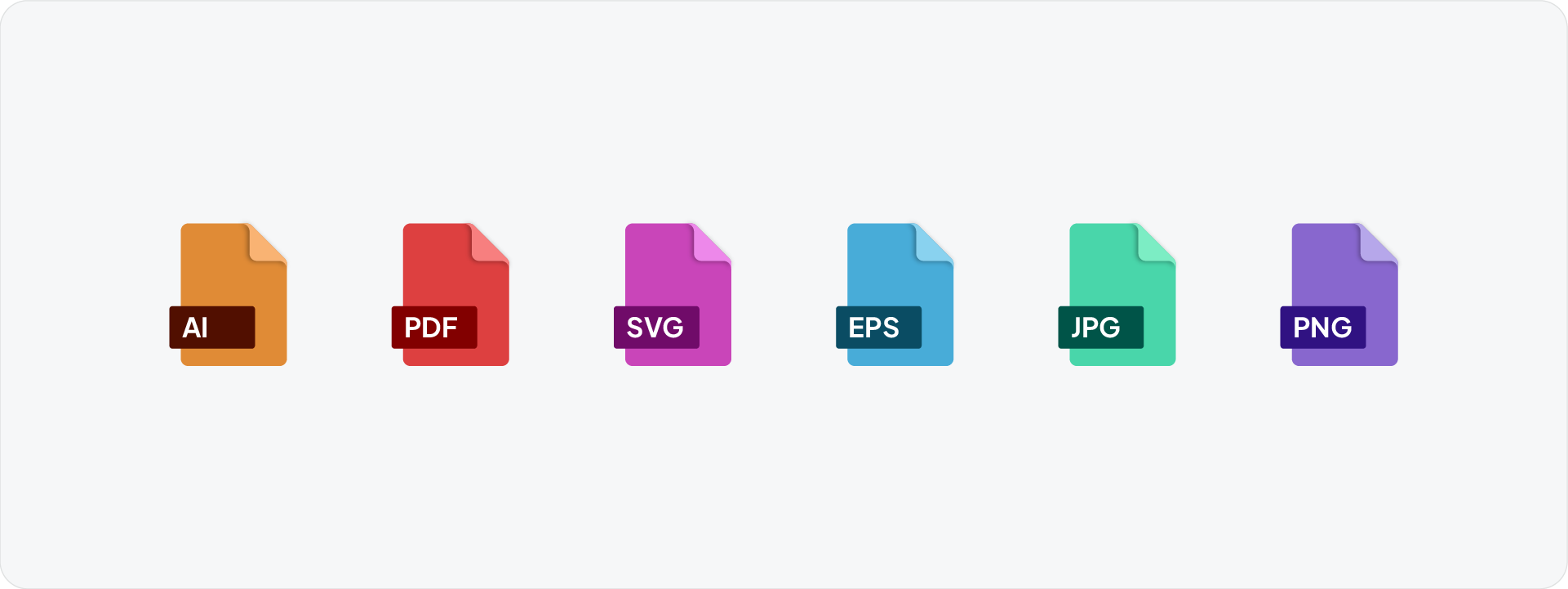
Every logo project needs six formats: AI for the source file, PDF and EPS for print, SVG and PNG for digital, and JPG for compressed digital contexts. Get the format, colour mode, and folder structure right on every delivery and the client will always have exactly what they need for any use case.



