


The all-in-one automation suite for brand identity designers




Works with Adobe Illustrator 2021 - 2026
Deliver flawless
Everything you need, in one poweful suite


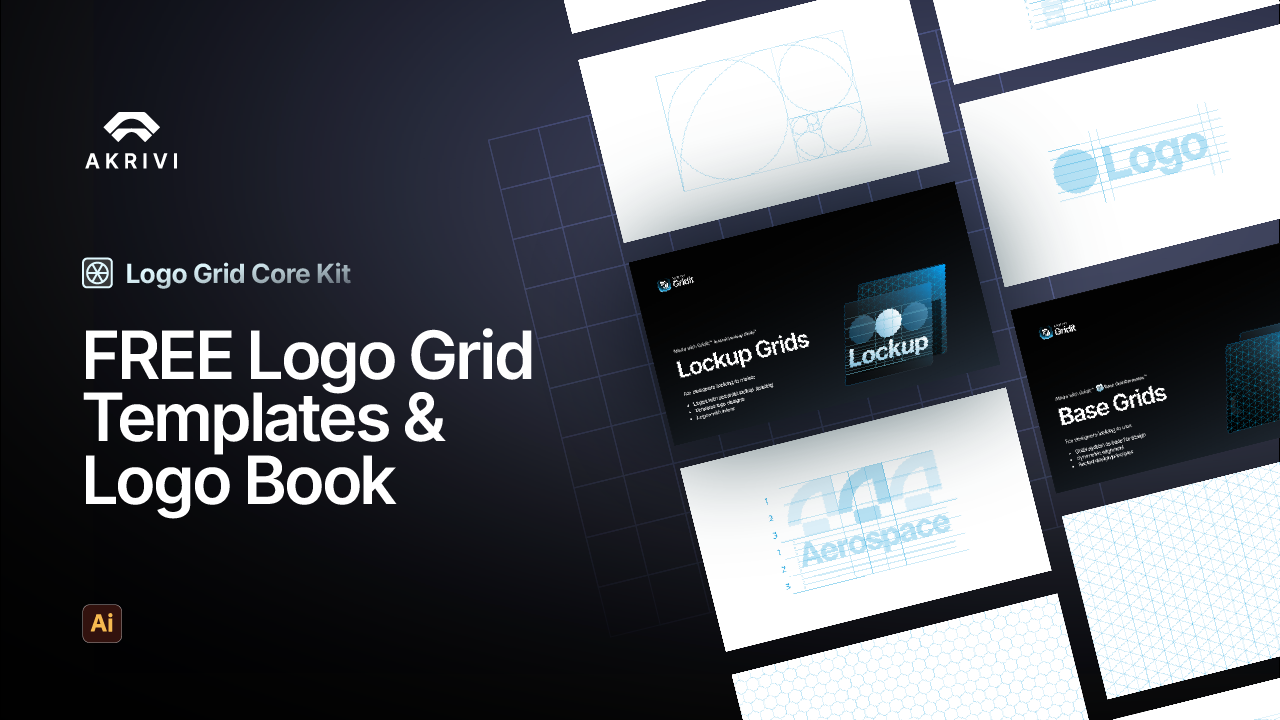
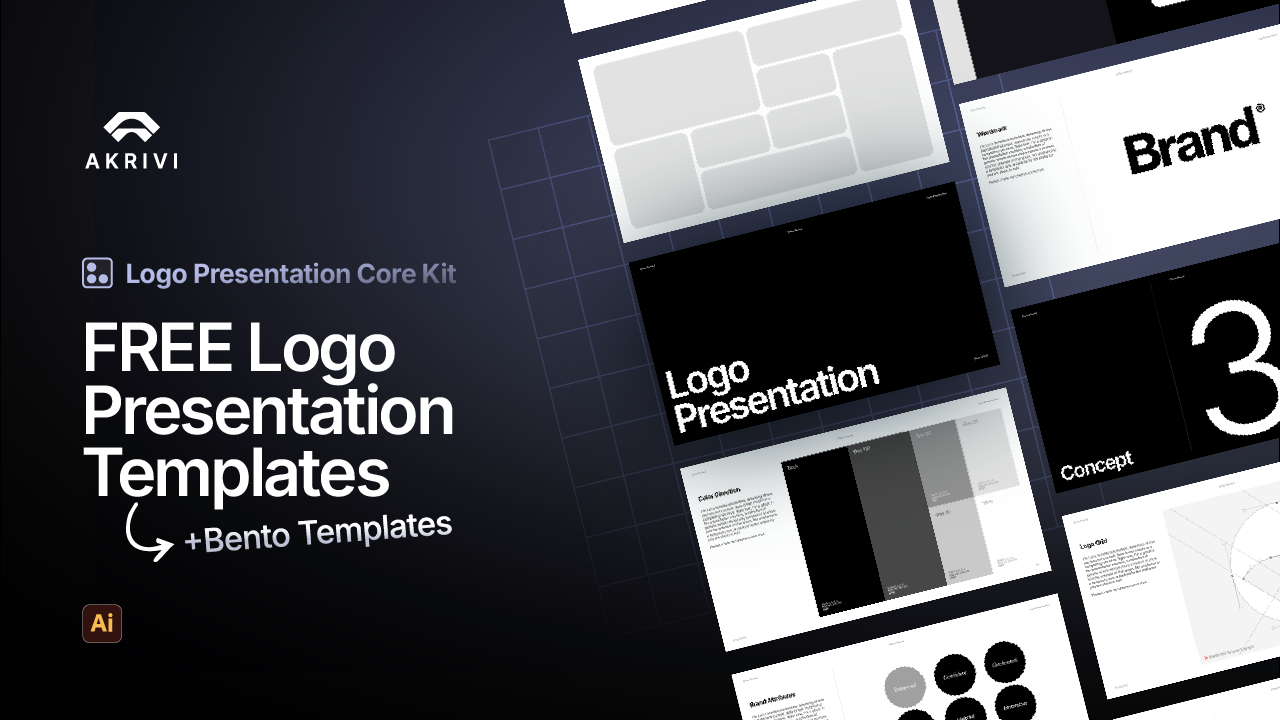
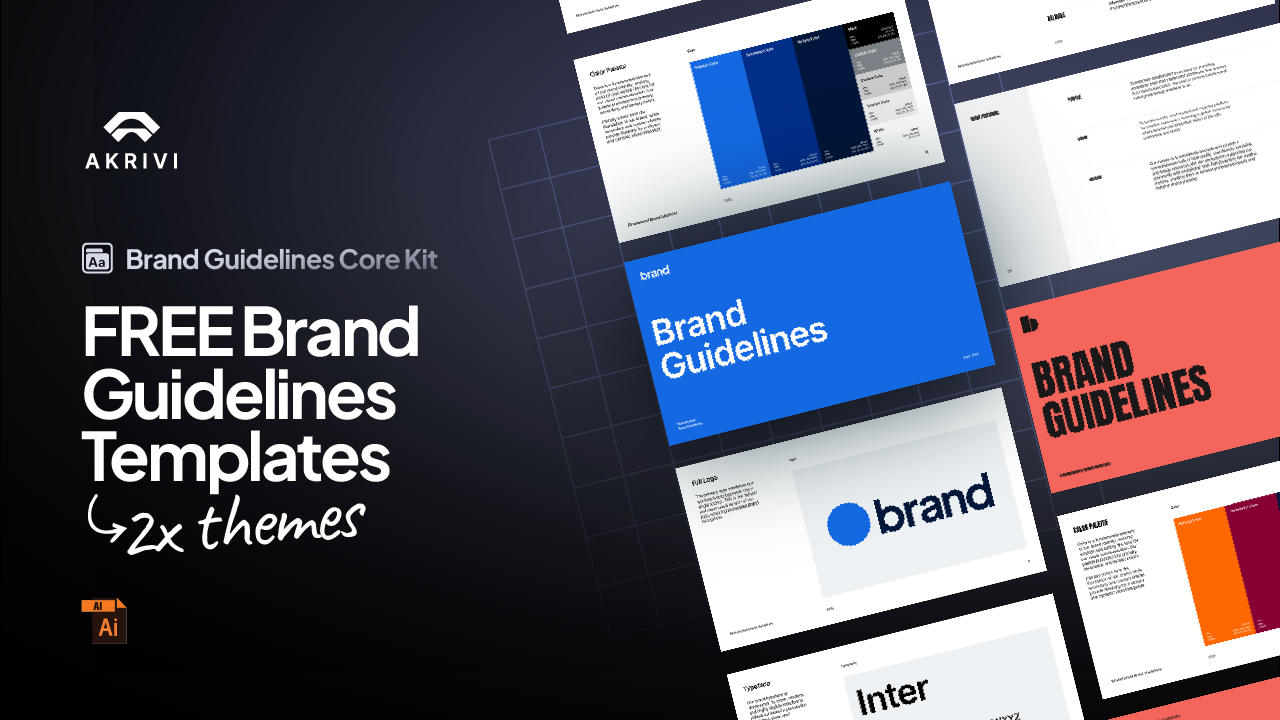
Try Akrivi Studio, includes automated templates that generates layouts for you

Vector vs Raster Logos: What Designers Need to Know


What’s the Difference Between Vector and Raster Logos?
The short answer:
Vector logos are resolution-independent and can scale to any size without losing quality. Raster logos are pixel-based and lose clarity when resized.
For professional logo design, vector formats are the industry standard.
If you’re working on brand identity projects, understanding the difference between vector and raster formats is essential. It directly impacts how logos are used, exported, and delivered across different platforms and applications.
In practice, this becomes especially important when preparing logo files for client delivery, where choosing the correct formats and exporting them properly makes a significant difference.
What Are Vector and Raster Logos?
Before comparing the two, it’s important to understand how each format works and where it’s used in real-world design workflows.
Raster Logos (Pixel-Based)

Raster logo consists of small colored squares, known as pixels. These files are resolution-specific because of their fixed number of pixels. And if they are enlarged beyond their native resolution, they become blurry and pixelated.
Common raster formats
- JPEG (.jpg) – Often used for web, but loses quality with compression
- PNG (.png) – Supports transparency; great for online use
- GIF (.gif) – Limited to 256 colors; rarely used for modern branding
- TIFF (.tiff) – High-quality but bulky; more common in photography
Raster formats are useful for:
- web previews
- social media
- presentations
They are not suitable as master logo files. This should be made clear to who you deliver the logo files to.
Vector Logos (Scalable and Editable)

A vector logo is defined by paths, points, and curves using mathematical formulas.
These files are infinitely scalable, maintain sharpness at any size, and are easy to edit.
Common vector formats
- AI (.ai) – Adobe Illustrator’s native format
- SVG (.svg) – Perfect for web and responsive environments
- EPS (.eps) – Widely used in print workflows
- PDF (.pdf) – Can retain full vector properties if saved correctly
For logo and brand identity work, vector files act as the master version of the logo.
These are the main logo files that must be sent over to the client.
Vector vs Raster Logos: Key Differences
Verdict: Always design logos in vector format. Then export raster versions when needed.
Vector files provide flexibility, scalability, and long-term usability. Raster files are used for specific applications where fixed-size assets are required.
Why Vector Formats Are Non-Negotiable in Logo Design
A logo needs to function across multiple environments, from small digital interfaces to large-scale print.
Vector formats make this possible.
Real-world examples:
- A brand applying its logo to vehicle graphics requires scalable vector files
- A website using responsive design benefits from SVG logos that stay sharp
- Print production requires vector files to maintain clarity and accuracy
Without vector files, logos become limited in how they can be used, adapted, and reproduced.
How This Relates to Logo Packages
When delivering a logo to a client, you are not providing a single file. You are delivering a complete logo package.
A professional logo package includes both vector and raster formats, allowing the logo to be used across different environments.
- Vector files such as AI, EPS, and SVG are used for scaling, editing, and print
- Raster files such as PNG and JPG are used for digital applications and quick use
If you want a full breakdown of how to create, and what to include inside a logo package, read:
Common Mistakes Designers Make with Raster Logos

Designing logos in Photoshop!
Photoshop is raster-based. Creating logos here limits scalability and flexibility from the start.
Creating and Exporting Logo Files in Adobe Illustrator
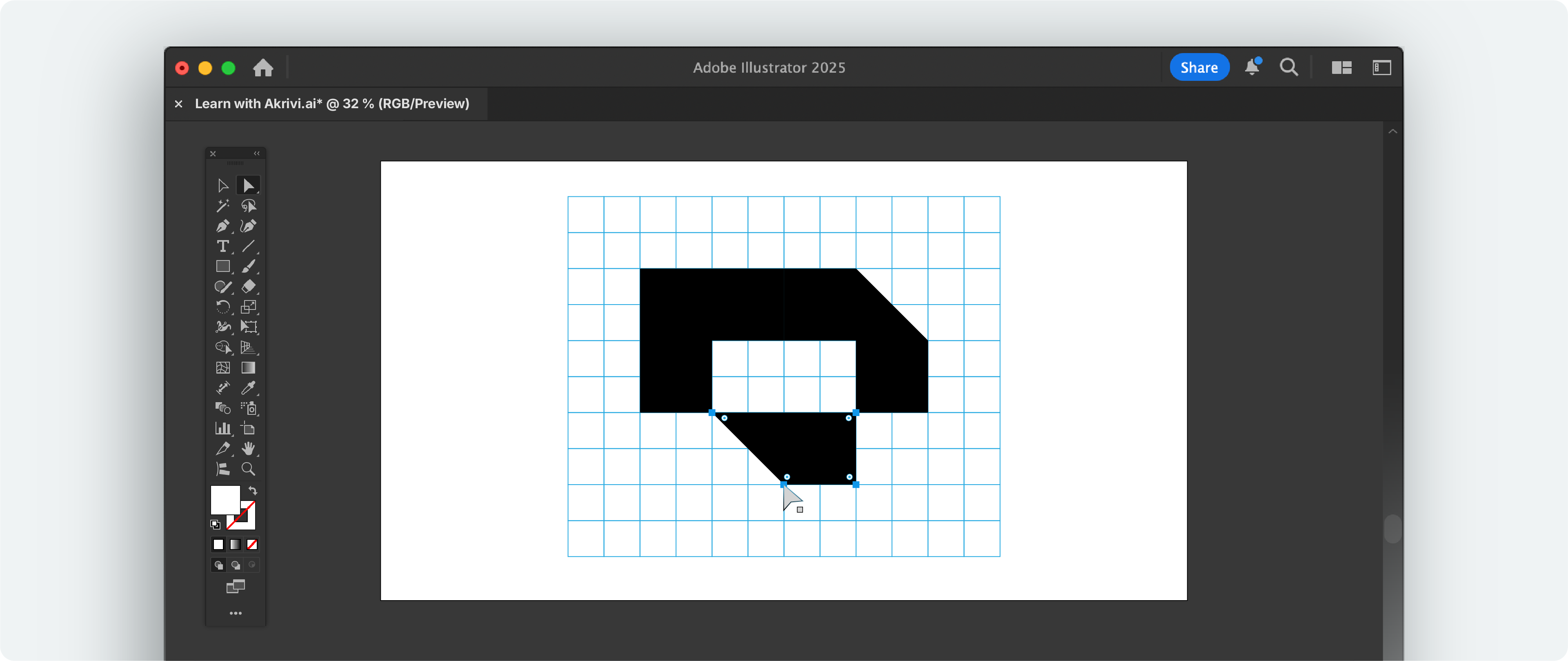
Adobe Illustrator is the industry-standard tool for creating vector logos. It allows you to design logos using scalable paths and shapes, ensuring your work remains sharp and editable at any size.
It is also where the full logo package is prepared. Once your logo is created, Illustrator is used to export the different file formats required for client delivery, including SVG, PNG, EPS, and PDF versions.
Understanding how to export these formats correctly is just as important as creating the logo itself. Each file type serves a different purpose depending on how the logo will be used.
If you want a complete step-by-step workflow for exporting logo files for clients, you can read the full guide here:
👉 How to export logo files for clients in Adobe Illustrator
FAQs: Vector vs Raster Logos
Can I convert a raster logo to vector?
Yes, using Illustrator’s Image Trace tool — but the results often require manual refinement.
Do I need both vector and raster versions of a logo?
Ideally, yes. Design in vector, then export raster versions for web use as needed.
What’s the best tool to design vector logos?
Adobe Illustrator, especially when enhanced with Akrivi’s plugins, scripts, and templates.
Key Takeaways
- Vector logos are the foundation of professional logo design and should always be used as the master files
- Raster files are supporting formats used for specific use cases like web, social media, and presentations
- A complete logo package includes both vector and raster formats to ensure the logo works across all applications
- Vector files such as AI, EPS, SVG, and PDF allow for scaling, editing, and print production
- Raster files such as PNG and JPG are used for quick implementation in digital environments
- Designing logos in raster-based tools limits flexibility and should be avoided for professional work
- Exporting the correct file formats is a key part of delivering a usable and professional logo package
- Understanding when to use each format ensures your logo works consistently across all platforms



