The all-in-one automation suite for brand identity designers




Deliver flawless
Everything you need, in one poweful suite




How to Generate a Clearspace Grid After Creating Brand Guidelines with Guideit
Learn the correct way to generate a clearspace grid within your generated brand guidelines to avoid issues
You’ve just used Guideit to generate a full brand guidelines document in seconds. It looks great, and all your assets are in place.
We left it blank so you can use Gridit to generate a mathematically perfect exclusion zone.
However, because Guideit wraps your logos in smart containers to place them on the artboard, you can't just click "Generate" immediately. You need to follow a quick workflow to ensure Gridit can read your logo correctly.
Here is the proper way to do it.
Step 1: The "Double Ungroup" Rule
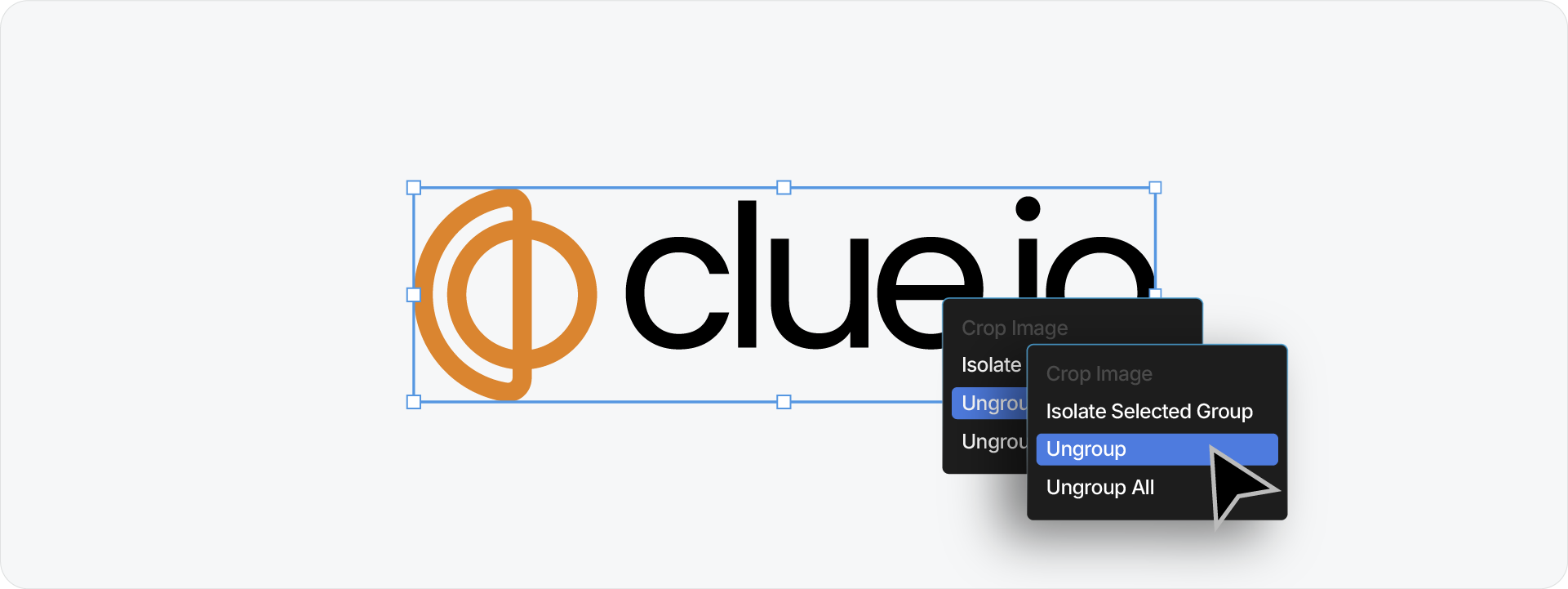
When Guideit places your logo on the page, it wraps it in a specific group structure to ensure it stays aligned during the automation process. To generate a grid, Gridit needs to access the raw vector paths inside.
If you try to generate a grid immediately, Gridit might read the "container" rather than the logo itself, leading to inaccurate results.
Here is the fix:
- Select the Logo: Click on the logo block on your Clearspace page.
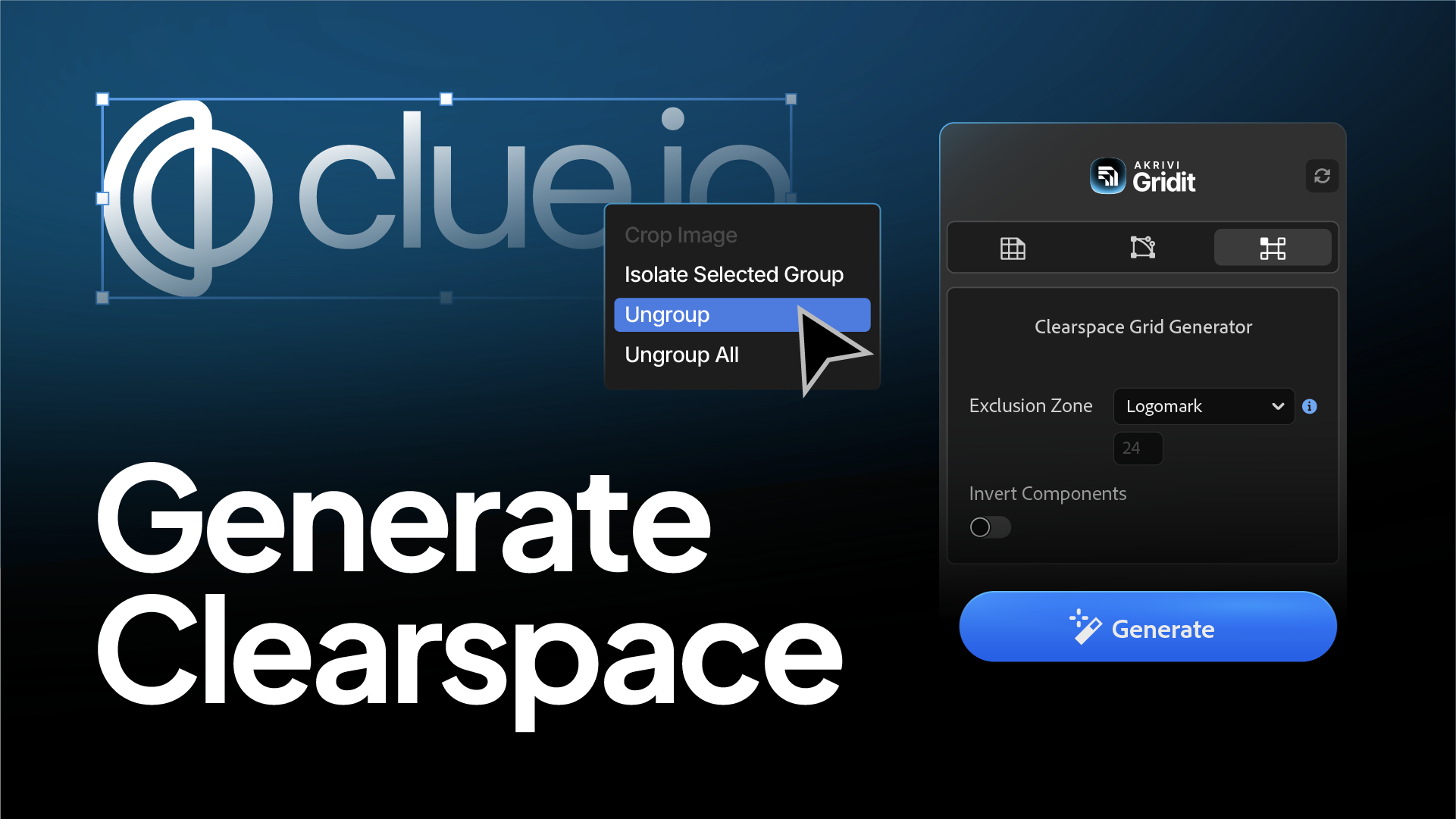
- Ungroup Once: Press Cmd + Shift + G (Mac) or Ctrl + Shift + G (Windows). This removes the Guideit placement container.
- Ungroup Again: Press the shortcut one more time. This releases the logo mark and logotype from their combined asset group.
Now that the elements are accessible, you can select exactly what you want, whether it's the full lockup or just the logomark, and Gridit will recognize it perfectly.
Step 2: Generate the Grid
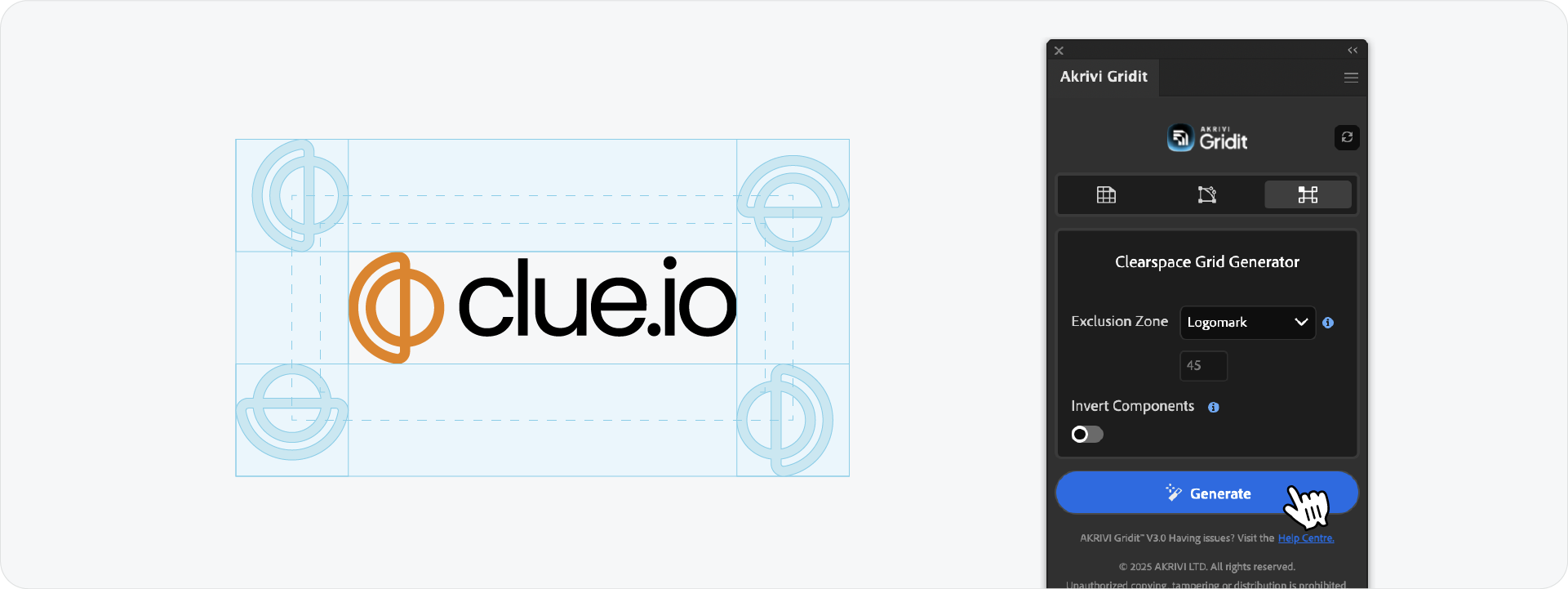
With your logo ungrouped and selected, open the Akrivi Gridit panel.
- Navigate to the Clearspace tab.
- Choose your preferred measurement (e.g., using the height of a logomark or a specific pixel value).
- Click Generate.
The tool will instantly draw the safe zone box around your logo.
Alternative: The "Measurement Mode" Shortcut
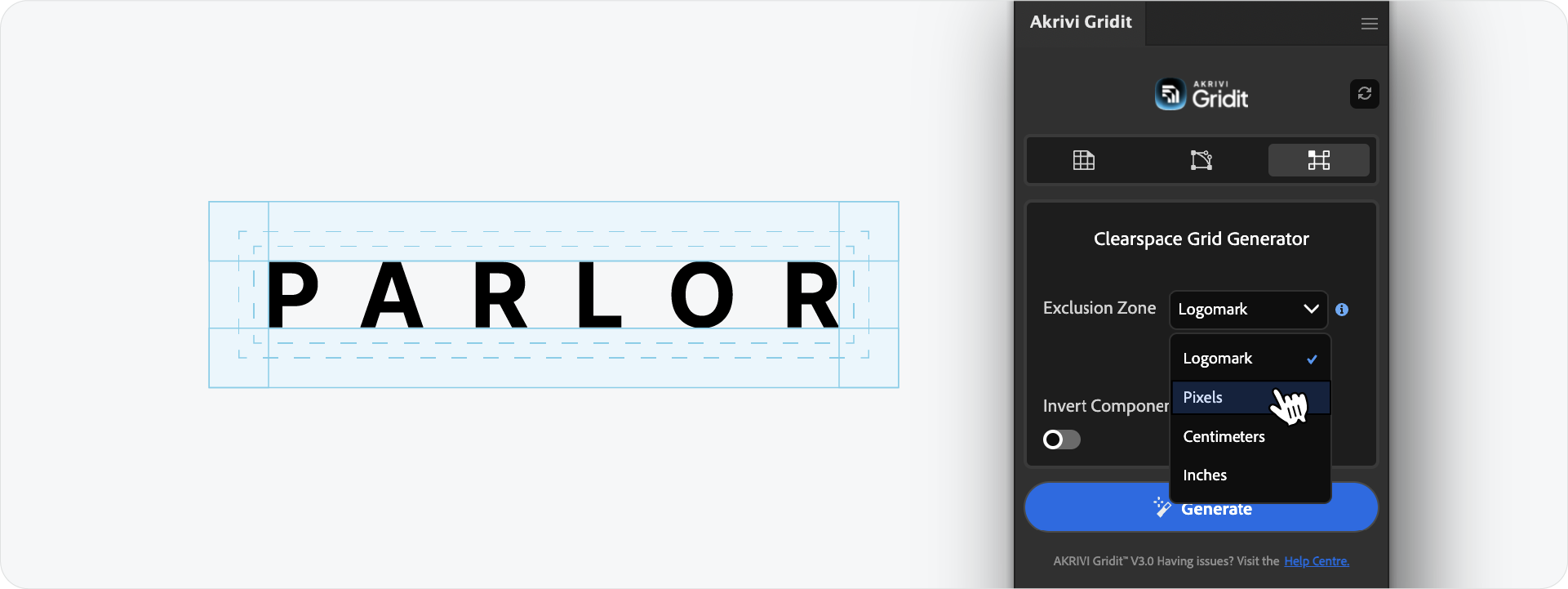
If you prefer not to ungroup your logo (perhaps you are working with a wordmark), you can use a different setting in Gridit.
In the Clearspace Grid Generator, change the mode from Logomark to Dimensions (px/mm).
This tells Gridit to ignore the and simply draw a grid based on the bounding box of the selection.
Pro-Tip: Handling Revisions with "Apply Changes"
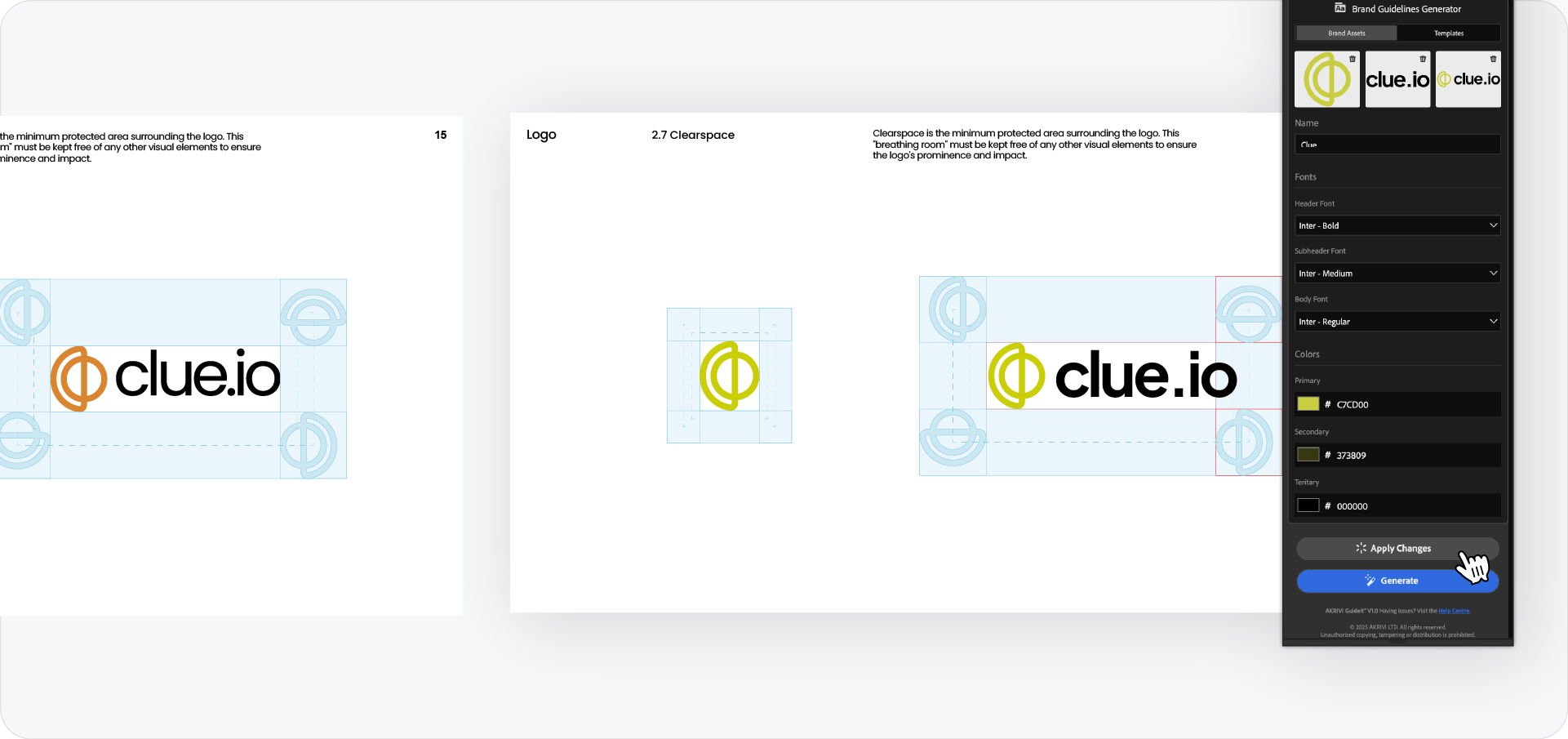
What happens if the client asks for a tweak to the logo after you've generated the guidelines?
Guideit has a powerful "Apply Changes" button that lets you re-upload your logo assets and instantly update them across the entire document. However, since the Clearspace Grid was generated by a different tool (Gridit), it won't automatically adjust to the new logo shape.
The Clean Workflow for Revisions:
- Update in Guideit: Re-upload your new logo assets in the Guideit panel and click the grey Apply Changes button. This updates the logo on every page.
- Clean the Layer: Go to your Layers Panel and find the group labeled "Clearspace Grid". Delete that entire group.
- Regenerate: Select your newly updated logo on the Clearspace page (remember to ungroup!) and hit Generate in Gridit again.
This ensures your technical grid always matches the latest version of the brand identity.
Ready to Streamline Your Workflow?
Understanding how these two tools, Guideit and Gridit, talk to each other is the key to a frictionless workflow. By taking two seconds to ungroup your assets, you ensure your technical diagrams are just as precise as your design.
Generate for Free with Akrivi Studio.

Conclusion
Creating technical clearspace guides used to be a manual chore. With this workflow, you can turn a generated template into a technically accurate, client-ready document in moments. Just remember: Ungroup twice, then generate.