The all-in-one automation suite for brand identity designers




Deliver flawless
Everything you need, in one poweful suite




How to Align Your Logomark Using Logo Grid Generator
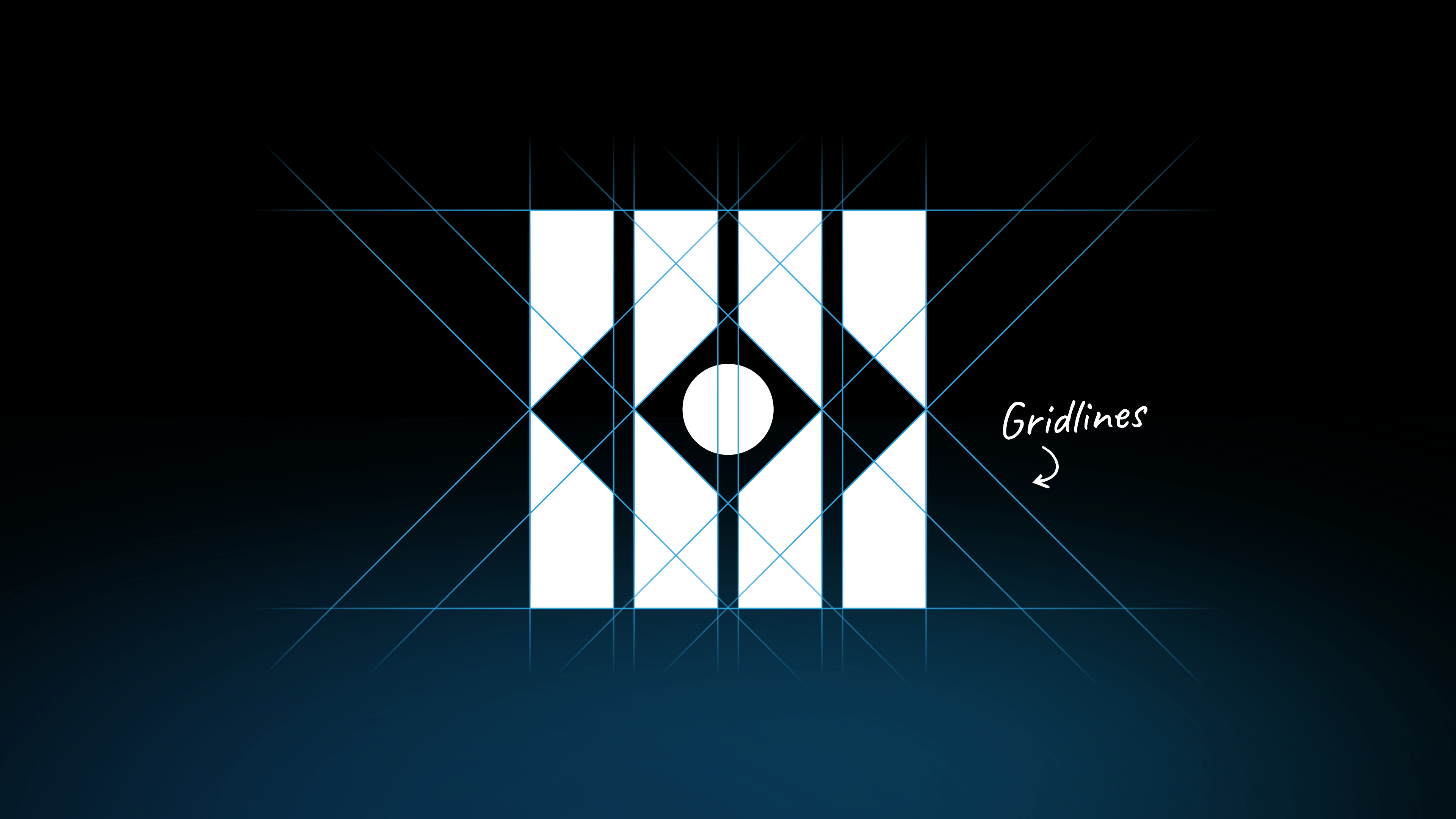
Create perfectly consistent geometric logomarks with the Gridlines feature.
You’ve designed a geometric logomark, but something keeps bugging, maybe the spacing isn't quite right, or the lines don't feel perfectly consistent, you just can't tell. This is a common problem that a construction grid is designed to solve.
Manually creating all the horizontal, vertical, and diagonal lines to check your work is a slow and tedious process and often leaves a lot of errors.
In this guide, I’ll show you how to use the Gridlines feature in the Logo Grid Generator to quickly align your logomark and ensure every part of your design is perfectly consistent.
What is Alignment in a Logomark?
When I talk about alignment, I’m not just talking about centering an object. I’m talking about total geometric consistency.
This means making sure all horizontal, vertical, and diagonal lines are perfectly aligned, and that the spacing between elements is mathematically consistent.
Achieving this level of precision is what makes a logomark feel professional, balanced, and optically sound.
How to Use the Gridlines Feature
Here’s a quick walkthrough using a geometric logomark as an example. Let's see how fast we can use Gridlines to check and perfect its alignment.
Step 1: Select Your Logomark
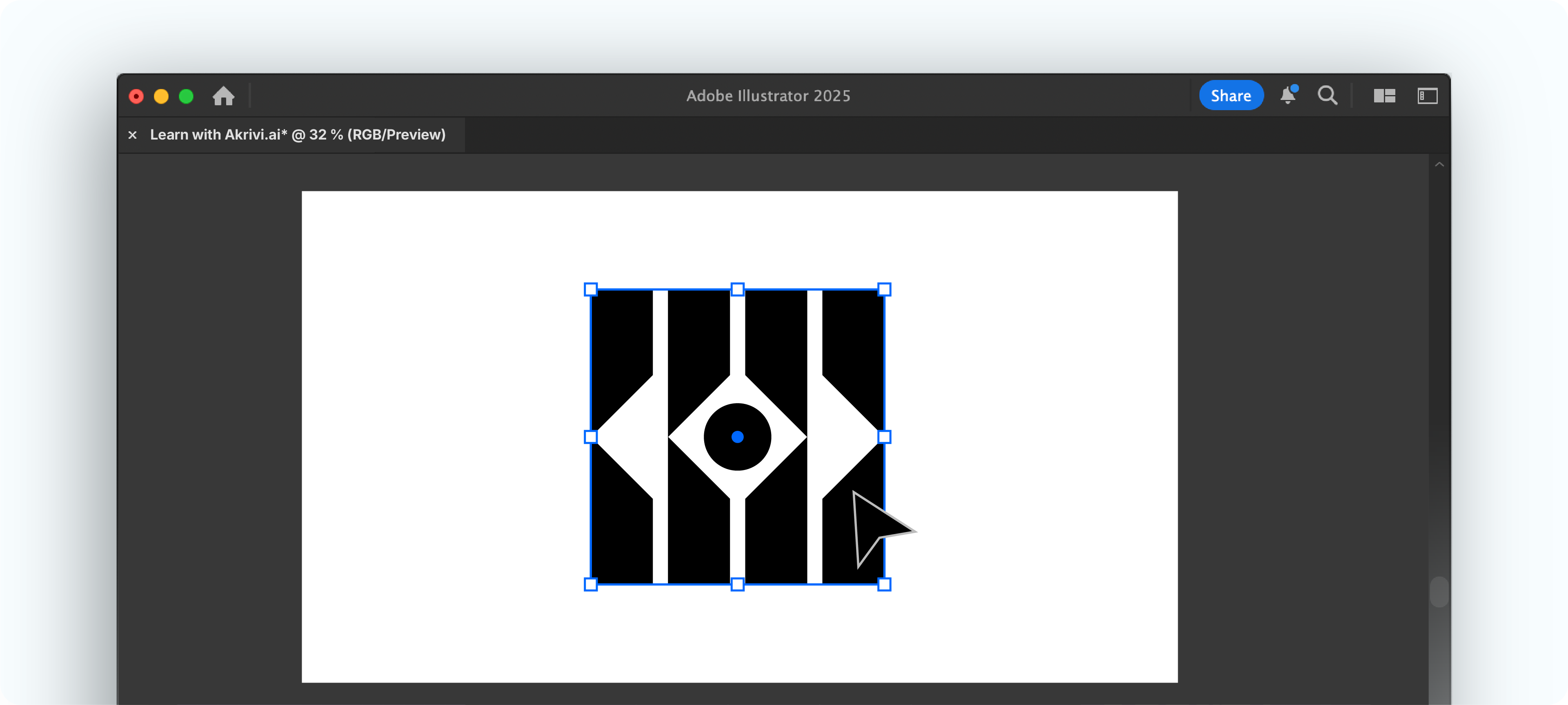
Start by selecting your logomark vector in Adobe Illustrator. This is the object the grid will be built around.
Step 2: Open Logo Grid Generator
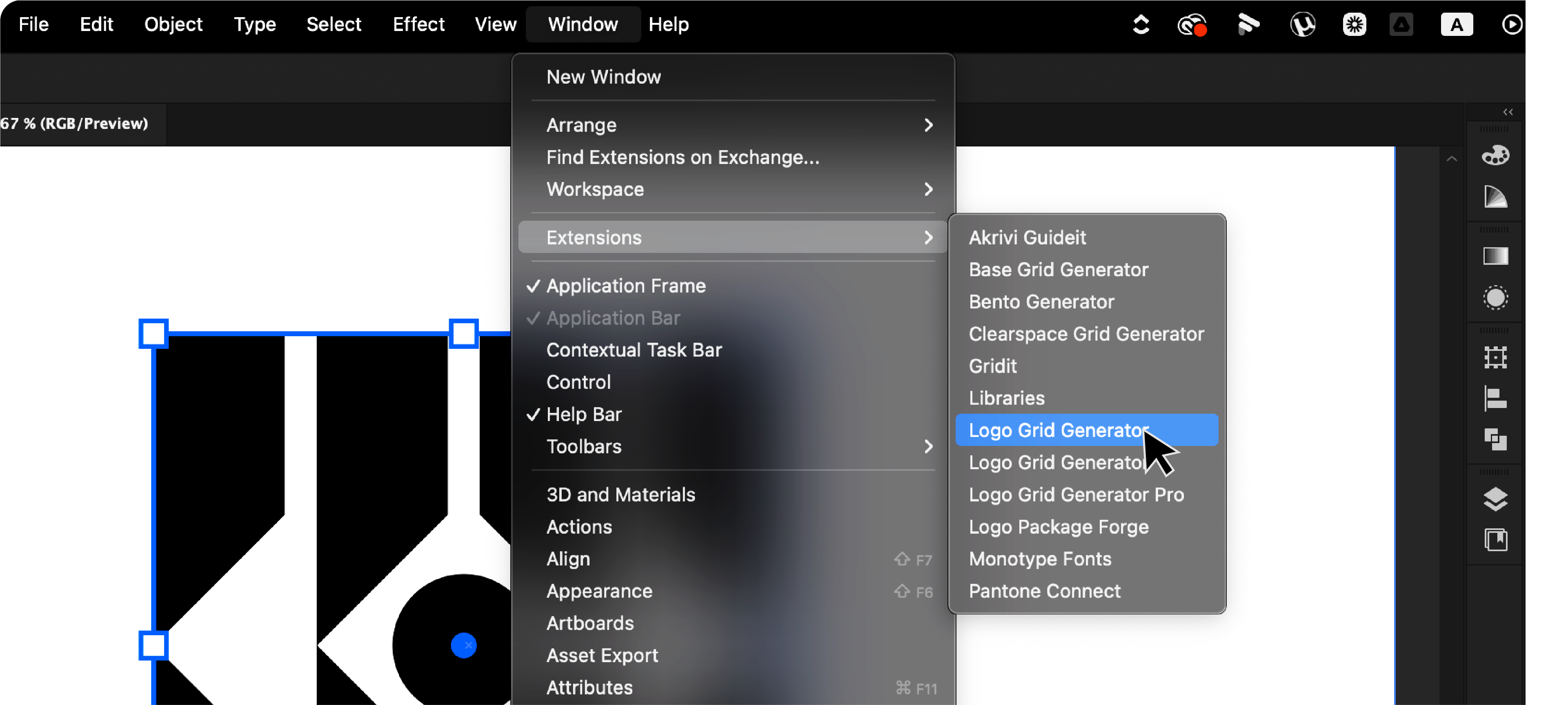
Open the Gridit plugin (Window > Extensions > Logo Grid Generator /Pro).
Step 3: Generate Your Grid
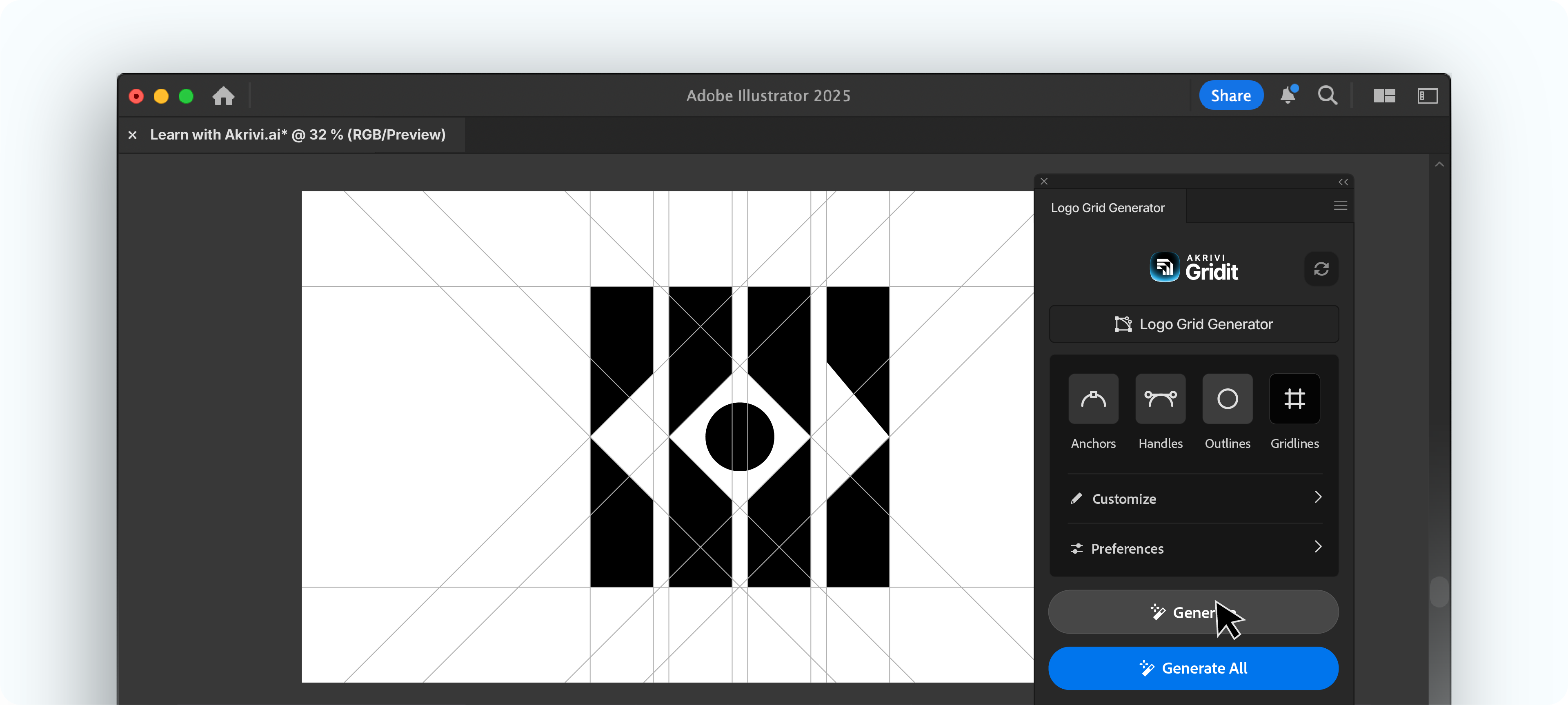
Click the Gridlines icon, and click Generate. A set of horizontal, vertical, and diagonal lines will instantly be generated based on the anchor points of your logo.
Step 4: Check for Inconsistencies
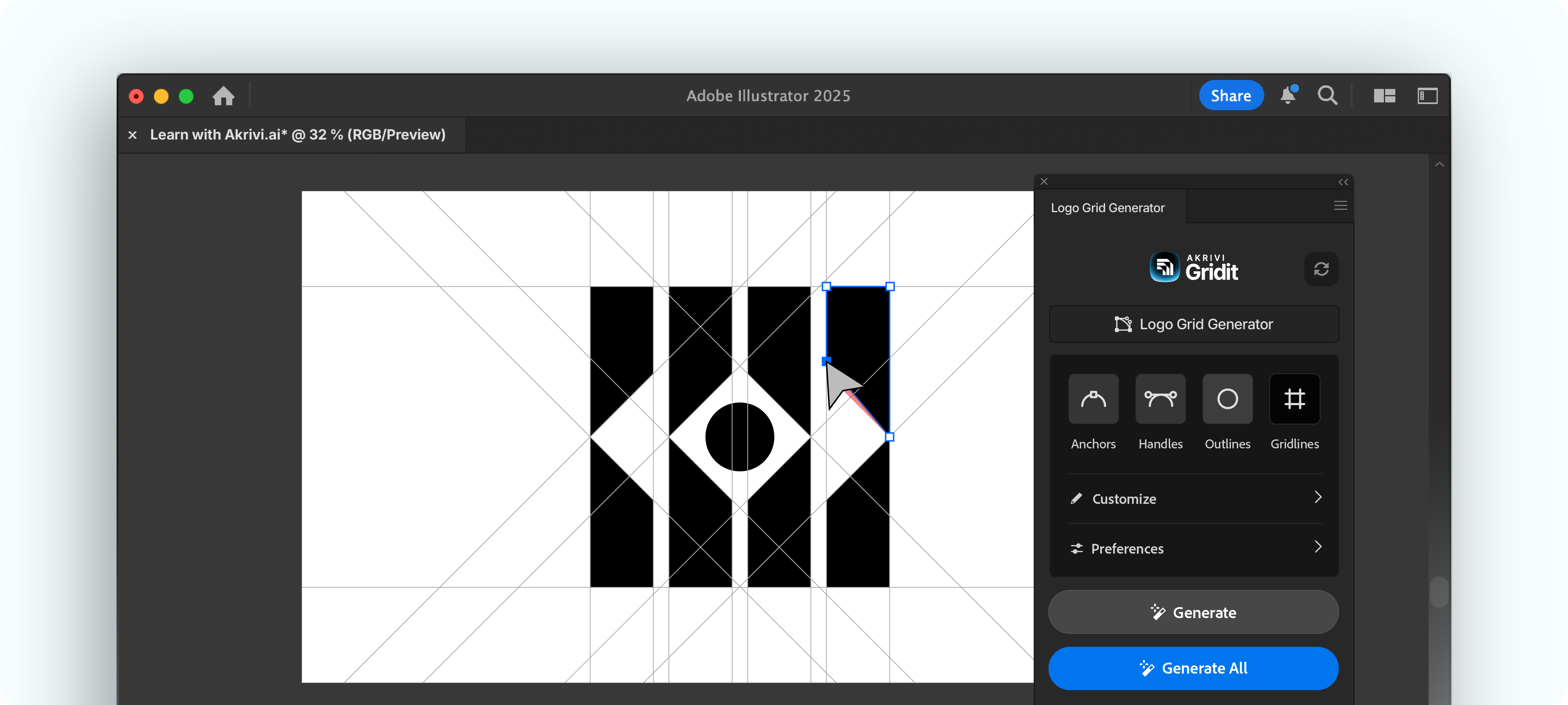
With your grid in place, you can now analyze your logomark. Do all the horizontal lines match up? Are the angles of your diagonal lines consistent? Is the spacing between elements even? This is your chance to make micro-adjustments to your anchor points and handles until every part of the logomark snaps perfectly to the grid.
The "Generate All" Button
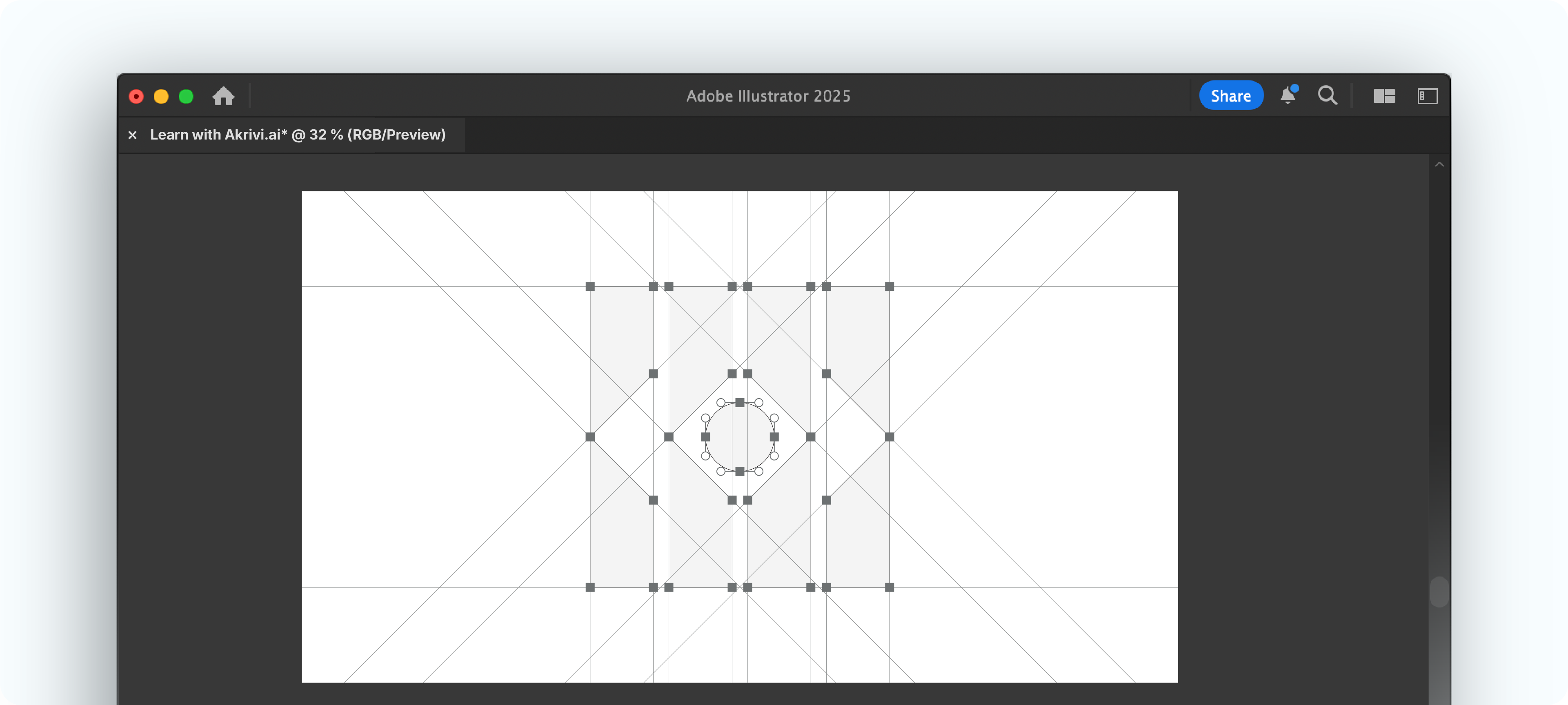
For a complete construction grid, you don’t have to click each button individually. The Generate All button does it all in one go.
This feature creates the Gridlines, Anchors, Handles, and Outlines simultaneously, giving you a comprehensive construction grid for a final presentation.
Ready to Perfect Your Logos?
Now that you know how to use the Gridlines feature in Logo Grid Generator, you can start applying it to your own geometric logo designs.
Try Akrivi Gridit™. Logo Grid Generator™ is only one of the tools that Gridit offers, learn more here.
Start with Free Template
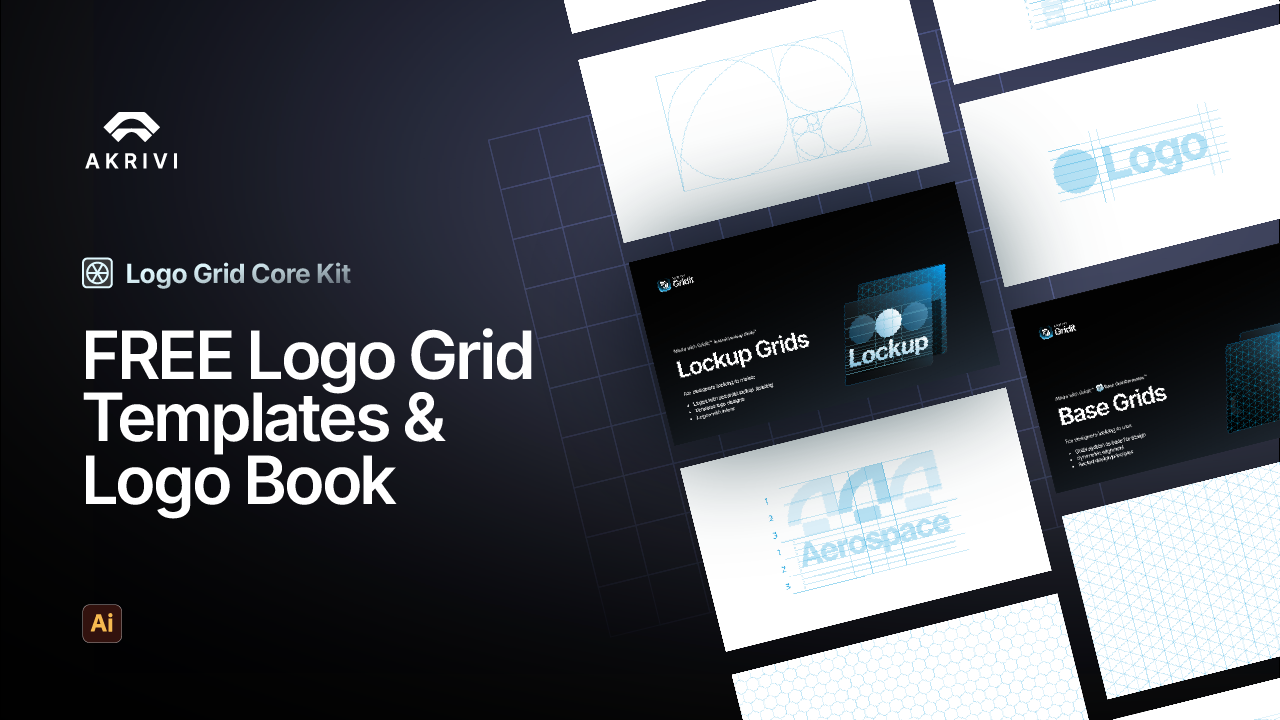
I’ve also created pre-made base grids and lockup grids you can use to start creating flawless logo designs, which can be downloaded here - Logo Grid Core Kit.
Conclusion
The Gridlines feature in the Logo Grid Generator is the fastest way to check the alignment of your logomarks. It saves you from manual work and helps you achieve perfect consistency. It’s one of the simple but powerful Gridit tools for adding that final layer of professionalism to your design work and presenting it to clients with confidence.