


The all-in-one automation suite for brand identity designers





Works with Adobe Illustrator 2021 - 2026
Deliver flawless
Everything you need, in one poweful suite


Try Akrivi Studio, includes automated templates that generates layouts for you

Best Brand Guidelines PDF Export Settings in Adobe Illustrator


Discover the best settings for exporting high-quality brand guidelines PDFs in Adobe Illustrator
You just got a role at a design agency. First week, your senior designer asks you to export the brand guidelines before an afternoon client call. You open the file on the agency laptop, hit File > Save As > Adobe PDF, and click Save PDF without touching a single setting. The document was last exported by someone else for press. Heavy compression, CMYK output, crop marks on every page. The client receives a bloated, print-ready PDF with printer marks around the entire document.
Nobody told you that Illustrator remembers the last preset used. That is the trap this post helps you avoid.
Start here: the preset
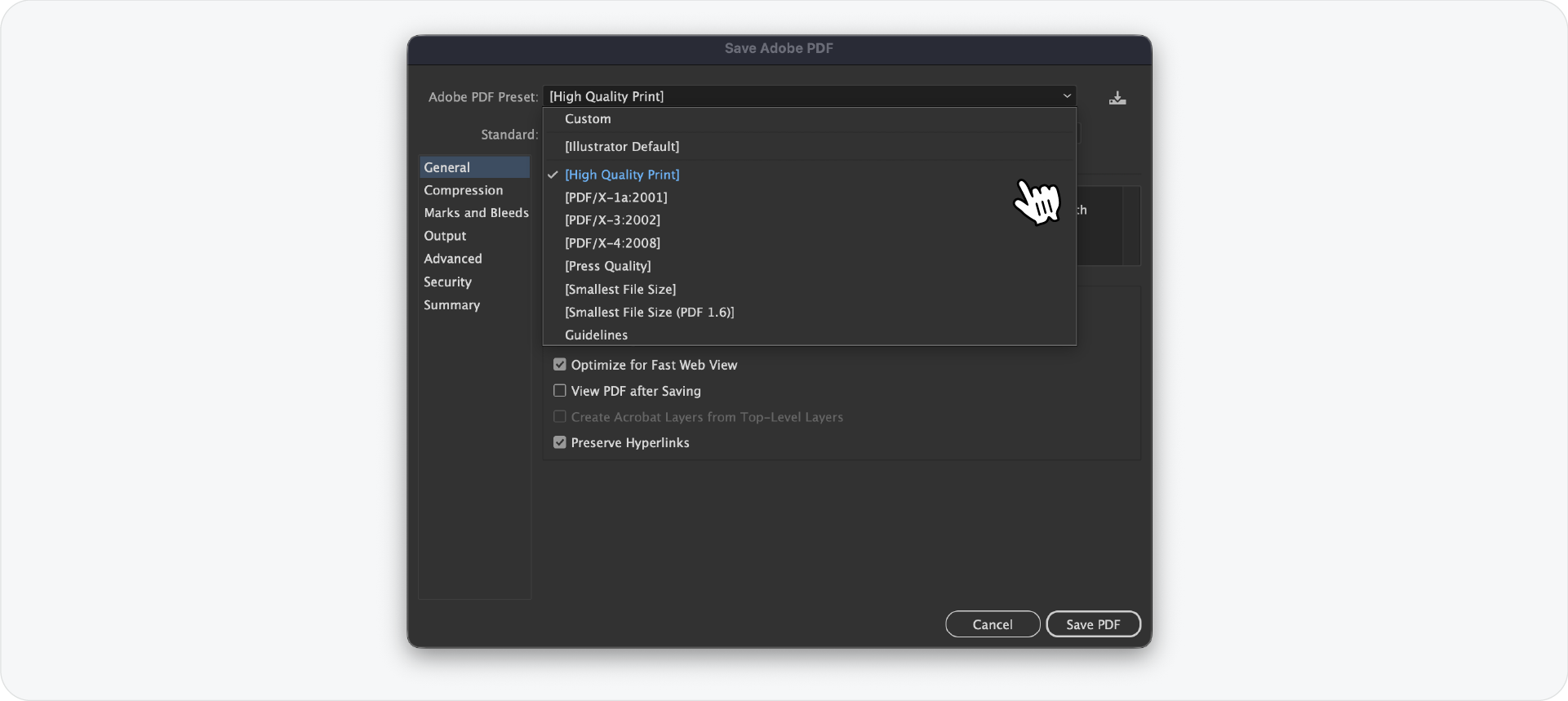
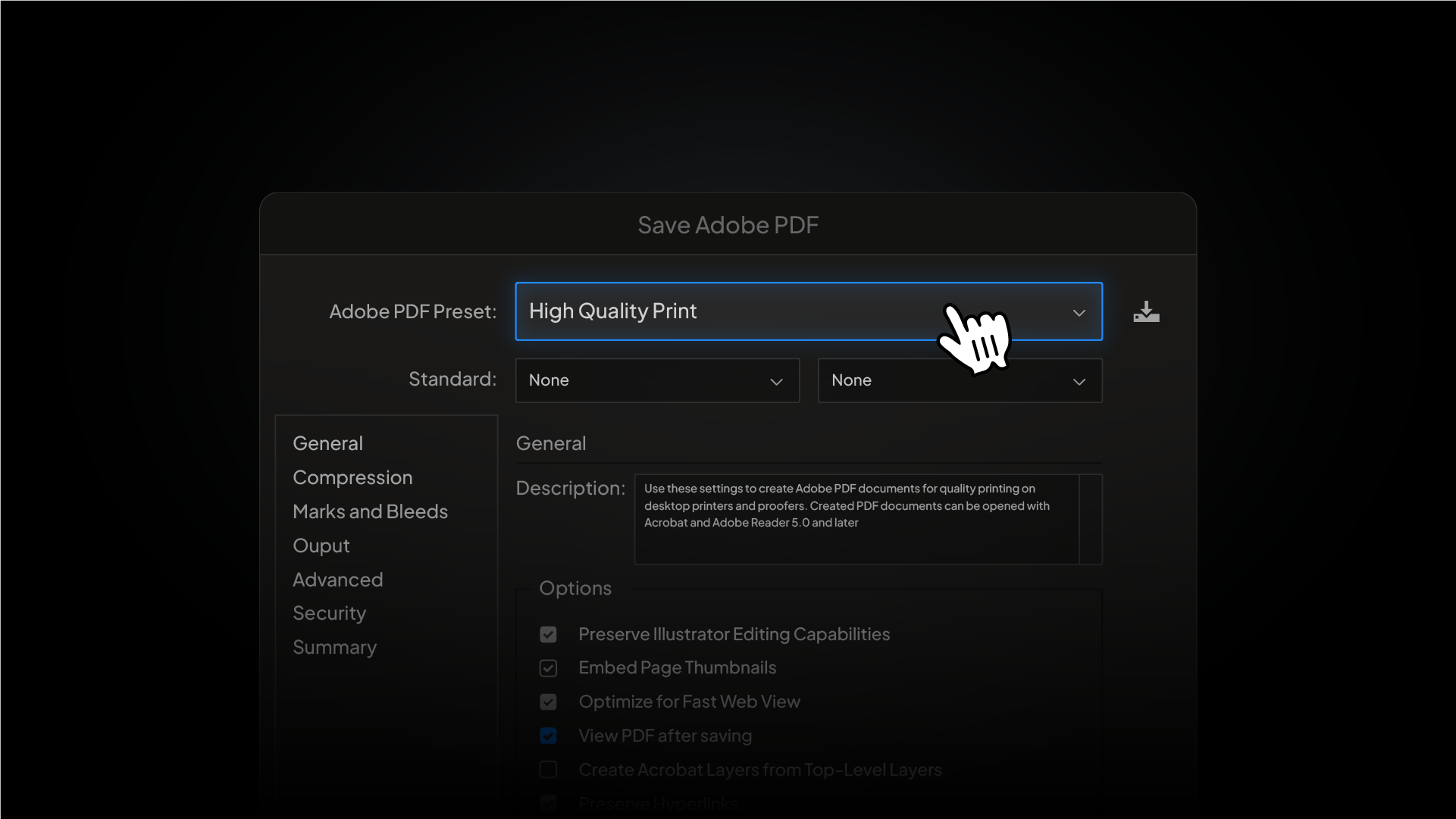
When the Save Adobe PDF dialog opens, the first thing to check is the Adobe PDF Preset at the top. Do not assume it is correct.
For a brand guidelines document being sent to a client digitally, start with [High Quality Print] as your base preset and then adjust the tabs below. Do not use Illustrator Default : it produces unnecessarily large files. Do not use Smallest File Size : it compresses images aggressively and the document will look degraded on screen.
Set Compatibility to Acrobat 5 (PDF 1.4). This ensures the file opens on virtually any machine without version conflicts, which matters when you are sending to clients whose software you cannot predict.
Leave Standard set to None unless the document is going to a print supplier who has specified otherwise.
Related Reading: If you are still building brand guidelines manually, here is how to create brand guidelines faster using Guideit before you worry about exporting them.
General tab
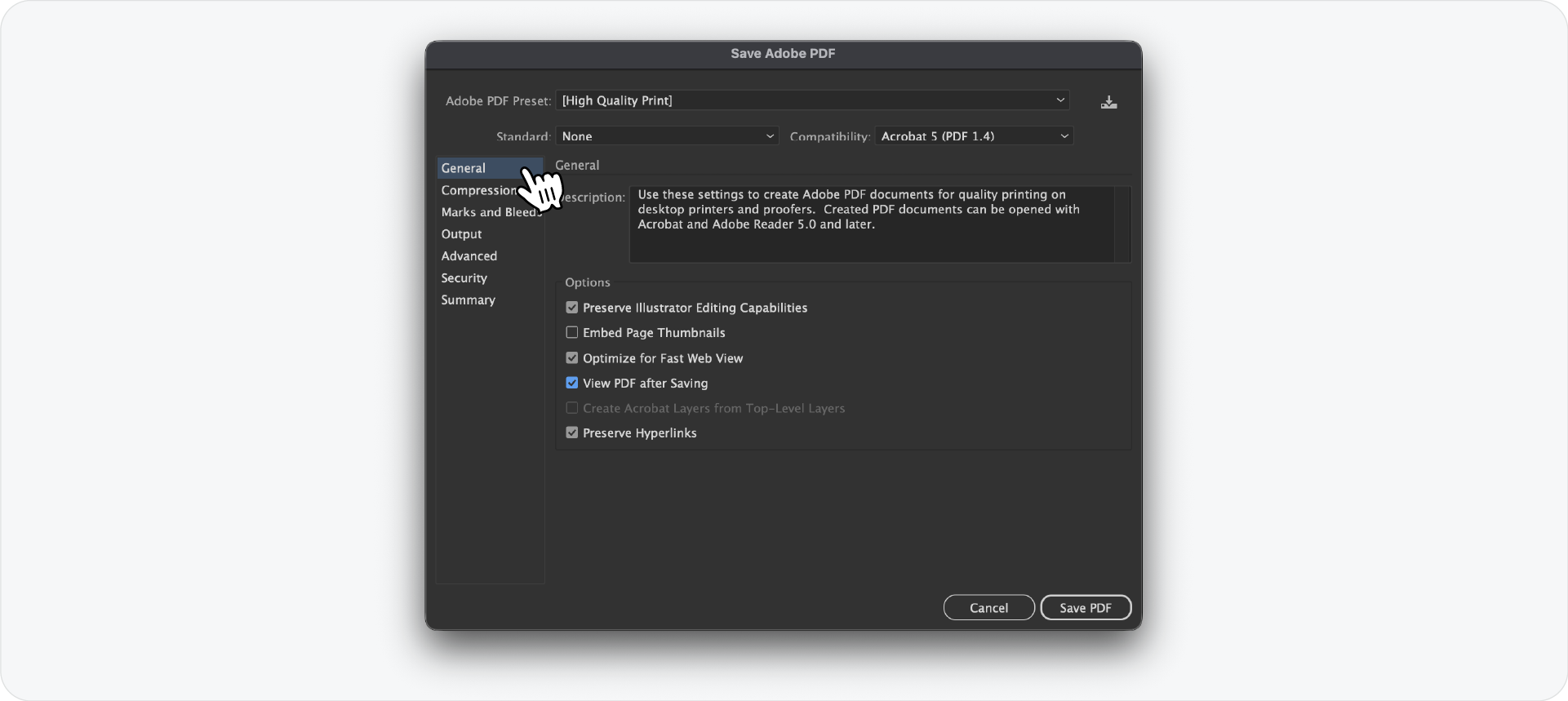
This is the most important tab for a client-facing brand guidelines document.
Preserve Illustrator Editing Capabilities: leave this checked. It embeds the Illustrator data inside the PDF so you can reopen and edit the file later without going back to the original AI file. It increases file size but for a brand guidelines document it is worth it.
Embed Page Thumbnails: uncheck this. According to the Adobe Illustrator documentation, Acrobat 5 and later generate thumbnails dynamically, so embedding them just adds unnecessary file size.
Optimize for Fast Web View: check this. It restructures the PDF so pages load progressively in a browser, which is useful if the client opens the document through a shared Google Drive or Dropbox link.
View PDF after Saving: check this so you can immediately review the export before sending.
Preserve Hyperlinks: leave this checked. If your brand guidelines include any live links, this keeps them functional in the exported PDF.
Related Reading: Not sure what a complete brand guidelines document should include before exporting? Here is a breakdown of what a brand book covers.
Compression tab
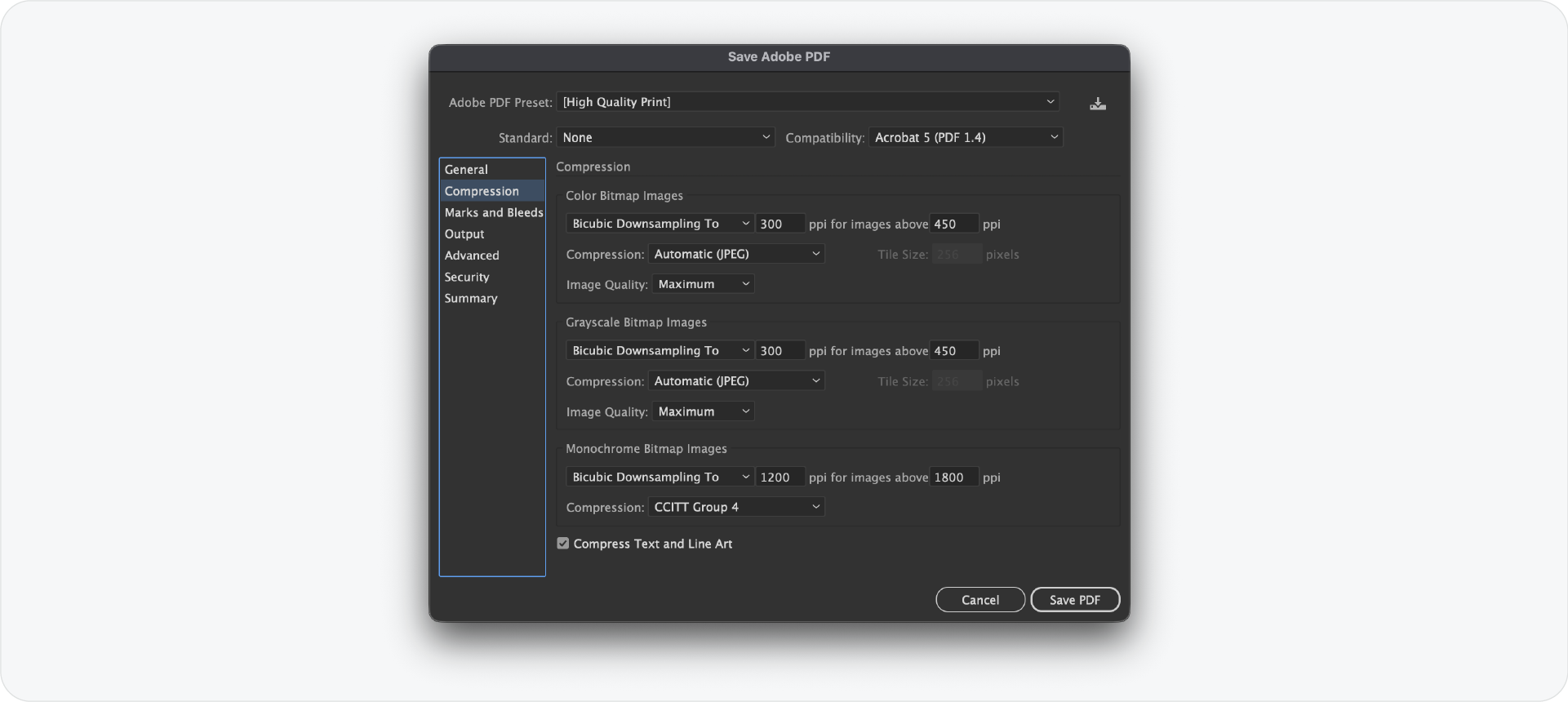
Brand guidelines documents contain a lot of vector artwork and typography. The compression settings matter most for any placed images such as photography or mockups inside the document.
For Color Bitmap Images, keep Bicubic Downsampling at 300 ppi for images above 450 ppi. Set Compression to Automatic (JPEG) and Image Quality to Maximum. This preserves sharp photography without bloating the file.
Apply the same settings to Grayscale Bitmap Images.
Leave Compress Text and Line Art checked. This applies lossless compression to vector content and text, reducing file size without affecting quality.
Marks and Bleeds tab
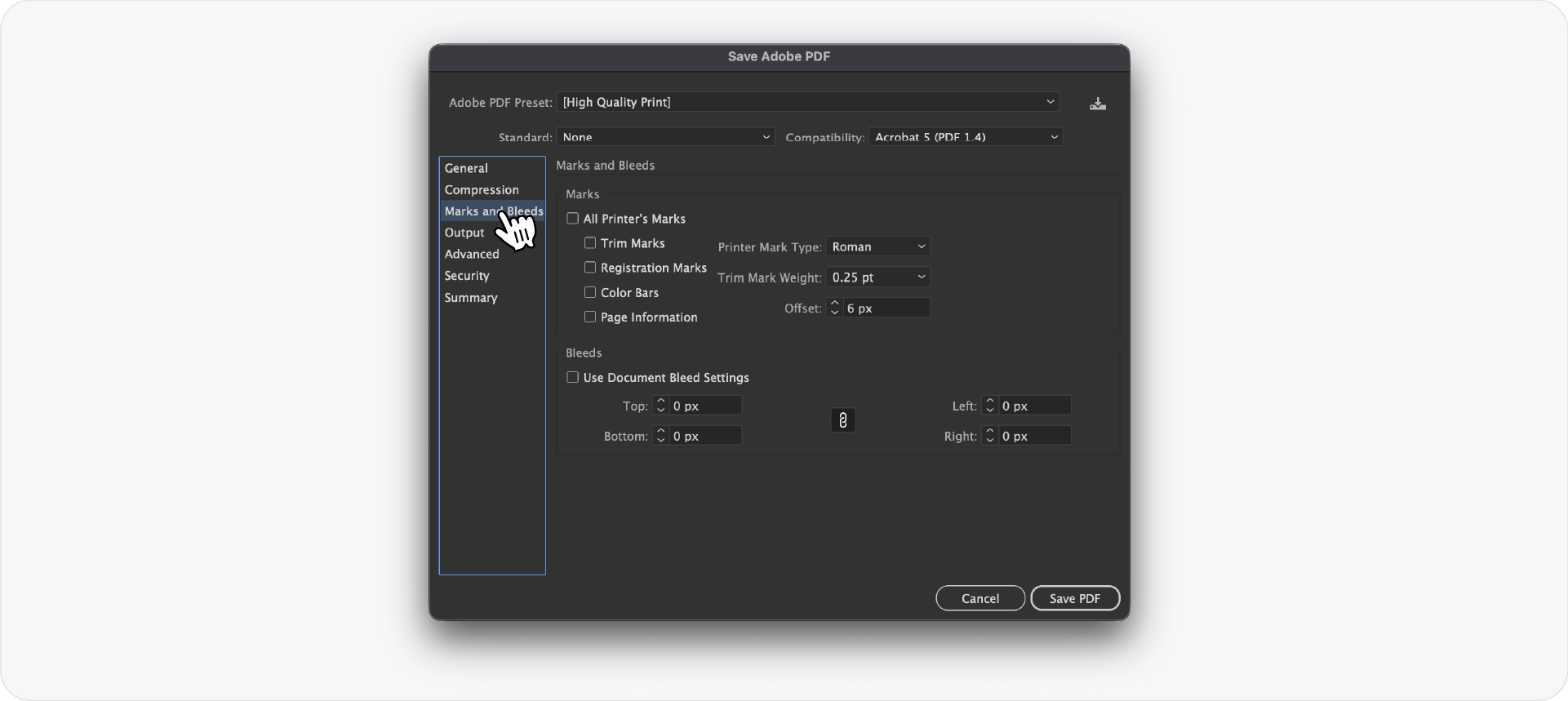
Turn everything off here. Every single checkbox.
Printer marks, trim marks, registration marks, colour bars and page information are all for print production. A brand guidelines PDF going to a client does not need any of these. Leaving them on is what caused the agency PDF disaster mentioned above. Crop marks around every page of the client document.
Set all bleed values to 0 pt and leave Use Document Bleed Settings unchecked.
Output tab
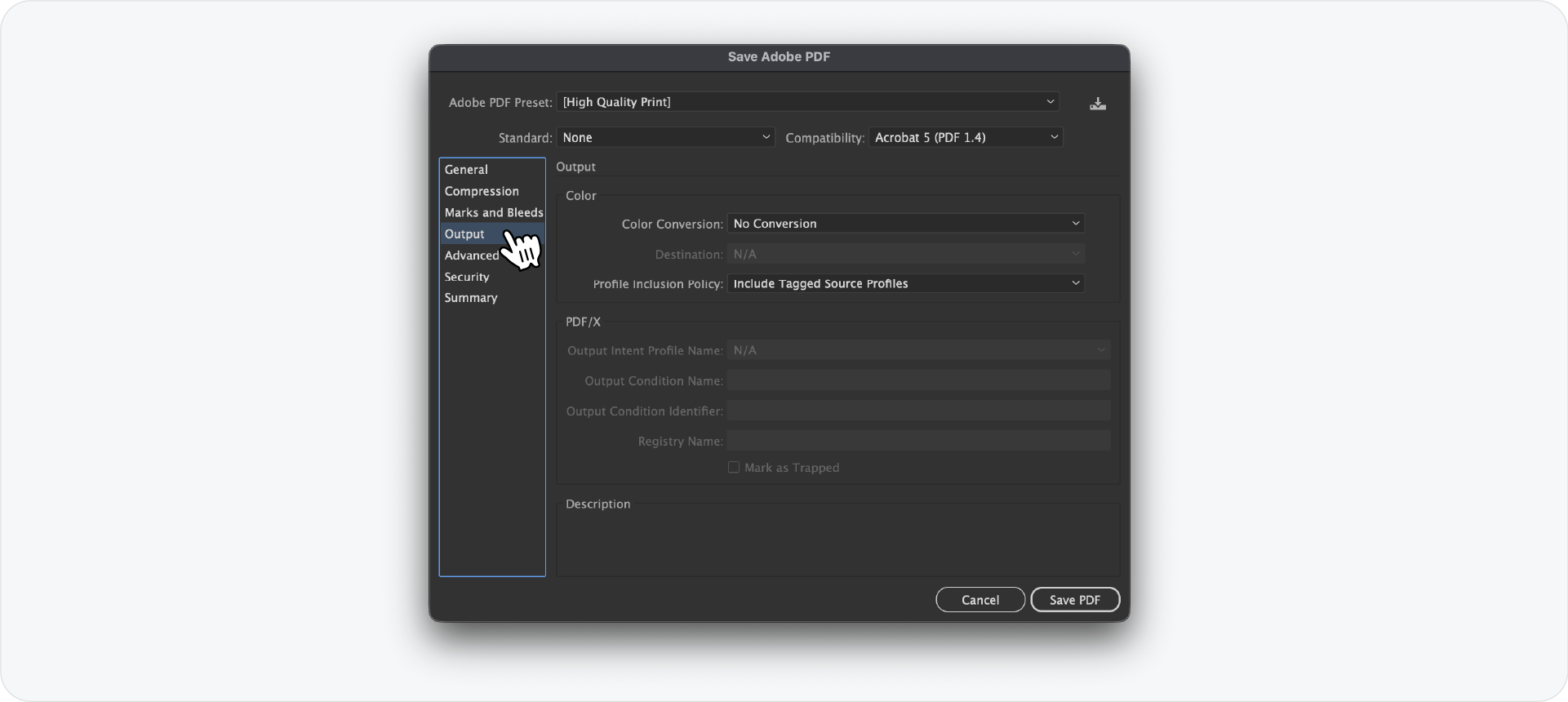
Leave Color Conversion set to No Conversion.
Brand guidelines documents are designed for screen viewing in RGB. Converting to CMYK at export will shift your colours and make the document look different on screen than it did in Illustrator. Keep the colours exactly as you designed them.
Set Profile Inclusion Policy to Include Tagged Source Profiles so the PDF carries the correct colour profile information for accurate display across different screens.
Related Reading: If you want to see how professional brand guidelines documents handle colour and layout across print and digital, here are some brand guidelines examples worth reviewing.
Advanced tab
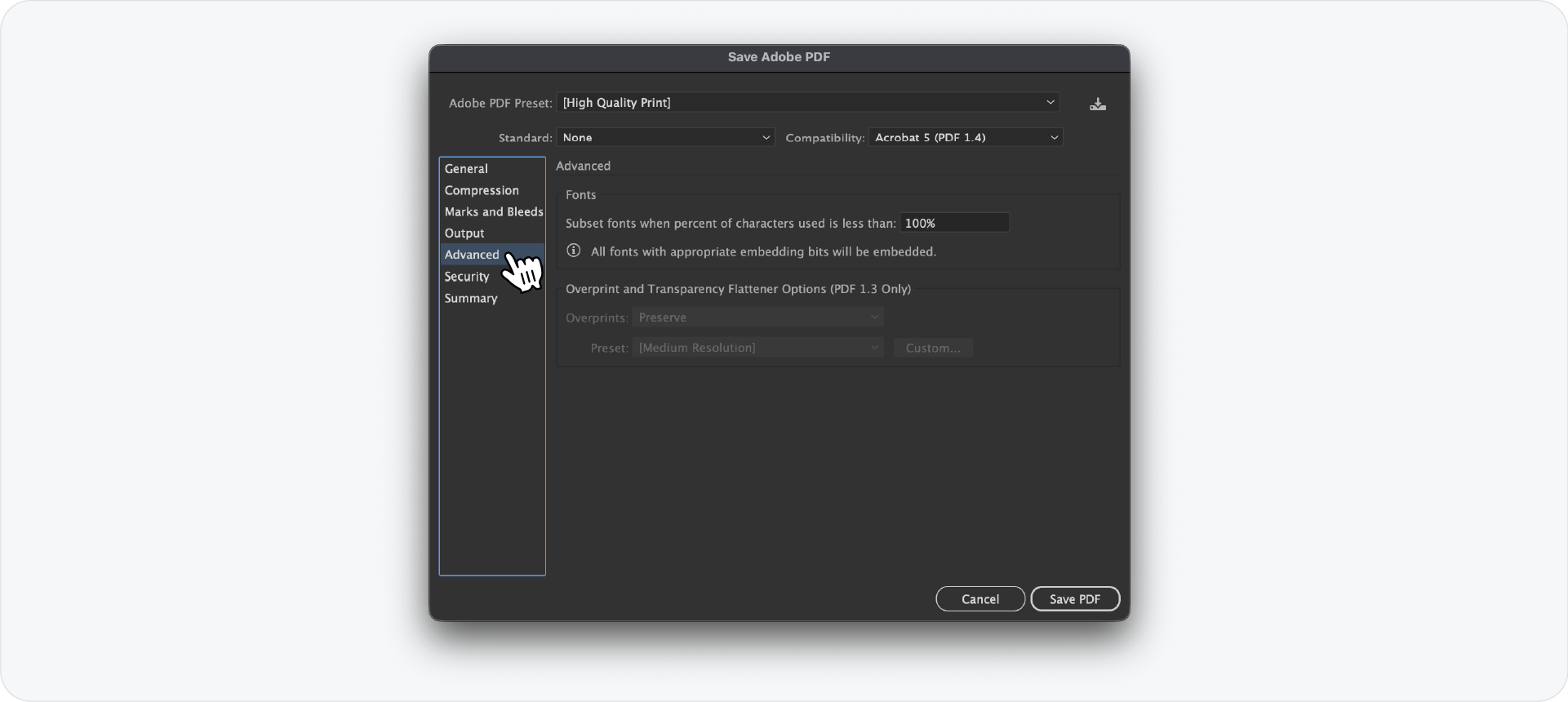
Under Fonts, the default setting subsets fonts when the percentage of characters used is less than 100%. Leave this at 100% so all fonts are fully embedded in the PDF. This ensures the document renders correctly on any machine, even if the client does not have the fonts installed.
The Overprint and Transparency Flattener options in this tab only apply to PDF 1.3 and are greyed out for our settings. Leave them as they are.
Security tab
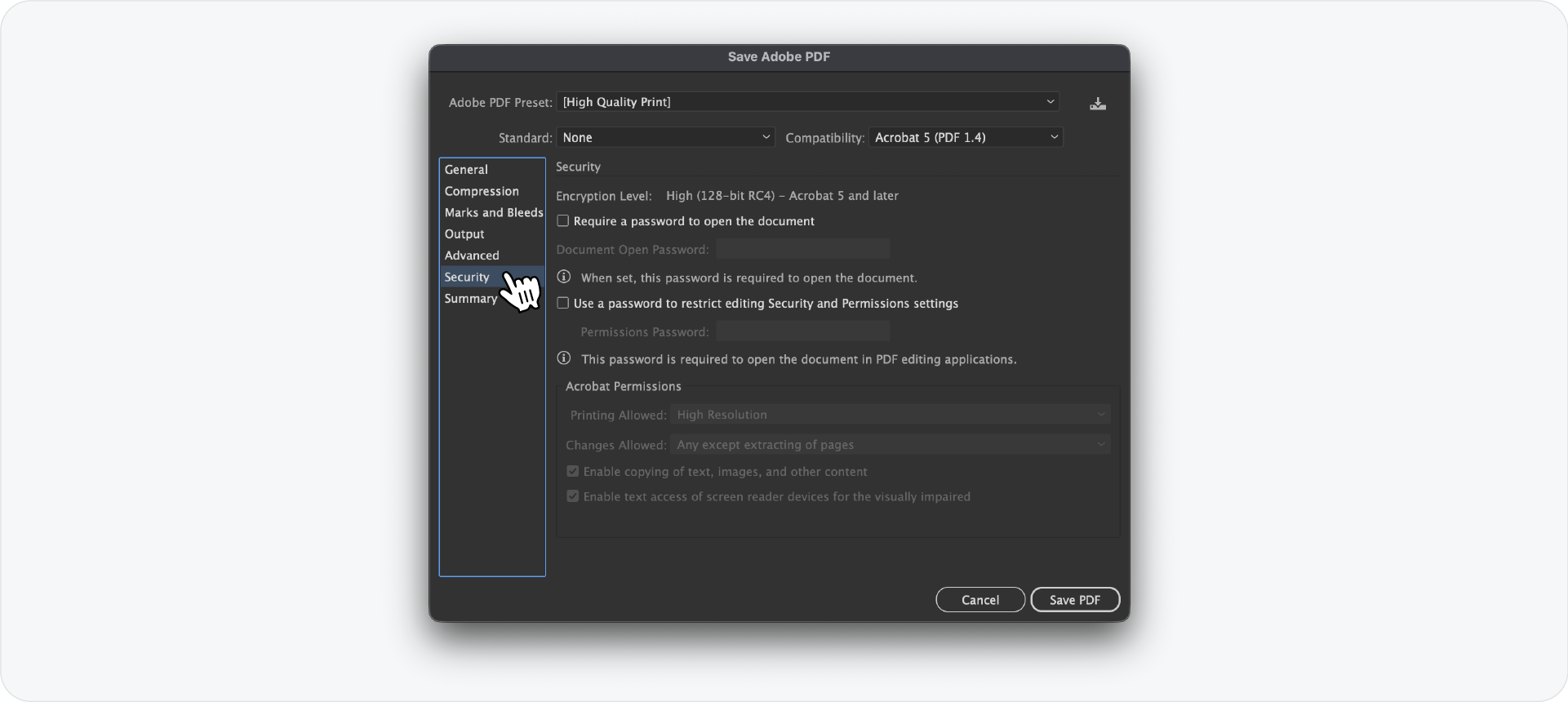
For most brand guidelines deliveries, leave all security options off. The client needs to be able to open, view, and copy content from the document without any friction.
If you are working on a sensitive project where you want to prevent editing of the PDF itself, you can set a permissions password. But do not set a document open password unless specifically requested. There is nothing more frustrating than a client who cannot open their own brand guidelines.
Summary tab
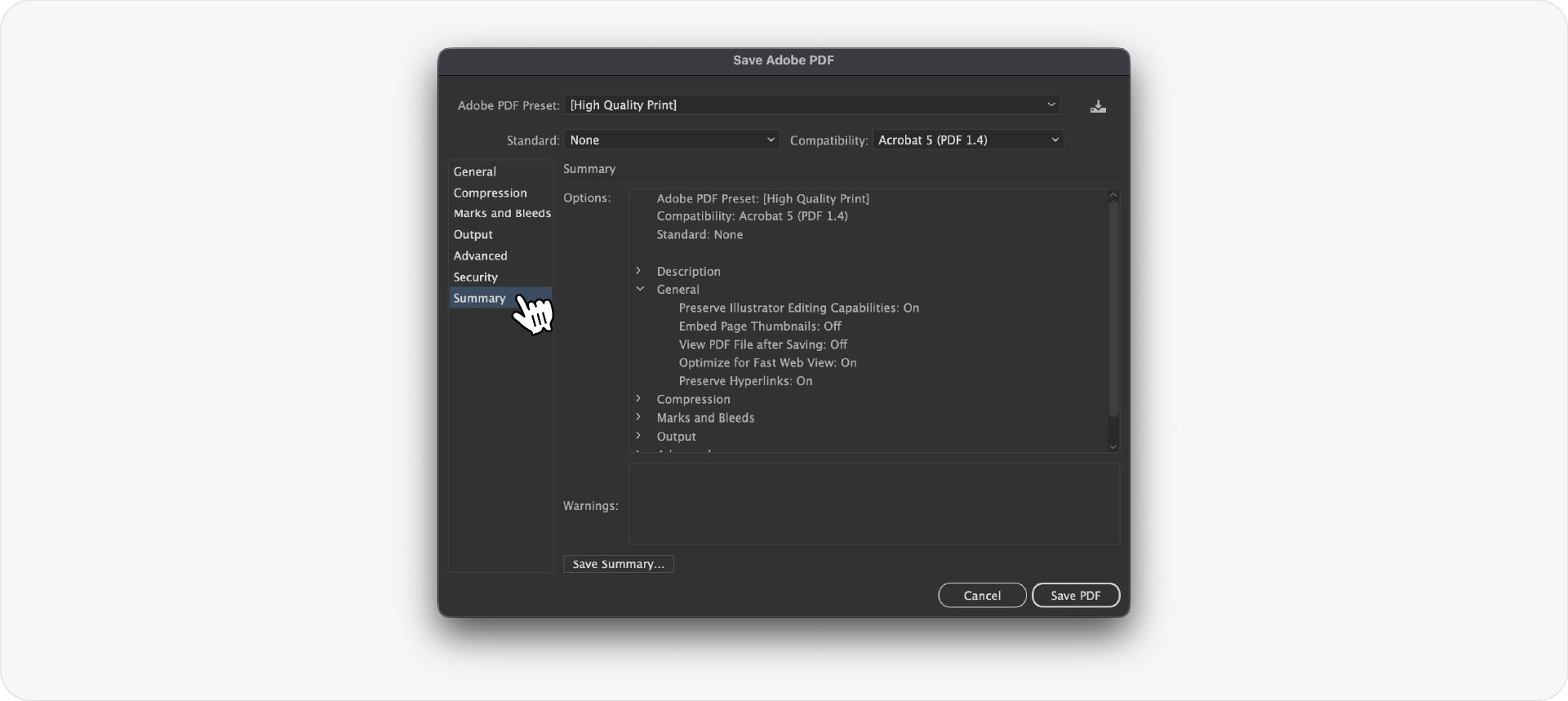
Before clicking Save PDF, check the Summary tab. It shows a full list of your current settings and will flag any warnings. If there is a warning, go back and address it before exporting.
Save it as a custom preset
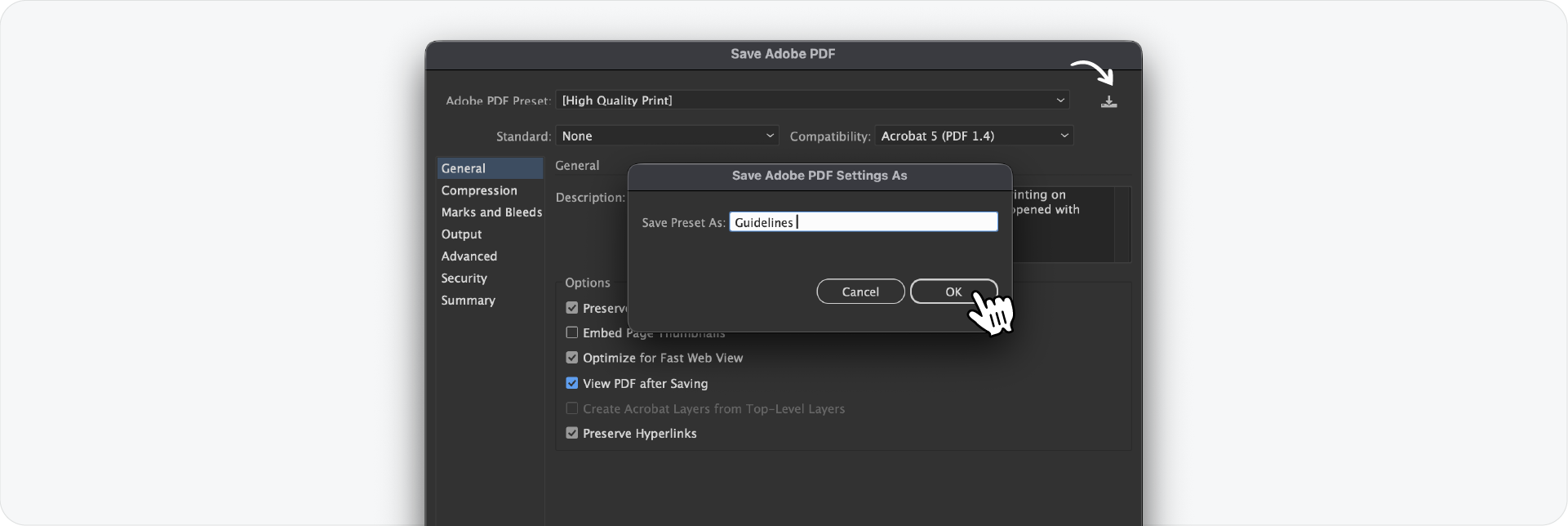
Once your settings are correct, save them as a custom preset using the download icon at the top right of the dialog. Name it something clear like Guidelines. The next time you export, select this preset from the dropdown and every setting is already configured.
This also protects against the scenario above. If someone else uses the same machine and changes the settings for a print job, your preset is still there and you select it deliberately rather than accepting whatever was last used.
Related Reading: Once your brand guidelines are exported and ready to deliver, here is how to share them with clients using Google Drive or Dropbox so they always have access to the latest version.
Bonus: exporting via Export for Screens
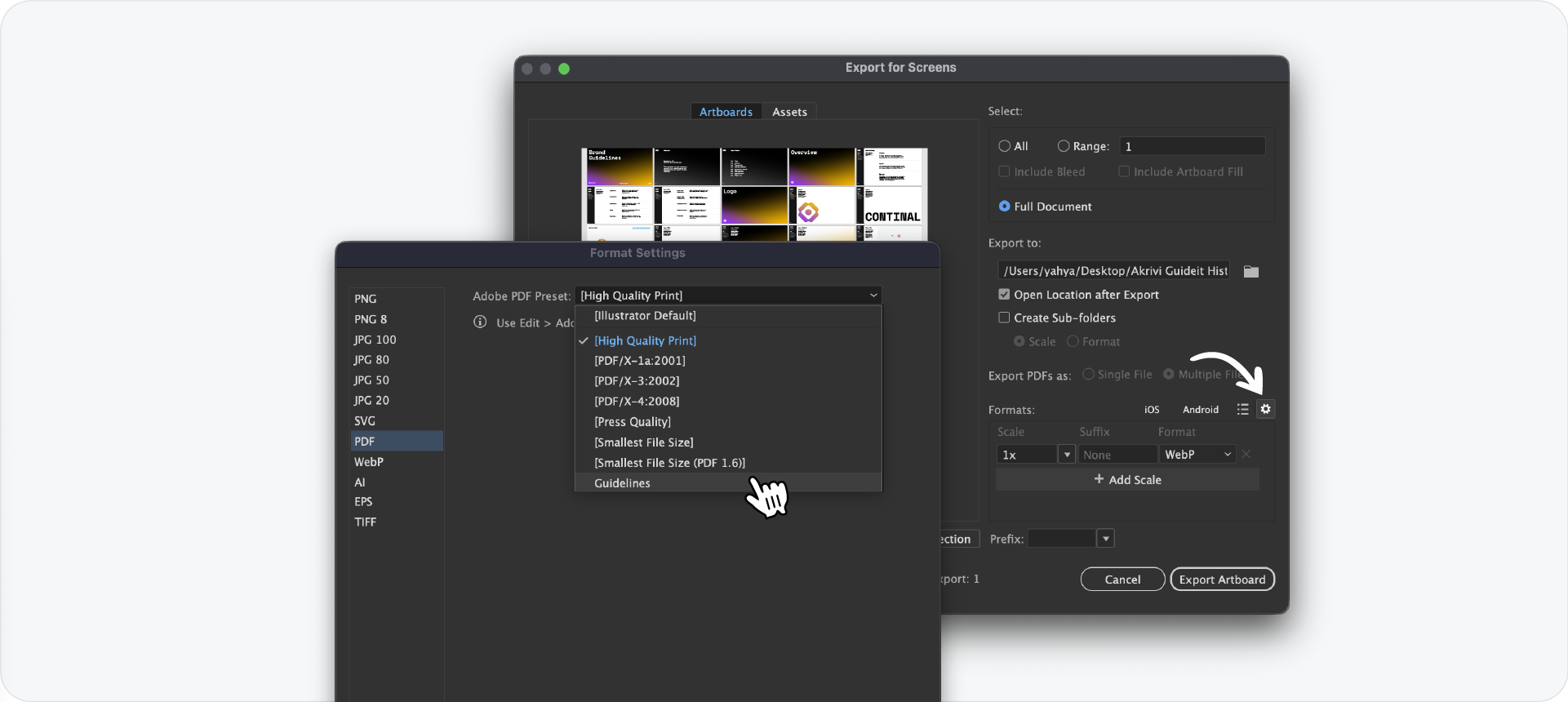
If you export brand guidelines using File > Export > Export for Screens rather than Save As, you can access your saved preset there too. Select PDF from the format list, click the settings icon next to the preset dropdown, and your Guidelines preset will appear alongside the defaults like High Quality Print.
Select Full Document, choose your preset, and export. It saves for future use across projects, though it is worth double-checking the settings when starting a new project since colour spaces and document specs can vary.
Related Reading: If you’re in the delivery phase after creating a brand identity system, you’ll also need to include a logo package for your client. Read this guide to learn how to export logo files for clients, and this guide to discover which files to send.
Generate your brand guidelines with Guideit first
If you are still laying out brand guidelines manually before getting to the export stage, Guideit generates a complete brand guidelines document inside Adobe Illustrator from your brand assets in seconds. The free trial gives you full access to generate your first document at no cost.
If you would rather start from a template, the free brand guidelines templates are available to download and use in Illustrator directly.
Conclusion
Getting the export settings right takes five minutes the first time. Save them as a custom preset and you never have to think about it again on any project.




