The all-in-one automation suite for brand identity designers




Deliver flawless
Everything you need, in one poweful suite




What Are the Different Logo Formats?
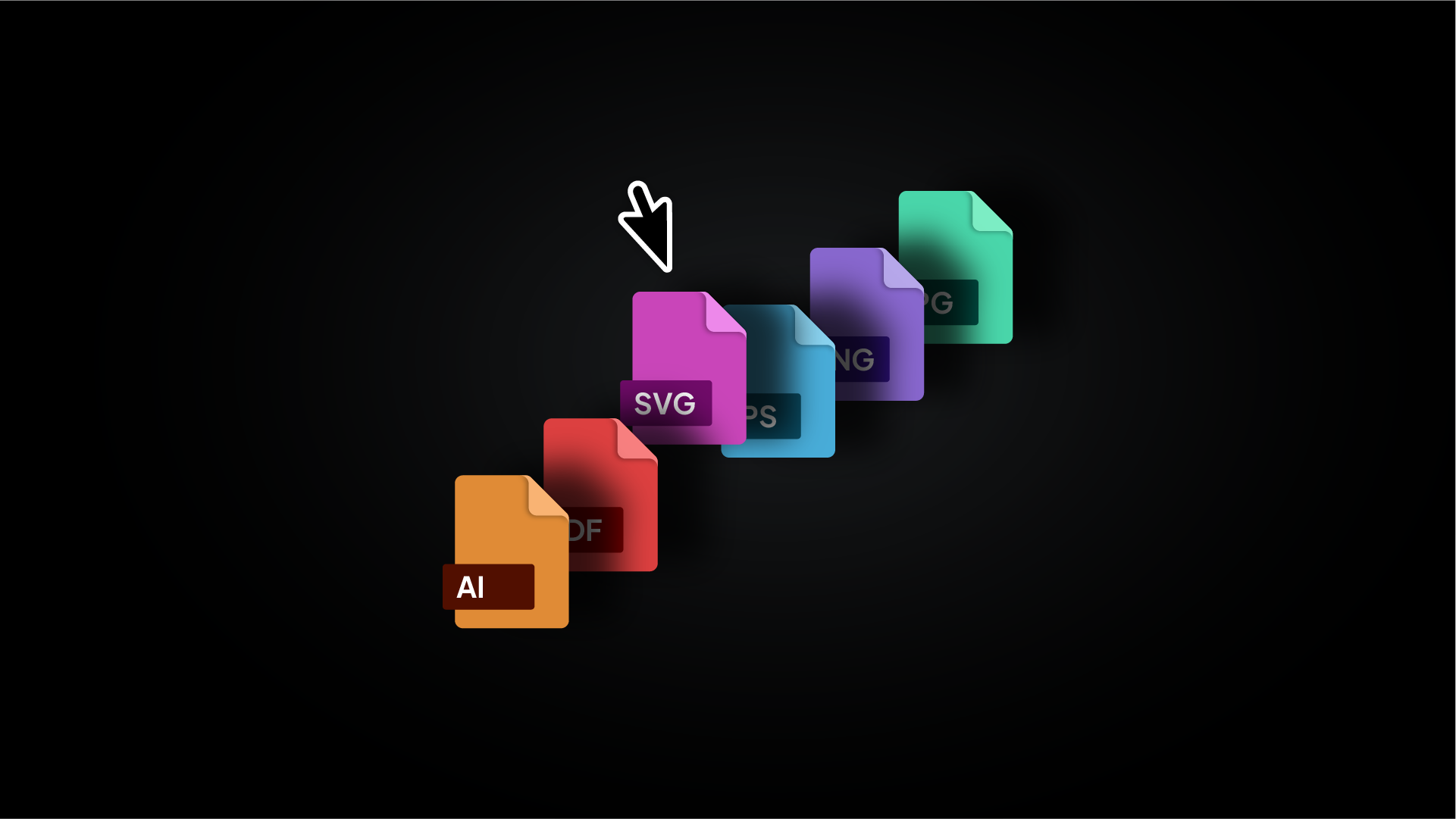
Logo file formats explained, with the dos and don'ts for every context
Every logo project produces the same question at handoff: which file goes where? The answer is not complicated, but getting it wrong causes real problems. A raster file sent to a large-format printer, an EPS embedded in a website, a JPG delivered as the primary vector, all of these happen more often than they should.
This is a breakdown of every logo format, what it is built for, and the dos and don'ts that keep your deliveries clean.
Vector formats
Vector files are built from mathematical paths, not pixels. They scale to any size without loss of quality and are the foundation of every logo package. Always created in Adobe Illustrator.
Related Reading: For the full list of files to include in a client delivery, visit the logo files hub. And for a deeper look at how vector and raster files behave differently under the hood, read Vector vs Raster Logos: What Designers Need to Know.
AI: Adobe Illustrator

The master file. Every other format in the package is exported from this. It is fully layered, fully editable, and contains the original artwork exactly as it was built.
Do:
- Include it in every client delivery
- Keep a clean, well-named version with all unused layers removed
- Use it as the source for all future exports and edits
Don't:
- Send it as the only file, most clients cannot open it without Illustrator
- Include hidden scratch layers or unused artboards in the delivered file
- Flatten layers before saving
PDF: Portable Document Format

The most practical vector format for handoff. A PDF preserves vector paths and can be opened on any device without design software. It is fully editable in Illustrator and is increasingly the preferred format for both print production and digital sharing.
Do:
- Use PDF as the primary handoff format for print suppliers and agencies
- Export as PDF/X-1a or PDF/X-4 for professional print
- Include in both the web and print folders of the package
Don't:
- Password protect the delivered file unless specifically requested
- Flatten the file on export, keep paths live
- Assume every PDF is vector, always check the export settings
SVG: Scalable Vector Graphic

The standard vector format for web and digital platforms. SVG files are written in XML code that browsers can read and render at any size on any screen resolution. They are typically small in file size and stay sharp on retina displays.
Do:
- Use SVG for all website logo placements
- Set the artboard to fit tightly to the logo before exporting
- Include SVG in the web folder alongside PNG
Don't:
- Send SVG to a print supplier, it is a web format
- Embed raster images inside an SVG export
- Use SVG for email, most email clients do not render it correctly
Related Reading: For export settings and how to correctly set up SVGs in Illustrator, read the how to export logo files guide.
EPS: Encapsulated PostScript

An older vector format that has largely been replaced by PDF for most workflows. Still requested by some print suppliers, embroidery machines, and sign makers running legacy software. Worth including in the print folder as a fallback.
Do:
- Include EPS in the print folder for every package
- Export at Illustrator 8 compatibility for maximum supplier compatibility
- Convert all fonts to outlines before saving
Don't:
- Use EPS for web or digital contexts
- Send EPS as the primary vector format, PDF is the modern standard
- Expect clients or non-designers to open it on their own
Raster formats
Raster files are made up of pixels. They are resolution-dependent, which means they need to be exported at the correct size for each context. Only web and digital use requires multiple sizes, print is always handled with a vector.
PNG: Portable Network Graphic

The primary raster format for digital use. PNG supports transparent backgrounds, which makes it the correct choice for any context where the logo needs to sit on a colour, photograph, or non-white background. PNG uses lossless compression, so quality is retained at the exported size.
Do:
- Export at multiple sizes: 16px, 512px, 1024px, and 2048px
- Always export with a transparent background
- Use PNG for websites, presentations, social media, and digital marketing assets
Don't:
- Send PNG to a print supplier as a substitute for a vector
- Export at a small size and expect the client to scale it up
- Use PNG for email signatures, the file size is often too large
Related Reading: For the full size reference guide, read the logo sizes guide.
JPG: Joint Photographic Experts Group

A compressed raster format with no transparency support. JPG produces a smaller file size than PNG by using lossy compression, which means some image data is discarded on export. Useful for email signatures, social media previews, and any digital context where transparency is not needed and file size matters.
Do:
- Export at 100% quality to minimise compression artefacts
- Use JPG for email signatures and platforms that do not support PNG
- Export at the same sizes as PNG
Don't:
- Use JPG anywhere a transparent background is needed, it always exports with a white fill
- Re-save a JPG multiple times, each save degrades quality further
- Send JPG as a substitute for a vector file
Format quick reference
Download the Logo File Structure
Knowing which format does what is one part of a clean delivery. The other is having a structure to put it all in. Download the Logo File Structure freebie - a pre-built folder system organised by variation, colour space, and format so every file has a clear place from the start.

Conclusion
Each format has a specific job. Use vectors for print and scalability, SVG for web, PNG for transparent digital use, and JPG where file size matters and transparency does not. Get the format right for each context and the client will always have the right file without needing to come back to you.