


The all-in-one automation suite for brand identity designers




Works with Adobe Illustrator 2021 - 2026
Deliver flawless
Everything you need, in one poweful suite


Try Akrivi Studio, includes automated templates that generates layouts for you

PPI vs DPI: What's the Difference?


Two terms designers mix up constantly
PPI and DPI come up every time you export logo files or prepare assets for print. They sound similar, they both describe density per inch, and most designers use them interchangeably. They are not the same thing, and confusing them causes real problems in client deliveries.
Here is a plain breakdown of what each term means and exactly when it matters.
What is PPI?

PPI stands for Pixels Per Inch. It describes how many pixels are packed into one inch of a digital image. The higher the PPI, the more detail is stored in the file and the sharper it appears on screen or when printed.
PPI is a digital measurement. It applies to image files, screens, and any context where pixels exist. When you export a PNG from Adobe Illustrator and set the resolution, you are setting the PPI.
What is DPI?

DPI stands for Dots Per Inch. It describes how many ink or toner dots a printer places per inch on paper. Unlike pixels, printed dots vary in size and are made up of a small number of base colours, usually CMYK, that combine to simulate a full colour image.
DPI is a physical measurement. It belongs to printers, not files. A 300 DPI printer places 300 ink dots per inch on paper to reproduce the image.
PPI vs DPI: the key difference
PPI lives in the file. DPI lives in the printer. When you send a logo to a print supplier, the PPI of your file determines the quality of the source image, and the DPI of their printer determines how well it can reproduce that image on paper.
Why PPI matters for logo exports

When you export a PNG or JPG from Illustrator, the PPI setting determines the resolution of that raster file. A 72 PPI file is correct for digital use. A 300 PPI file is needed if the client is going to print the raster version.
The practical rule: export PNG and JPG at 72 PPI for web and digital use. If a client specifically needs a raster file for print, export at 300 PPI at the required physical dimensions.
Related Reading: For the full export settings by format, read the guide on how to export high resolution logos in Adobe Illustrator.
Why PPI does not apply to vector files

Vector files (AI, PDF, SVG, and EPS) have no PPI. They are not made of pixels. They are built from mathematical paths that scale to any size without any loss of quality.
When you export a logo as a PDF or EPS for a print supplier, resolution is irrelevant. The vector scales to whatever size the printer needs, from a business card to a 10-metre banner. PPI only becomes relevant when you export a raster file.
Related Reading: For a full breakdown of how vector and raster files behave differently, read Vector vs Raster Logos: What Designers Need to Know.
Which resolution to use for logo exports
Related Reading: For the complete size and format reference by platform, read the logo sizes guide.
The practical takeaway for designers
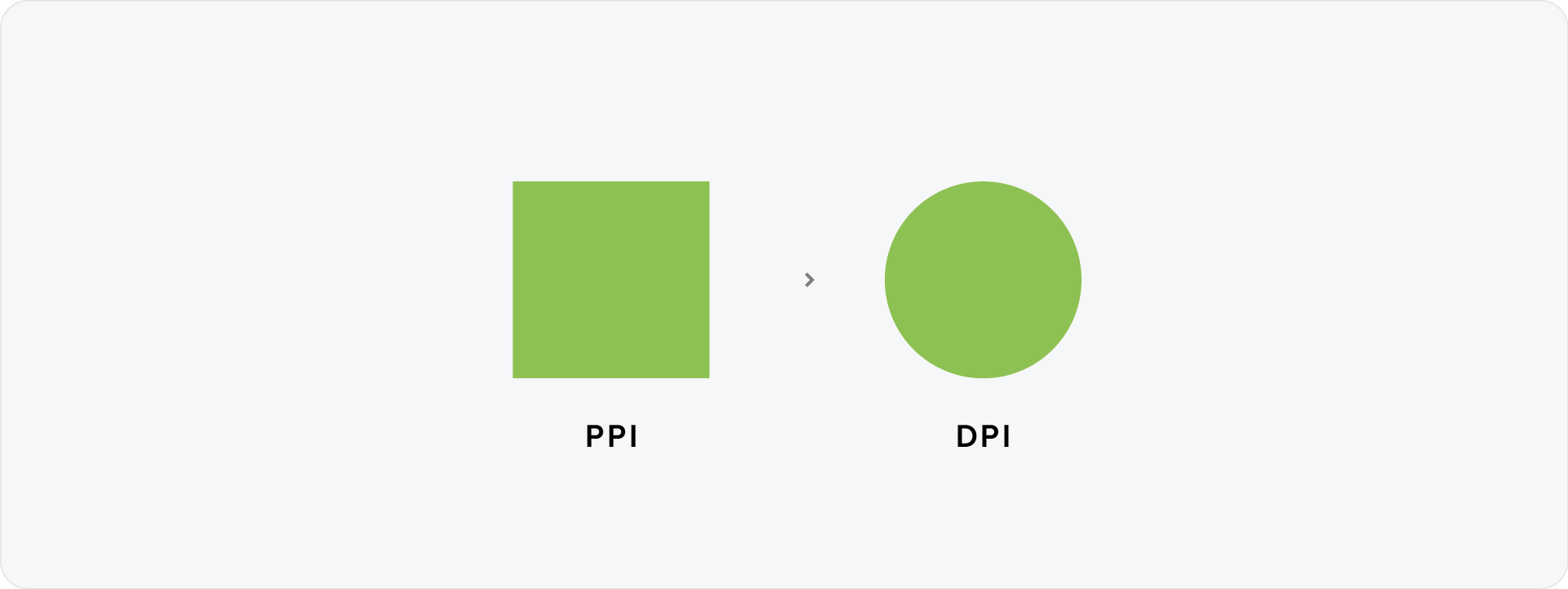
You control PPI. You do not control DPI. That is the printer's job. What you can do is give the printer a file with enough resolution to work with. For raster files, 300 PPI at the correct physical dimensions is the minimum for professional print. For everything else, send a vector and let the printer handle the rest.
Related Reading: For which formats belong in the print folder and which belong in the web folder, read which logo file formats to use for print. And for the full overview of every format in one place, the Ultimate Guide to Logo File Formats covers everything.
Export all your logo files at the right resolution with Exportit
Setting PPI correctly for every format, every colour variant, and every size in a full logo package takes time to do manually. Exportit handles it automatically inside Adobe Illustrator.
Select your logo lockups, choose Print and Web, and Exportit generates every file at the correct resolution and in the correct colour mode. Raster files for digital use at the right PPI, vector files for print at the correct colour space, all organised into the delivery folder automatically.
No manual resolution settings, no format switching. Get started with Exportit and save the setup time on every project from this point forward.

Conclusion
PPI is the resolution of your digital file. DPI is the output density of a printer. Set PPI correctly when exporting raster files, always use vectors for print production, and let Exportit handle the export settings so nothing gets missed.



